NETGEAR is aware of a growing number of phone and online scams. To learn how to stay safe click here.
Forum Discussion

meanjeanslo
Oct 17, 2023Guide
After firmware update - satellite disconnected and unable to reconnect
Hello, I have an Orbi RBK20 set with a router RBR20 and 1 satellite RBS20. I downloaded and installed the most recent firmware V2.7.4.24. The router updated fine and still works/connects. I am cu...
- Oct 28, 2023
Just wanted to make my final post on this. I truly appreciate all of the feedback I received which helped me troubleshoot!
After all of the troubleshooting and not being able to get this to connect, I finally decided to quit trying with it. It was a great system as long as I had it and I'm sure glad I ordered a newer model for my house. I was able to give my neighbors the router to use in AB mode and it's cleared up their cable TV issues so I think it's still a win.
Thanks again!
meanjeanslo
Oct 19, 2023Guide
I don't see a button that says "Connected Clients" and when I click on Attached Devices, the only options I have for that device since it's connected with an ethernet cable is to change the name and device type. I'm not able to connect it via wifi at all.

KevinLiT
Oct 19, 2023NETGEAR Moderator
Hello meanjeanslo ,
Thank you for the update!
This behavior is usually observed when the satellite and the router are on different firmware versions. Please ensure that the firmware of your satellite is the same as the firmware on your router. If it is not on the same firmware, please update your satellite once you get access to the satellite admin page.
Please follow the steps below to verify your satellite firmware:
- Connect directly to the satellite via an ethernet port.
- Navigate to 192.168.1.250.
- Log in with your router admin credentials (If you tried a factory reset the password may revert back to the default password. Try both!).
- Finally, the upper left of the browser will show the firmware information.
Please follow the link below for instructions on manually updating your RBS20:
Best,
Kevin
Community Team
- meanjeansloOct 19, 2023Guide
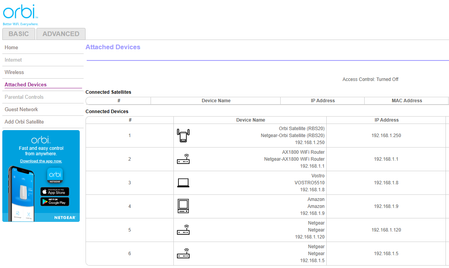
Unfortunately, I am unable to connect to the satellite via a web browser and the ethernet cable. Not sure what is wrong with this device. It's certainly malfunctioning. Here is the screenshot from the router showing that it's not connected there, followed by the browser when I type in the IP, followed by a command prompt where I ping that address and it is able to connect.
I have the firmware downloaded to my computer but don't know how else to install it onto the satellite.
Thanks again for everyone's input!
- KevinLiTOct 19, 2023NETGEAR Moderator
Hello meanjeanslo ,
Can you select the manual tab and take a screen shot?
Best,
Kevin
Community Team
- meanjeansloOct 19, 2023Guide
I also wanted to mention something about when I reset the satellite. I hold in the Reset until it blinks amber several times (about 7) and then release. The power light never comes back on after that unless I power it off and turn it back on. Should I be waiting for a longer period of time to see if the power light will turn green again? I've done this a few times so I don't recall exactly how long I let it sit in the past, but seems like I let it sit for about 30 minutes or might have been all day as I was tired of trying to work with it.
Anyway, wanted to pass along this information in case it provides some insight.- FURRYe38Oct 19, 2023Guru - Experienced User
If you press the reset button for 15 seconds then release, the POWER LED in back should come back ON as RED for a few seconds then turn GREEN.
