NETGEAR is aware of a growing number of phone and online scams. To learn how to stay safe click here.
Forum Discussion

FredReed
Feb 23, 2017Aspirant
Build a LAN with a WNDR3400v2
I'm trying to make a wifi LAN with 4 devices for sharing. I don't need full time internet as it's a metered connection and I want to keep data usage down to a minimum. (It seems I need the internet c...
 Mar 02, 2017
FredReed wrote:
I forgot to mention this, I read about and watched a demonstration on "Pixiedust".
I'm not sure if it was a "brute force" attack over the internet or over the wifi signal.
Do you know? I'm sure there are newer ones since then too.
These attacks are to break into wifi. Your router is not vulnerable to Pixie Dust. I haven't seen anything specific on WPS brute force attacks. But if you simply disable WPS on your router, you won't be vulnerable to this whole class of attacks.
Passphrases (and pins) can always be attacked by brute-force (which amounts to trying all possible passphrases). There are ways to slow these attacks down - for instance, if the router is slow to respond after a couple of failed connection attempts, then the brute-force attack will take a lot longer. Even a small delay is enough to make these attacks useless (because there are so many passphrases to try).
If you are worried about this particular threat, you can reduce the risk by turning your router's wifi off when you aren't using it, and by changing the passphrase from time to time. In general, longer passphrases will be harder to discover by brute force guessing.

FredReed
Feb 27, 2017Aspirant
Ok,
I 'm pretty sure I did set both W10 and W7 to private and home. I'll check the settings again.
The only time "public" setting is used is on any portable device when logged into a public wifi.
What I am confused about is, the "ping" test and "router login", aren't those two functions requiring the use of the internet?
Is there any non internet method for "logging into" the router? I don't have internet here.
As for the CMD, is this an "internet required" function also? Again, no internet here.
The next issue is the sharing settings. I set "what" I'm sharing on each Windows device but as for the two Androids, I'm even more clueless on "share" settings on these devices.
Side note: I entered one of the MAC addresses of the router into my Android phone tethering list but it doesn't show on the "allowed" devices" list.
It would have been nice to be able to "ping" and
login to the router that way. I presume that method doesn't work.
So, I believe there is basic connectivity as you described. I'll try either IE or Chrome for the "local" IP. Is the router's "web page" an "online" page or local LAN page where I'll see the list of connected devices and, is this where the "ping" test is done?
(Need to list my steps to learn and remember the basics AND the OS differances)
I 'm pretty sure I did set both W10 and W7 to private and home. I'll check the settings again.
The only time "public" setting is used is on any portable device when logged into a public wifi.
What I am confused about is, the "ping" test and "router login", aren't those two functions requiring the use of the internet?
Is there any non internet method for "logging into" the router? I don't have internet here.
As for the CMD, is this an "internet required" function also? Again, no internet here.
The next issue is the sharing settings. I set "what" I'm sharing on each Windows device but as for the two Androids, I'm even more clueless on "share" settings on these devices.
Side note: I entered one of the MAC addresses of the router into my Android phone tethering list but it doesn't show on the "allowed" devices" list.
It would have been nice to be able to "ping" and
login to the router that way. I presume that method doesn't work.
So, I believe there is basic connectivity as you described. I'll try either IE or Chrome for the "local" IP. Is the router's "web page" an "online" page or local LAN page where I'll see the list of connected devices and, is this where the "ping" test is done?
(Need to list my steps to learn and remember the basics AND the OS differances)
StephenB
Feb 28, 2017Guru - Experienced User
FredReed wrote:
What I am confused about is, the "ping" test and "router login", aren't those two functions requiring the use of the internet?
Neither requires the use of the internet.
What you have set up right now is a private network that is isolated from the internet (which is a "network of networks" btw). But you can still log into the router from your browser, and you should still be able to use ping to check connectivity on your private network. Everything on the that network will be given an address (called an IP address) from the router. That allows the router to forward the data to the right destination. Netgear routers generally use 192.168.1.x addresses ("X" being a number between 1 and 254). The router itself has a private IP address, and that should be 192.168.1.1.
Home networks are all private (as are most company networks), but usually they are not isolated from the internet. The router manages the private/public connections - similar to the way a human telephone operator would manage phone calls coming into a company (back in the phone extension days). As far as the router is concerned, your outside internet line is simply broken. It still will manage local connections (just like a company phone system would allow in-company phone calls even if the public phone lines are down).
So you can think of your devices on your private network as having a local extension that can't be directly dialed from outside, and which can't reach the outside unless the phone lines are up. That's not 100% technically accurate, but using that framework will be helpful in understanding the basic concept.
Moving on to your S4 - it is also connected to your mobile data network. So it will actually have two IP addresses - a public address from the mobile provider, and a private one from your router. That is similar to a phone with two phone numbers. Both work independently, and (in this case) there's no connection between the two "phone" lines.
If you open the web browser on either PC, and enter http://192.168.1.1 into the address bar, it should reach the router's web ui. It will likely want you to go though the setup wizard (but that likely will get stuck because it will detect no internet). If there's a way to exit the setup wizard (setting up manually) you should take it. You'll then see all the router management screens, including seeing the list of the devices attached to your private network.
CMD.EXE is built into windows. You can simply type CMD in the windows search bar (both for win7 and win10) and it will find it. When you click on it, it will open a black window on the screen. It is a command line interface, so you'll need to click on the window, and then type commands (like ping). Windows will execute those commands and you'll see a response also in the CMD window. For instance,
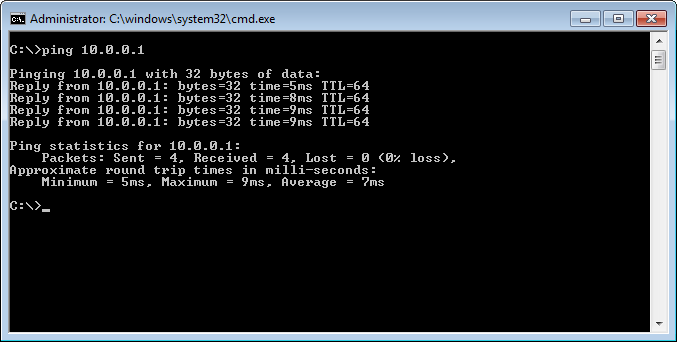
The C:\> is the CMD prompt. That means that CMD is looking at the root of the "C" drive. Yours should say something like C:/users/username> The _ after the prompt is the an indicator that CMD is waiting for you to type something (on the prompt line).
I typed ping 10.0.0.1 at the prompt and then pressed enter. CMD ran the ping command which generated the response you see in the window. Note my router is set up to use 10.0.0.x addresses (another range of private network addresses). 10.0.0.1 happens to be my own router.
- FredReedFeb 28, 2017Aspirant
Well StephenB,
Found another issue. It seems that the W7 starter has the same IP as another device on the WLAN.
Could it be the W10 computer?
I printed out your last post, turned all 4 devices on and made sure all were connected. I entered the
http://192.168.1.1 as you recommended. The "Page can't be displayed" showed itself.
Next, I did a Windows Network Diagnostics and have a 6 page printout of that too.
The first issue found is, the internet connection is broken. The broadband is experiancing connectivity
issues.
I also found something called an "Inf date" on here of 7/16/2016. This was under the "Network adapter
Wi-Fi driver information.
The Connection status summary says the "connection started at:2017-2-28 and then the time of day.
The "Wireless Connectivity" diagnosis initialize status: Success... but,
it also says, "There may be a problem"
The "Wireless Network Adapter" diagnosis intitialize status: Success... but,
it also says, "There may be a problem"
The Wi-Fi field here is crowded, as many as 17 other Wi-Fi routers are seen on the diagnostics printout.
Frankly, I don't know which way to go at this point. The http://192.168.1.1 wouldn't connect with my
router. The IP conflict with the W7 computer seems to be the first issue to be rectified???
Somehow I'ld like to get these guys to "shake hands".
- StephenBMar 01, 2017Guru - Experienced User
I agree that getting the basic connectivity right is the first step, and that requires making sure the IP addresses are being assigned, and that there are no conflicts, etc. And that you can reach the browser web ui.
FredReed wrote:
Well StephenB,
Found another issue. It seems that the W7 starter has the same IP as another device on the WLAN.
Could it be the W10 computer?
Can you tell us that those two IP addresses are? That might help. Normally they should be assigned by the router, and I'd expect it to be assigning 192.168.1.2, 192.168.1.3, 192.168.1.4, and 192.168.1.5. Certainly they should all be 192.168.1.x.
They are private addresses, it is safe to post them (and that's true even if the router had an ethernet connection).
FredReed wrote:
I printed out your last post, turned all 4 devices on and made sure all were connected. I entered the
http://192.168.1.1 as you recommended. The "Page can't be displayed" showed itself.
Getting the IP addresses of the PCs might help us resolve that. You should also be able to ping 192.168.1.1 using the steps above.
What browser are you using?
FredReed wrote:
The first issue found is, the internet connection is broken. The broadband is experiancing connectivity
issues.
This is expected, since there is no internet connection. I mentioned earlier that router would treat that like a broken connection. The windows network diagnostics will also.
FredReed wrote:
The Wi-Fi field here is crowded, as many as 17 other Wi-Fi routers are seen on the diagnostics printout.
That's not unusual, especially in apartment/condo buildings. That will hurt performance some, but your devices are all close to your router, and it should work pretty well.
I live in a free-standing house, and I still can see quite a few other routers when I scan.
- FredReedMar 01, 2017Aspirant
StephenB wrote:
Can you tell us that those two IP addresses are? That might help. Normally they should be assigned by the router, and I'd expect it to be assigning 192.168.1.2, 192.168.1.3, 192.168.1.4, and 192.168.1.5. Certainly they should all be 192.168.1.x.
What you state above regarding the acsending order of IP numbers, makes sense. i bring up my browser,
and this is the part where "Page can't be displayed" comes in. I don't know how to get past this point
This seems to be my misunderstanding.
StephenB wrote: What browser are you using?
I use the browser IE. The home page is set to Google.
Chrome is on here just not set to default.
The "Page can't be displayed" is the browser's stopping place before finding the IP's for my computers.
(I am jockeying between wireless tethering on my S4 to Wi-Fi TO my S4 to write this. It's easier to type on my W10 than the S4 keypad!)