NETGEAR is aware of a growing number of phone and online scams. To learn how to stay safe click here.
Forum Discussion

Izzyp7029
Aug 31, 2016Aspirant
Router's white Ethernet LED flashes continuously (at about 5 flashes per second)
The white Internet LED on my Netgear router (R7000 Nighthawk, AC1900) is flashing continuously (approx. 5 times per second), and it is causing the Link LED on my modem to flash constantly. It started...
 Sep 04, 2016
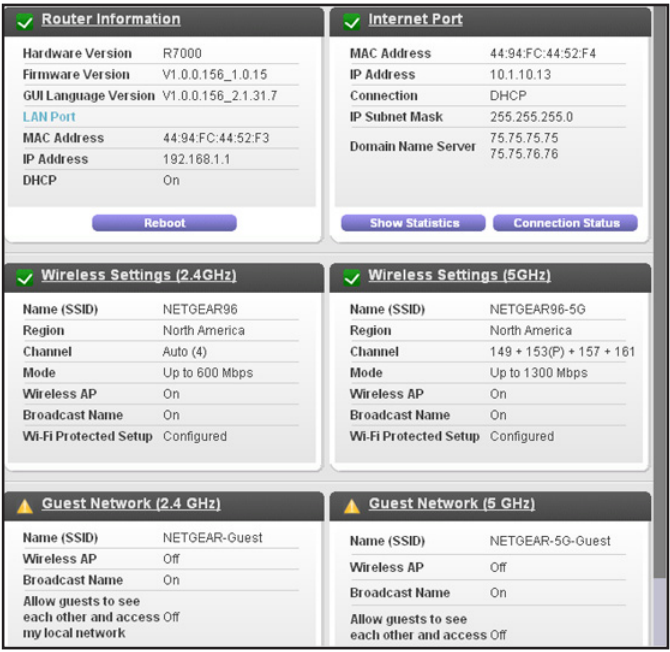
Show Statistics is one of the purple buttons under the Internet Port pane.
TheEther
Sep 04, 2016Guru
Log into your R7000. Look at the Attached Devices screen and make sure you recognize all of the devices. If you don't recognize a device and it's connected via Wi-Fi, then consider changing your Wi-Fi password.
Look at Show Statistics on the Advanced screen to get a sense on which ports there is traffic. Check the devices connected to busy ports and see if you can determine what they are doing. Perhaps there is download going on in the background. You can even turn off devices one by one until the LED stops blinking.
You should also change the admin password on the R7000 to protect against someone logging in and changing the settings.
Make sure remote management is disabled to prevent outsiders from logging in.
Look at Show Statistics on the Advanced screen to get a sense on which ports there is traffic. Check the devices connected to busy ports and see if you can determine what they are doing. Perhaps there is download going on in the background. You can even turn off devices one by one until the LED stops blinking.
You should also change the admin password on the R7000 to protect against someone logging in and changing the settings.
Make sure remote management is disabled to prevent outsiders from logging in.
Izzyp7029
Sep 04, 2016Aspirant
Thanks for your suggestions. Remote Management had been turned off, and the admin password had been changed. I scanned through the submenus on the Advanced screen but didn't see a "Show Statistics" link, however, the "Internet Traffic Meter" hadn't been turned on, so I turned it on. But I think that that shows aggregate traffic volumes, not port traffic. However, I'll monitor that. Other than those things mentioned, there was no unusual activity that I could observe (but the LED is still flashing nonstop). Thanks again.
- TheEtherSep 04, 2016Guru
Show Statistics is one of the purple buttons under the Internet Port pane.
- Izzyp7029Sep 14, 2016Aspirant
Hi Guys,
Unfortunately, the issue hasn't been resolved (the Internet LED on the router is still flashing non-stop). That means that if a webpage seems to be slow in downloading, looking at the router to determine if any data in coming through is of no help because the constant flashing of the LED is masking any activity that might be taking place.
I followed up on all of the suggestions I received but nothing that I've tried resolved the problem. None of the replies (as far as I can tell) was from anyone who is from the manufacturer, so I don't know if they are aware of the problem, and have a solution. It seems that I'll just have to live with it until I replace the router.
Izzyp7029
- TheEtherSep 14, 2016Guru
Izzyp7029 wrote:
Hi Guys,
Unfortunately, the issue hasn't been resolved (the Internet LED on the router is still flashing non-stop). That means that if a webpage seems to be slow in downloading, looking at the router to determine if any data in coming through is of no help because the constant flashing of the LED is masking any activity that might be taking place.
I don't follow your logic. Did you try looking at Show Statistics? It should offer some insight into which ports are seeing traffic. Look at the WAN port first and see which direction (Rx represents traffic coming from the modem to the router, Tx for traffic going to the modem from the router) is experiencing significant traffic volumes. You may have to watch the numbers over a period of time when the modem activity light is flashing.
Then look at LAN and WLAN ports and see if there is a correlation with the WAN port activity. Suppose, for example, that you see that the 2.4 GHz WLAN port statistics correlate with the WAN port. This a sign that one or more devices on your 2.4 GHz Wi-Fi network could be sending/receiving traffic. You could, then, selectively turn off each device one by one until the modem lights stop blinking.
Or you could just take the brute force approach and turn off or disconnect all wired and wireless devices from the router. The modem light should stop flashing. Then turn on each device one at a time until the modem starts flashing non-stop. The last device you turn on is probably the culprit.
If the modem light does not flashing when all devices are turned off, then someone could be flooding you with bogus traffic. You can try changing your router's Internet port IP address. This is not always possible but changing the router's MAC address may work. You can do this under the router's Internet settings.