NETGEAR is aware of a growing number of phone and online scams. To learn how to stay safe click here.
Forum Discussion

MariaTV
Mar 03, 2023Aspirant
Unable to delete Plex Media Server on ReadyNAS 102
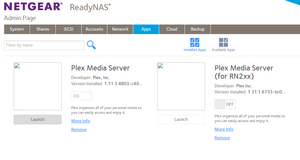
Hello, I tried to upgrade my Plex Media Server SW and ended up with 2 versions on my ReadyNAS. I am unable to uninstall either of them. I have a ReadyNAS 102 with OS 6.10.8. I am using MS Edge on ...

StephenB
Mar 03, 2023Guru - Experienced User
Not sure how to fix it, but it appears that you tried to install the version for the RN200 series over the RN100 series version you had before.
They would have been installed to the same folder on the NAS, so you probably need to remove both of them. That could require manually deleting the plex folders in /data/.apps.
- MariaTVMar 03, 2023Aspirant
Thank you for the quick reply! Where can I find that folder on the NAS?
- StephenBMar 03, 2023Guru - Experienced User
MariaTV wrote:
Thank you for the quick reply! Where can I find that folder on the NAS?
I don't know how the NAS knows what apps to put on the apps screen of the web ui. Simply deleting the plexmediaserver folder probably won't clean everything up.
If you want to see it on your PC, you need to access the NAS using admin credentials.
One method is to use CMD to map the data volume to a drive letter
net use * /d /y
net use z: \\nas-ip-address\data /user:admin nas-admin-password
using the real IP address and NAS admin password of course. The typing matters - these are two different commands. Note also the two different slashes.
Once the data volume is mapped to Z, you can navigate in Z:\.apps You'll see the plexmediaserver folder in there. Note that .apps is a hidden folder - you can navigate into it, even if you don't see it. But you can also tell Windows to show you hidden files.
Related Content
NETGEAR Academy

Boost your skills with the Netgear Academy - Get trained, certified and stay ahead with the latest Netgear technology!
Join Us!
