NETGEAR is aware of a growing number of phone and online scams. To learn how to stay safe click here.
Forum Discussion

Yoda1492
Oct 29, 2016Luminary
ReadyNAS Pioneer Pro corrupt flash no boot menu
HELP! When I power on my ReadyNAS Pioneer Pro, the LED screen just says ReadyNAS (does not show the drive LEDS) and the yellow activity light (on the front of the system above the USB port) lights a...
- May 18, 2017
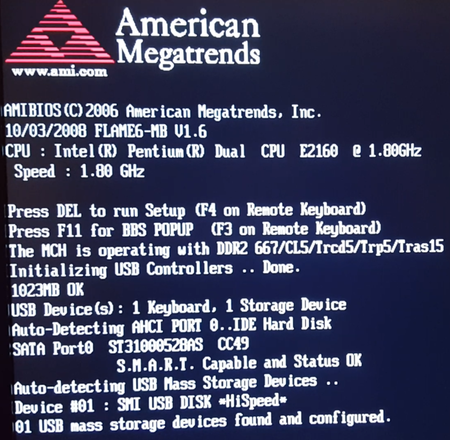
Hello. I found some time to work on this NAS. The issue may now be permanently resolved. I moved the NAS to a place where I could get a monitor and keyboard on it. I created a video of the boot sequence and took pictures of all the BIOS settings. While I was in the BIOS, I did enable Wake-On-LAN as previously requested. I also turned off the NAS from coming back on after a power hit; that was annoying as the power would go off and then on and then off again and that is bad for electronics and data volumes. I will get an UPS sometime this year.
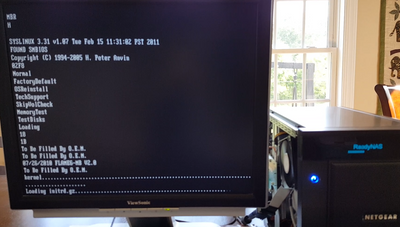
First, I will start with some information on those tick marks that were going across the NAS LED infinitely when the NAS would not boot. As shown in the picture below, that is from the Kernel loading and the initrd.gz loading:
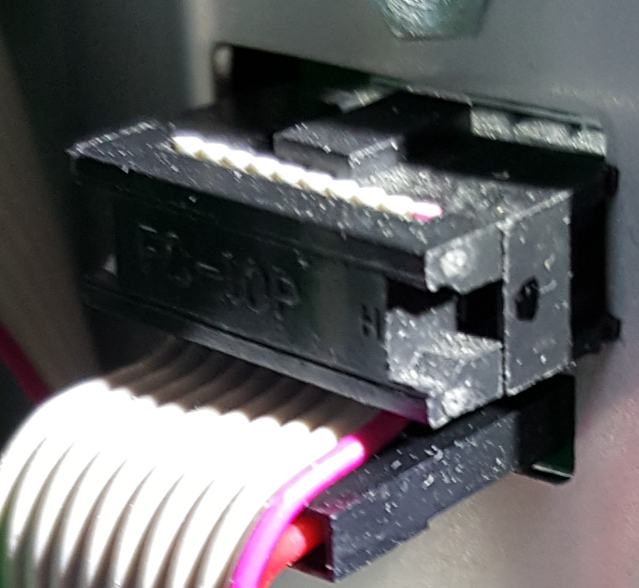
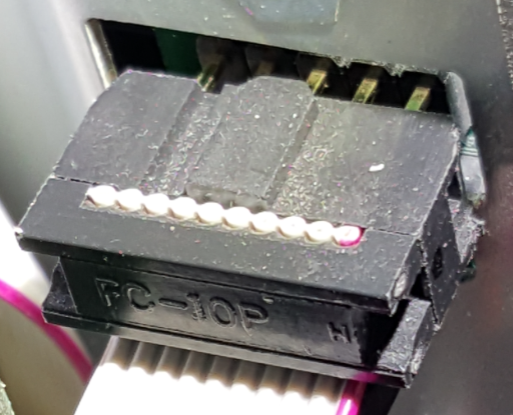
I kept going back to what someone said about it being a hardware problem. Armed with that and the clue that the NAS was shipped as part of a move and never worked consistantly after it was plugged in after the move, I looked more closely at the hardware. I took off both sides of the NAS and when I was inspecting all the cables, I saw this:
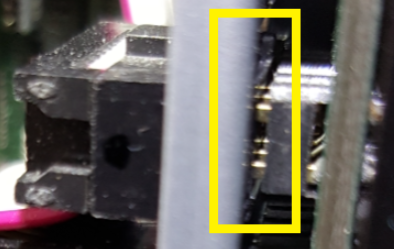
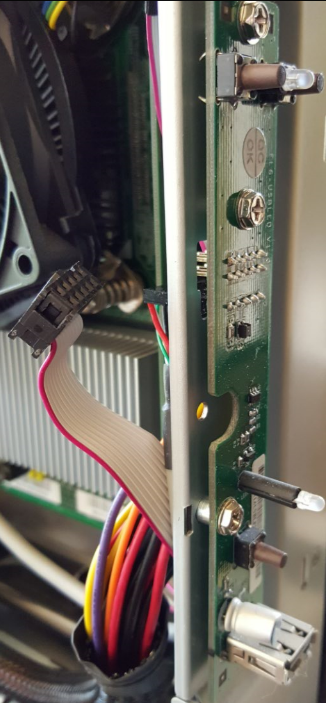
At first glance, it looks mostly ok. However, that top connector is supposed to go all the way through the cutout hole in the metal and fully into the circuit board on the other side of the metal. On the other side of the metal, you can see that the connection is not fully made:
Pulling the connector out just a little bit shows that it has no chance of making this connection without hitting the metal:
The NAS was then taken even further apart. There are 3 screws on each side of the NAS that holds the front panel of the NAS in place. All of those screws were taken out and that provided access to the cicrucit board behind the front panel that this cable plugs into. The circuit board looks like this:
The board has three screws holding it into place. However, the board has a lot of play with regards to how it lines up with the cutout hole in the metal. The connector was pushed through the hole and fully connected it to the metal pins. Then the screws were put back in for the circuit board and now the connector makes a full connection with these pins. The NAS was reassembled and it has booted ten times in a row. The power was disconnected for a few hours and the NAS booted fine after power was reapplied. I can not explain why the NAS would boot some times and not boot other times when the cable was partially connected. The NAS will be tested over the next several days before declaring this a permanent fix.

Yoda1492
Nov 10, 2016Luminary
Here is an update. Mdgm was not able to mount the USB flash with the NAS not showing it's model number or serial number correctly in RAIDar. I was asked to reboot the NAS and it booted fine and displayed all information correctly. Mdgm checked the internal flash and that appeared fine. Why it boots fine one time and not the other times is the issue that needs to be resolved before I put data on the system.
As for things to do at this time, here are my thoughts:
1. Put the monitor back on it and check the POST and boot sequence for any clues.
2. Disable quick boot in the BIOS to see if that shows any clues on the monitor.
3. Check all the disk drives against the hardware compatibility list. I have used different drives over time in this NAS. These are the drives that are currently in the NAS:
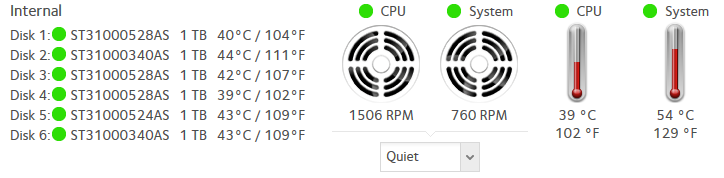
4. Run diags via RAIDar.
5. Look for firmware updates for the disk drives. Here are the firmware version for the drives:
Disk1: CC49
Disk 2: SD1A
Disk 3: CC49
Disk 4: CC49
Disk 5: HP63
Disk 6: SD1A
6. All drives are Seagate disk drive. Remove each drive and run SeaTools long and short tests on each drive. I did that a while ago but I can do it again.
7. Try 6 other drives. I have 8 spare hard drives from upgrading the other NASs to 3TB drives
8. Go back to 4 disk drives and recreate the Logical Unit. I did several reboots with only 4 disk drives and those all worked.
9. Do a memory test on the NAS via the boot menu.
10. Maybe the booting issue is a race condition. Perhaps one of the drives is weighing down the SATA bus or the SATA controller and causing boot issues. I can go down to just 1 disk drive and do 10 boot attempts and see if they all work.
I decided to do option 4 and here are the results of running diagnostics via RAIDar:
Successfully completed diagnostics
System
Disk 2 has 6 Reallocated Sectors
Disk 2 has 6 Reallocation Events
Disk 2 has 7 Spin Retries
Disk 3 has 577 Reallocated Sectors
Disk 3 has 577 Reallocation Events
Disk 4 has 97 Reallocated Sectors
Disk 4 has 97 Reallocation Events
Disk 6 has 21 Spin Retries
Disk 6 has 1 Command Timeouts
Should I be concerned about any of that?

StephenB
Nov 10, 2016Guru - Experienced User
If you are focussed specifically on the boot issue, then maybe insert one healthy drive in slot 1, do a fresh factory install with that drive, and see if that boots reliably.
Yoda1492 wrote:
I decided to do option 4 and here are the results of running diagnostics via RAIDar:
Successfully completed diagnostics
System
Disk 2 has 6 Reallocated Sectors
Disk 2 has 6 Reallocation Events
Disk 2 has 7 Spin Retries
Disk 3 has 577 Reallocated Sectors
Disk 3 has 577 Reallocation Events
Disk 4 has 97 Reallocated Sectors
Disk 4 has 97 Reallocation Events
Disk 6 has 21 Spin Retries
Disk 6 has 1 Command Timeouts
I'd replace disk 3 for sure, and if it were my system I'd replace disk 4 as well. My normal practice is to replace disks before the reallocated sectors reaches 50.
But if your spares are in good shape, consider retiring 2 and 6 also. Spin Retries is potentially a sign of bearing issues (and certainly is a sign that the disk mechanicals are wearing out).
- Yoda1492Nov 10, 2016Luminary
Hello StephenB,
Thank you for the quick response. Since Disk 1 is not mentioned at all by the diagnostics test, I will take all the other drives out and do a factory reset with just that one drive. That was option 10 in my list. I will do that now. Stay tuned ... Also, I just checked option 3 in the list and all disk drives are on the hardware compatibility list for this model of NAS. Some drives are 7200.11 series and others are the 7200.12 series, but they are all on the list for this NAS.
- StephenBNov 10, 2016Guru - Experienced User
Yoda1492 wrote:
Also, I just checked option 3 in the list and all disk drives are on the hardware compatibility list for this model of NAS. Some drives are 7200.11 series and others are the 7200.12 series, but they are all on the list for this NAS.
I don't think you have a compatibility problem.
The HCL for legacy NAS isn't kept up to date, so it's really not that useful anymore. If you buy new disks, then I suggest either WDC Red or Seagate IronWolf. Both work well in ReadyNAS, and are designed for NAS/Raid. I'm a Western Digital guy myself, but I do have some 1 TB IronWolf drives on hand, and they work quite well. They are also exceptionally quiet.
- Yoda1492Nov 10, 2016Luminary
All disks were removed except disk 1. With just one disk in the system I accessed the Boot Menu. Since I was at the Boot Menu, I decided to do the Memory Test as well. That passed.
and then started again. I did the factory default on the system with just one drive. It said:
Installing Firmware
XRAID 2 Mode.
That completed and booted fine. I ran setup and configured the NAS. I will start the reboot tests and post the results.
- Yoda1492Nov 10, 2016Luminary
I did three reboots and they were all perfect. So the state that the NAS is in is a currently a good state. I shut the system down and disconnected the power cord. I will leave power disconnected for 10 minutes. Then I will see if it boots normally. If that works, I will put in disk 5 in disk 2's slot and let that get added to the Logical Unit. Disk 5 did not show any issues in the diagnostics screen. I will look at my spare drives while disk 5 is RSYNCing.
- Yoda1492Nov 10, 2016Luminary
I reconnected the power cord after waiting 10 minutes, and with only one drive in the system, the LCD just says READYNAS and then there are rows (I counted 20 so far and it still going) of tick marks going from left to right:
Does anybody know what it is doing when it is doing that? The USB activity light is lit solid. The NIC light is not lit. RAIDar can not discover the NAS in this condition. I let it do this for a few minutes and powered it off and powered it back on via the power button on the front of the NAS. The LCD just says ReadyNAS and the USB activity light is lit solid. I guess I can rule out the disk drives as the root cause of this issue. The NAS is back to the initial problem. I am sure after several reboots I will be able to get it to boot. Could it be the power supply?
- Yoda1492Nov 10, 2016Luminary
I moved the NAS to where the monitor is and it booted like normal. I can login via the USB keyboard and the admin account. Since the NAS side panel is open, I see the 3V lithium battery is right there and easy to change. I have several of those. I can try that as that is supposed to keep some settings when the power is disconnected. However, that does not explan why it boots sometimes.
- Yoda1492Nov 10, 2016Luminary
Diags via RAIDar with just one drive shows no issues:
Successfully completed diagnostics
System
No errors found.
Logs
No errors found.The key is to get it to always boot like this.
- Yoda1492Nov 10, 2016Luminary
I did a video of the boot information on the monitor when the system boots (a normal boot), and below is what I see right before the login prompt:
- Yoda1492Nov 10, 2016Luminary
I shut the system down via ReadyCLOUD and unplugged the power cord. Then using a ground strap I checked all cables inside of the NAS to make sure they were firmly seated. I did this because I asked Mdgm where if the internal flash was fused to the motherboard. The response was that mgdm read that it was behind the LED. The cable that comes out of there goes to the motherboard so I checked those connections. They were all seated firmly. I plugged the NAS back in and powered it back on and it just said ReadyNAS on the LCD (shocker) and the USB activity light was not lit. Here is what is seen on the monitor and it just sits here:
- Yoda1492Nov 10, 2016Luminary
Comparing the above picture to the very first picture that I posted in my first post, I see this difference:
- Yoda1492Nov 10, 2016Luminary
Here is Hardware Health Configuration from the BIOS; note the 3V battery voltage is shown here:
- Yoda1492Nov 10, 2016Luminary
When I power on the NAS and it wants to just show ReadyNAS on the LCD, I believe I see different things in the BIOS than when it wants to boot.
Here is the USB Configuration. Not sure why it says 3 drives? The NAS only has one drive in it and then there is the internal flash.
Here is the USB Mass Storage Device:
Here is the Boot Device Priority; note how this time it does not show the hard drive. Other times I enter the BIOS it shows the hard drive and I can change the boot order for the devices.
Hard drives screen:
AHCI screen:
- Yoda1492Nov 10, 2016Luminary
By disabling quick boot, I see the below extra information. Note how it says the SATA Port 0 hard disk is only 100GB. The drive in the NAS is 1TB.
- Yoda1492Nov 10, 2016Luminary
When the LCD says ReadyNAS and there is all those tick marks going from the left to right, the system is "loading" as shown below. Note, the dreaded "MBR H" happens when the NAS gets in this state. See top corner of the picture:
- Yoda1492Nov 10, 2016Luminary
There is a red LED lit (always lot solid) on the motherboard next to the memory:
- mdgm-ntgrNov 10, 2016NETGEAR Employee Retired
It sounds like a hardware issue of some kind. I guess the PSU would be an easy one to check.
- Yoda1492Nov 10, 2016Luminary
I shut the NAS down and added drive 5 into drive bay 2. This was another drive that showed no errors. I did a Factory Reset via the Boot Menu and configured the NAS. I ran diags via RAIDar and it passed:
Successfully completed diagnostics
System
No errors found.
Logs
No errors found.
I then shut the NAS down and removed both drives and put them away for later when this issue is resolved. I inserted drive 4 into drive bay 1 and did a Factory Reset. I picked this drive since it did not have any "spin retries". It does suffer from this (Disk 4 has 97 Reallocated Sectors), but for the purpose of doing a lot of testing and booting, I believe it will do fine.
The reason that I mentioned the power supply as a potential culprit before is because I had a PC that did something like this before. I would power on the PC and sometimes it would boot perfectly. Other times the power button would light up, but nothing happened, not even a POST. I swapped the power supply and never had that problem again. Here is the information on the Power Supply:
I do have a power supply tester that can measure the leads after I get the power supply out of the NAS. It is a really narrow and small power supply so I would not have a spare that would fit.
- Yoda1492Nov 10, 2016Luminary
Newegg has the power supply for $40:
http://www.newegg.com/Product/Product.aspx?Item=N82E16817151089&Tpk=N82E16817151089
- Yoda1492Nov 10, 2016Luminary
A new power supply has been ordered via Newegg. It is the exact same model number and is the same power supply from the same manufacturer. Stay tuned.
- Yoda1492Nov 11, 2016Luminary
You will not believe it ... I am pretty sure that it is fixed! I have done the following tests and they all pass repeatedly:
1. Shutdown the NAS 3 times and then powered it on via the power button on the front of NAS.
2. Shutdown the NAS 3 times, turned off the power button on the back of NAS, waited a little bit and then pressed the power button on the back of the NAS.
3. Rebooted 3 times via ReadyCLOUD.
4. Disconnected the power cord 3 times, let it sit awhile, reconnected power, and then booted the NAS.
So what changed you ask? I was checking how to install the new power supply, when I saw this for the P5 connector that goes from the power supply to the NAS motherboard:
See how the top of the connector is not fully connected. I could not push it in with my hands as it was really tight so I turned the NAS flat on the side (motherboard on the bottom) and used a big flat head screwdriver and pushed it in all the way. The NAS has booted perfectly every time! I will get 4 more good drives prepped and installed, but I believe this (the motherboard not getting full power) was the root cause of the issue. This is turning out to be a happy ending. The spare power supply was on sale and has already shipped so I will keep that for future use. I will do one more posting (for completeness) hopefully stating that all is good with 6 drives in the NAS.
- StephenBNov 11, 2016Guru - Experienced User
Yoda1492 wrote:
You will not believe it ... I am pretty sure that it is fixed! ...
See how the top of the connector is not fully connected. I could not push it in with my hands as it was really tight so I turned the NAS flat on the side (motherboard on the bottom) and used a big flat head screwdriver and pushed it in all the way.
Great news (and a good catch to notice it).
- Yoda1492Nov 11, 2016Luminary
The NAS boot issue is resolved. It has booted every time now. I want to thank mdgm for fixing the flash issue. Without that assistance, there was no "Boot Menu" to access. I also want to thank StephenB and FramerV for their assistance as well.
FYI - the first group of 6 drives that I tried showed 4 perfect drives and two drives with these issues:
Successfully completed diagnostics
System
Disk 3 has 2 Reallocated Sectors
Disk 3 has 2 Reallocation Events
Disk 3 has 1 Command Timeouts
Disk 4 has 10 Spin RetriesI will ditch disk 4 for sure and determine how disk 3 compares to my other spare drives. I have more disks to test, but with 6 drives in the NAS, I can say with certainty that the NAS is working as designed. One bummer on this is most of these disk drives had the 5 year warranty and that all ended in February of this year. Lesson learned, work the problem right away. Again, thanks for the great support!
- Yoda1492Nov 12, 2016Luminary
This morning when I powered the NAS on it would not boot. It said ReadyNAS on the LCD, there was no link light on the NIC, RAIDar could not get to the unit, and it had that row of tick marks under ReadyNAS for over 5 minutes. I powered the NAS off, powered it back on, and this time it just said ReadyNAS without the tick marks and no link light on the NIC. I suppose it is possible the last two drives I added could have caused this as I had so much consistent success with the NAS yesterday. The third power cycle of the NAS caused the NAS to boot normally. Disk 4 was then replaced with another spare and is RSYNCing. At this point, I am glad the spare power supply is on the way. It may be needed...
- Yoda1492Nov 12, 2016Luminary
The RSYNC of disk 4 finished. The replacement disk is in pretty good shape.
Disk 4 has 1 Reallocated Sectors
Disk 4 has 1 Reallocation EventsI will leave these 6 disks in the NAS until the replacement power supply is installed. I read that "Spin Retries" can be caused by many things, but one of them is an under performing power supply.


Related Content
NETGEAR Academy

Boost your skills with the Netgear Academy - Get trained, certified and stay ahead with the latest Netgear technology!
Join Us!
