NETGEAR is aware of a growing number of phone and online scams. To learn how to stay safe click here.
Forum Discussion

530_R4i8R
Jan 06, 2016Tutor
RN102 After duplicated HDD to larger capacity, total capacity not correctly reported
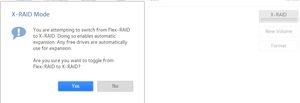
My intended goal was to upgrade the drives to 1TB and mirror the data on the first drive to the second. So I was feeling pretty lazy and I went about attempting to upgrade my RN102 v6.4.1 disks the s...
 Jan 06, 2016
*UPDATE*
mdgm thanks for the advice, I'll remember it should/when I ever have to upgrade to larger HDD's in the future.
Turns out I monkeyed my way into making my sloppy HDD upgrade work. I previously rebooted the NAS several times when I first realized the total drive capacity was not correct hoping it would resync and correctly report the volume capacity, it didn't work which is why I originally started this thread.
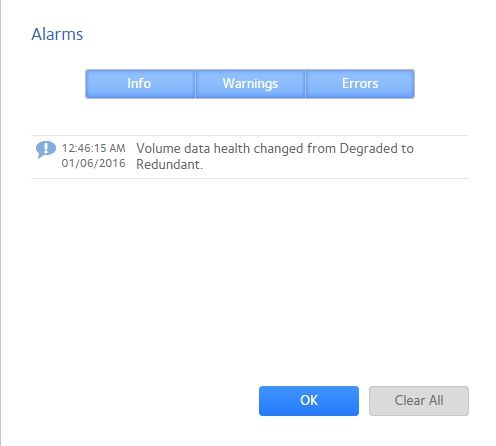
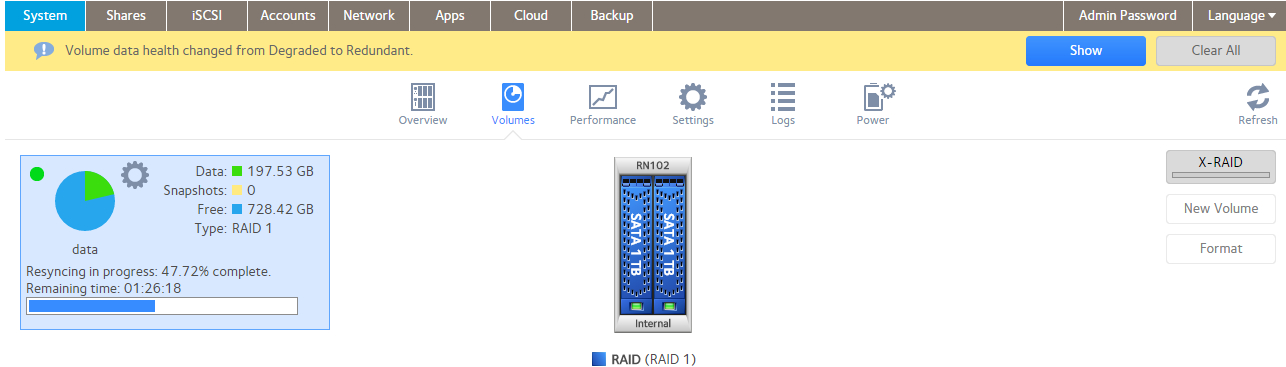
After I posted this thread I shut down the NAS and removed the drives to label them, when I reseated the drives and rebooted the drive health initally showed up as degraded as it went through a resync process and finally showed up as healthy and redundant, it is still in the resync process at 45% complete but it appears as though it has corrected the disk capacity issue on it own

mdgm-ntgr
Jan 06, 2016NETGEAR Employee Retired
If the 320GB HDD was in RAID with the 2TB hdd then you would have needed 2x2TB disks to expand the volume, I think.
Also extending the partition sizes using disk management is not the way to do things. The NAS would create a new partition where needed and expand if you were using X-RAID. Expansion will only take place when redundant space can be added.
I think at this point, the best thing would be to backup your data, do a factory default (wipes all data, settings, everything) with the 2x1TB disks in place and restore your data from backup.
530_R4i8R
Jan 06, 2016Tutor
Thanks, I'll end up Factory Defaulting then; to perform a backup is the following link the best guide to follow should I choose to backup to a USB HDD?
- 530_R4i8RJan 06, 2016Tutor
*UPDATE*
mdgm thanks for the advice, I'll remember it should/when I ever have to upgrade to larger HDD's in the future.
Turns out I monkeyed my way into making my sloppy HDD upgrade work. I previously rebooted the NAS several times when I first realized the total drive capacity was not correct hoping it would resync and correctly report the volume capacity, it didn't work which is why I originally started this thread.
After I posted this thread I shut down the NAS and removed the drives to label them, when I reseated the drives and rebooted the drive health initally showed up as degraded as it went through a resync process and finally showed up as healthy and redundant, it is still in the resync process at 45% complete but it appears as though it has corrected the disk capacity issue on it own
- mdgm-ntgrJan 06, 2016NETGEAR Employee Retired
Glad it turned out to be that simple.
Btw, if expansion doesn't take place, a reboot is something that can be tried to fix it. In some cases it could even take a few reboots. Though the reboot suggestion would mainly be relevant for older units I think, it's still worth a try on OS6.- 530_R4i8RJan 06, 2016Tutor
I don't think it had anything to do with rebooting as I've rebooted over 10 times since the issue first occurred.
I believe it was forced to resync the drive capacity due to rebooting the NAS with a drive not firmly seated and having to shutdown and re-seat the drive and reboot, that seemed to be the only thing that triggered a resync of the drive capacity.
Related Content
NETGEAR Academy

Boost your skills with the Netgear Academy - Get trained, certified and stay ahead with the latest Netgear technology!
Join Us!
