NETGEAR is aware of a growing number of phone and online scams. To learn how to stay safe click here.
Forum Discussion

derekcannady
Dec 23, 2021Guide
RAX120 V2 Constant Random Reboots
The router reboots frequently sometimes every 30 minutes. I have noticed that the router reboots under heavy system load of +50% on the processor. The only way I have been able to drastically lesse...
- Jun 11, 2022Installed beta firmware 1.2.3.33 on it and then turn fan on in debug.htm. Just check mark it , don’t click on apply.
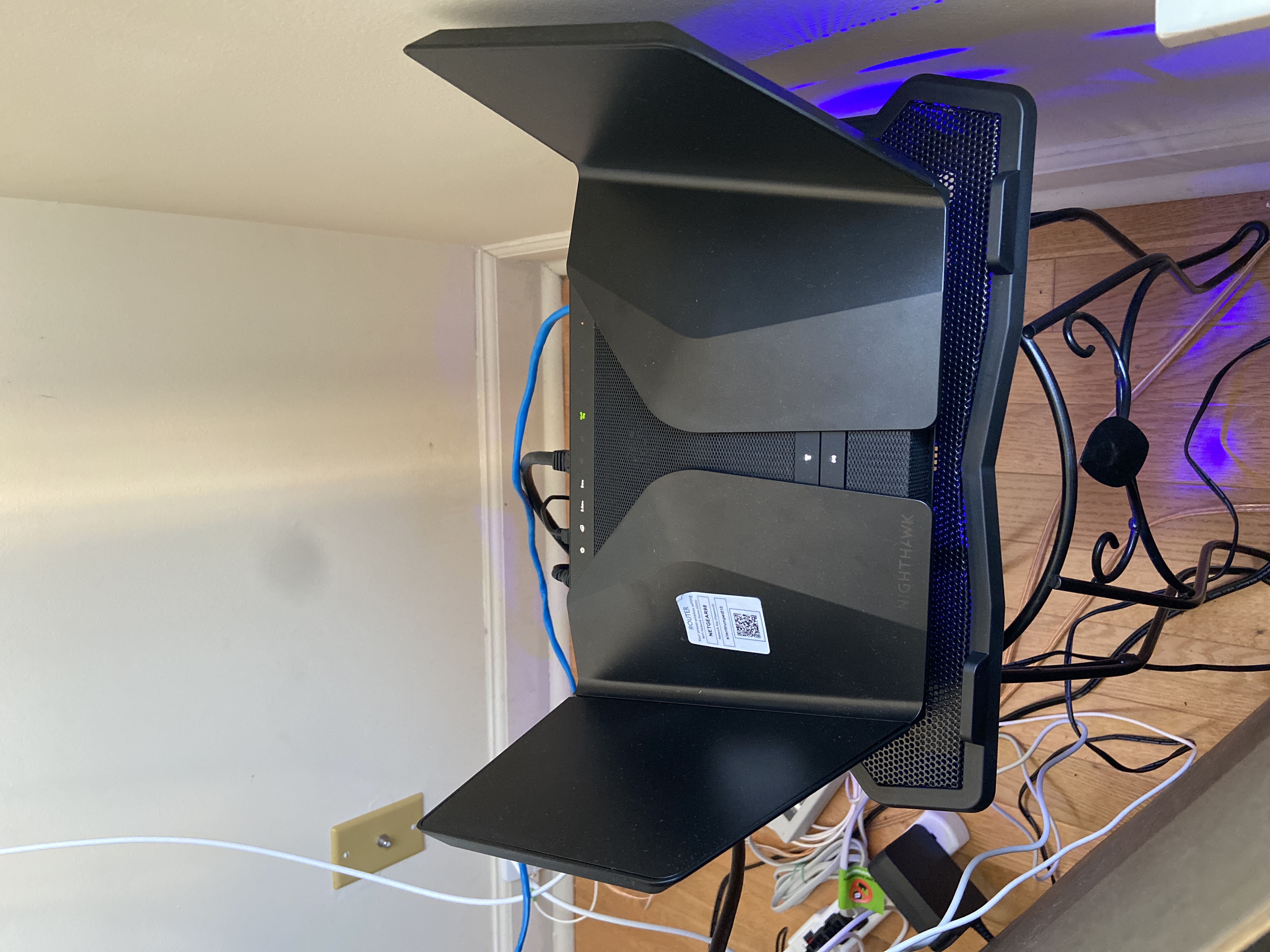
And bought a cool pad from amazon $10 . 4 days in a row no restart and router works perfect.
Laptop Cooling Pad,ESGAMING Laptop Cooling Stand Laptop Cooler 10-15.6 Inch 2 USB Ports 2 Fans with Blue LEDs https://a.co/d/dXVVnxw
AvgNetBoi
Dec 09, 2021Tutor
There's no option to contact them for me. It says I have no warranty support even though RAX is under warranty for 2 more years... Awesome support.

FURRYe38
Dec 10, 2021Guru - Experienced User
Contact a forum Moderator to see what options you have. Explain what your having problems with.
- derekcannadyJan 03, 2022Guide
Disabling WMM on 2.4 Ghz Spectrum should solve your reboot issues.
- AvgNetBoiJan 04, 2022Tutor
I did some testing over the time I've been quiet here.
1. I have disabled all the devices
2. Turned on Access Control
3. I have added only PC
(few days passed, no restarts)
4. Then MacBooks
(few days passed, no restarts)
5. Then iPhones
(few days passed, no restarts)
6. and then HomePod Minis
HomePod Minis make RAX120 restart. I have tried both 2.4 Ghz and 5 Ghz networks but the issue is the same on both. I wonder who should solve the issue - Netgear or Apple, or me doing some configurations to make those devices work together. - KillhippieJan 10, 2022Prodigy
Turning off WMM really slows your wifi network down, I have the V1 which does not reboot and since the v2 has no new features over the v1 I would contact Apple to start if you have Applecare as Apple suggest to leave WMM on, as I said it wrecks wifi performance with it off so thats not a long term solution. If its Apple gear causing issues you should be able to get help, it may be that your RAX120v2 is actually in need of replacing, but I would try and get the attention of a Netgear mod on here who may be able to pass you to level 2 support. Have you tried just using the router in AC mode and see if its more compatible, also dont use 160Mhz as that can cauuse issues, the same as 40Mhz on 2.4 can cause issues. Has the router been reset using the pinhole in the back of the router? Then reapply the firmware via a laptop or PC and dont use the app, I would try that way as updating firmware or having auto update on can much things up sadly as the fiormware is buggy to say the least, resetting via the app is not the best way to do things, tbh I dont even use the app, I just update via my Mac.
- AvgNetBoiFeb 11, 2022Tutor
I have done more and more digging - updated all devices to the latest, restarted and so on. HomePods still make Netgear RAX120v2 restart randomly. I took HomePods to my parents house, configured them with no issues, zero restarts, worked perfectly. At this point I must assume RAX120v2 is broken and I am looking forward getting another router, probably Linksys from Apple store. I have talked to Apple support and they also confirm there's no such known issue on their side and it's defo a new case.
I just hope Netgear will understand and accept warranty since IMHO router for around $500 should not have such issues. - eastsideFeb 23, 2022Tutor
Hi,
Has anyone been able to enable WMM for the 2.4GHZ radio and not have dropped connections and both 2.4 and 5GHZ radio SSIDs dissapear?
I have been communicating with Netgear support for weeks now with so many different recommendations but none of them have resolved this issue.
It seems the only way this router will work is with 2.4 GHZ WMM turned off which is junk since your speeds are greatly reduced.
- tr4sh80Jun 07, 2022Apprentice
I made this suggestion. You can set it to "always on" in the router debug page at 192.168.1.1/debug.htm . I also placed the router on top of this affordable fan/stand which I purchased on Amazon quite cheap.
https://a.c0/d/o4W1cCa
This combination has vastly improved the situation. This router gets very hot and has a heat dissipation issue which forces it to do a protective reboot when it gets too hot. - FURRYe38Jun 07, 2022Guru - Experienced User
Something like this would work as well:
I keep a laptop cooler under any router I put online. Been doing this since 2012.
We've made NG aware of these recent heat posts. Hopefully NG will fix this in FW though.
- tr4sh80Jun 07, 2022ApprenticeLaptop cooling fans are not very powerful nor do they have speed control as the one I posted does. It also holds the router above the surface which a laptop stand does not. You must also enable the exhaust fan on top to "always on" as I stated. I'm at over 2 weeks without a reboot now using this method.
- FURRYe38Jun 07, 2022Guru - Experienced User
I only posted a sample laptop cooler. Most any laptop cooler will work fine if one needs it.
The one I have does have speed control and sets the router off the surface. Router does NOT have to be off the surface of the laptop cooler as well. There is plenty of air flow. Also you don't need high speeds for additional air flow, just some additional is all that needed. Based on size of fan as well, a larger fan liked the one I link here carries plenty of air flow at low speeds. Nearly silent as well.
This is the one I currently have for about 5 years after my first cheapy I got from Walmart, fan blades busted on it:
This has adjustable back legs too if needed.
How mine is deployed:
- tr4sh80Jun 07, 2022ApprenticeI mean off the surface of the stand itself. The fan I posted has feet that actually hold the router above the surface of the fan itself rather then touching an actual platform which creates more dissipation and a buffer zone of space between the fan and router.
- FURRYe38Jun 07, 2022Guru - Experienced User
Either will work. Ive had zero issues with laptop coolers.
Just as long as there is air flow.
- beachmilesJun 07, 2022Apprentice
The internal fan setting gets unchecked during a power cycle so this isnt the greatest fix.
192.168.1.1/Thermal_FAN.htm is showing my temperature to be "NaNC" which sure looks like it is not reading the temperature correctly and probably never turning on the fan.192.168.1.1/debug.htm setting the fan to always be on didnt appear to turn the fan on for me and I tried both not clicking Apply and clicking Apply. When clicking Apply it causes the networking to reset on the router and I was reading in another forum this shouldn't be needed.
I will buy an AC infinity fan in the meantime in another attempt to fix this blasted router.
Curious if people claiming the fan fixed their reset problems also have the 2.4Ghz WMM enabled.
- tr4sh80Jun 08, 2022ApprenticeFan "Always on" started working for me when I reflashed firmware. I did first back up my router settings then reloaded them after firmware reflash. Hope that helps. Also, I left 2.4 wmm enabled.
- DannyLinJun 08, 2022Apprentice
I also have the "Always enable Fan" on and the /Thermal_FAN.htm shows also NaNC too.
Seriously, if this is a heating issue, then it is a hardware defect. Netgear should recall defective ones and maybe offer a better/comparable model, or simply just refund.
I've been working with Netgear's agency in Taiwan and trying to help offer them debug logs after they offered me 2 versions of firmware. So far, it still reboots. It's very hard to reproduce the issue. Sometimes, it reboots once a week, sometimes more than 10 days, and sometimes twice in 10 mins. This is definitely not a product that should be shipped to the market, especially considering its price, this should be a premium router. - beachmilesJun 08, 2022ApprenticeToday I verified the fan came on when checking the box to always enable fan at 192.168.1.1/debug.htm
The fan doesn't generate much airflow so you have to really be watching when enabling the checkbox otherwise it's pretty hard to tell it's on. If this turns out to be the real base problem then Netgear will need to fix the reading of the temperature sensor so it doesn't read "NaNC" and ensure the fan comes on properly at the right speed. Im guessing this hack to enable the fan to always be on only runs the fan at the slowest setting which may not be enough when the router is under a heavy system load. - tr4sh80Jun 08, 2022ApprenticeYou can force the fan speed at the 192.168.1.1/Thermal_Fan.htm page I believe. More importantly though get a fan like the one I linked to earlier to place under the router as a cool air intake.
- FURRYe38Jun 08, 2022Guru - Experienced User
Thanks for the additional find info. I've passed this on to NG for review in hopes this can be corrected soon. No idea when. For now, enable the fan on the debug page and see if it's enough to keep the router cooler. If not, try one of the external fan cooling suggestions. I personally keep a laptop cooler fan under any router I put online 24/7 regardless if the router has a built in fan or not. Saves HW life from heat damage over time.
beachmiles wrote:
Today I verified the fan came on when checking the box to always enable fan at 192.168.1.1/debug.htm
The fan doesn't generate much airflow so you have to really be watching when enabling the checkbox otherwise it's pretty hard to tell it's on. If this turns out to be the real base problem then Netgear will need to fix the reading of the temperature sensor so it doesn't read "NaNC" and ensure the fan comes on properly at the right speed. Im guessing this hack to enable the fan to always be on only runs the fan at the slowest setting which may not be enough when the router is under a heavy system load. - nestorsameloJun 09, 2022Guide
Today I got another reboot after I turned on the fan always on via debug.htm.
I do not have any additional fan, but I am using a sine wave UPS.
Also, I do have WMM enabled for both 2.4 and 5 GHz.After the reboot, it failed to synchronize NTP with Netgear NTP server, and the logs didn't have a timestamp. After I changed the NTP server to pool.ntp.org, it synchronized, and then the timestamps appeared in the log.
- FURRYe38Jun 09, 2022Guru - Experienced User
See how well it runs with the NTP change. If it still reboots you may need additional cooling.
nestorsamelo wrote:
Today I got another reboot after I turned on the fan always on via debug.htm.
I do not have any additional fan, but I am using a sine wave UPS.
Also, I do have WMM enabled for both 2.4 and 5 GHz.After the reboot, it failed to synchronize NTP with Netgear NTP server, and the logs didn't have a timestamp. After I changed the NTP server to pool.ntp.org, it synchronized, and then the timestamps appeared in the log.
- M-K-CJun 11, 2022AspirantCan you share the offered 2 versions of firmware Netgear send to you ???
- M-K-CJun 11, 2022AspirantGet 400 Incorrect request when I will change fanspeed after enable fan always on.
Any fix to this??? - tr4sh80Jun 11, 2022ApprenticeDon't hit apply after turning fan on. Not necessary and it reboots router
- UnKnOwN-SiAJun 11, 2022TutorInstalled beta firmware 1.2.3.33 on it and then turn fan on in debug.htm. Just check mark it , don’t click on apply.
And bought a cool pad from amazon $10 . 4 days in a row no restart and router works perfect.
Laptop Cooling Pad,ESGAMING Laptop Cooling Stand Laptop Cooler 10-15.6 Inch 2 USB Ports 2 Fans with Blue LEDs https://a.co/d/dXVVnxw - nestorsameloJun 13, 2022Guide
Today the problem got much worse. Instead of a reboot every few days, it started rebooting every few minutes (around 15 min).
The change was likely a new device streaming to another, both connected wirelessly. On top of that, my WAN speed went from 600 Mbps to 900 Mbps. This goes to support overheating as root cause. CPU utilization is a noticeable higher, but still under 15%.The fan is already "always on" under debug.htm. Thermal_FAN.htm shows sensor temperature as "NaNC."
Now I turned off 2.4 GHz WMM hoping for an improvement on how frequently the reboots happen, and I also bought a FAN (140 mm, USB) that will arrive in a couple days.