NETGEAR is aware of a growing number of phone and online scams. To learn how to stay safe click here.
Forum Discussion

lightknightrr
Nov 22, 2016Tutor
Getting SRX5308 VPN IPSec to work with Android (when using DynDNS)
Greetings, It appears that I can achieve a IPSec VPN Connection (both the Android device and the SRX5308 (with the latest firmware) confirm it), but there appears to be no traffic flowing through...
- Jan 12, 2017
Questions, comments, difficulties?
lightknightrr
Dec 08, 2016Tutor
Hmm, it worked from one VLAN to another, but later tests on outside networks didn't pan out. However, that's neither here nor there, as I've managed to get IPSec VPN working with DynDNS, as well as Linux Mint (using the Shrew Soft VPN Access Manager) and Android on a Samsung Galaxy Tab S2 (using the NCP VPN Client, as suggested in your later document). Thus far only the Android has been tested (at Starbucks) to see if a remote connection could be made successfully with the new settings (it could, and did, allowing SMB access to a network file share, which also told me that I need to update my music collection), but I think the Shrew client (and whatever I eventually throw together on Windows, native VPN client or otherwise) when tested on an external network will prove to work equally as well with these new settings.
The encryption difference is most favorable, as AES-256 is currently ranked higher than 3-DES and much higher than MPPE-128, as well as the use of the Diffie-Hellman (DH) Group algorithm set to Group 5 (1536 bit); and the authentication difference isn't bad either, with SHA-1 being the most desirable (better than MD5, and much better than MSCHAPv2).
Someone remind me (in a few days), and I'll post a guide (complete with screenshots) for the config I'm using.

DaneA
Dec 12, 2016NETGEAR Employee Retired
Hi lightknightrr,
I just want to follow-up about the detailed guide of your configuration you have mentioned. Have a nice day ahead. :)
Regards,
DaneA
NETGEAR Community Team
- lightknightrrDec 14, 2016Tutor
Ok, so, some things have happened, and I'm not as far along as I'd like, but here's what I have, and I'll work with the commentary / feedback (if any) I get from you guys (*crickets*). The images have been redacted / modified to that I hopefully will not have any curious readers poking around my firewall; however, the configuration should still be valid, and if it isn't, tell me, and I'll check to see where I goofed in transcribing the config.
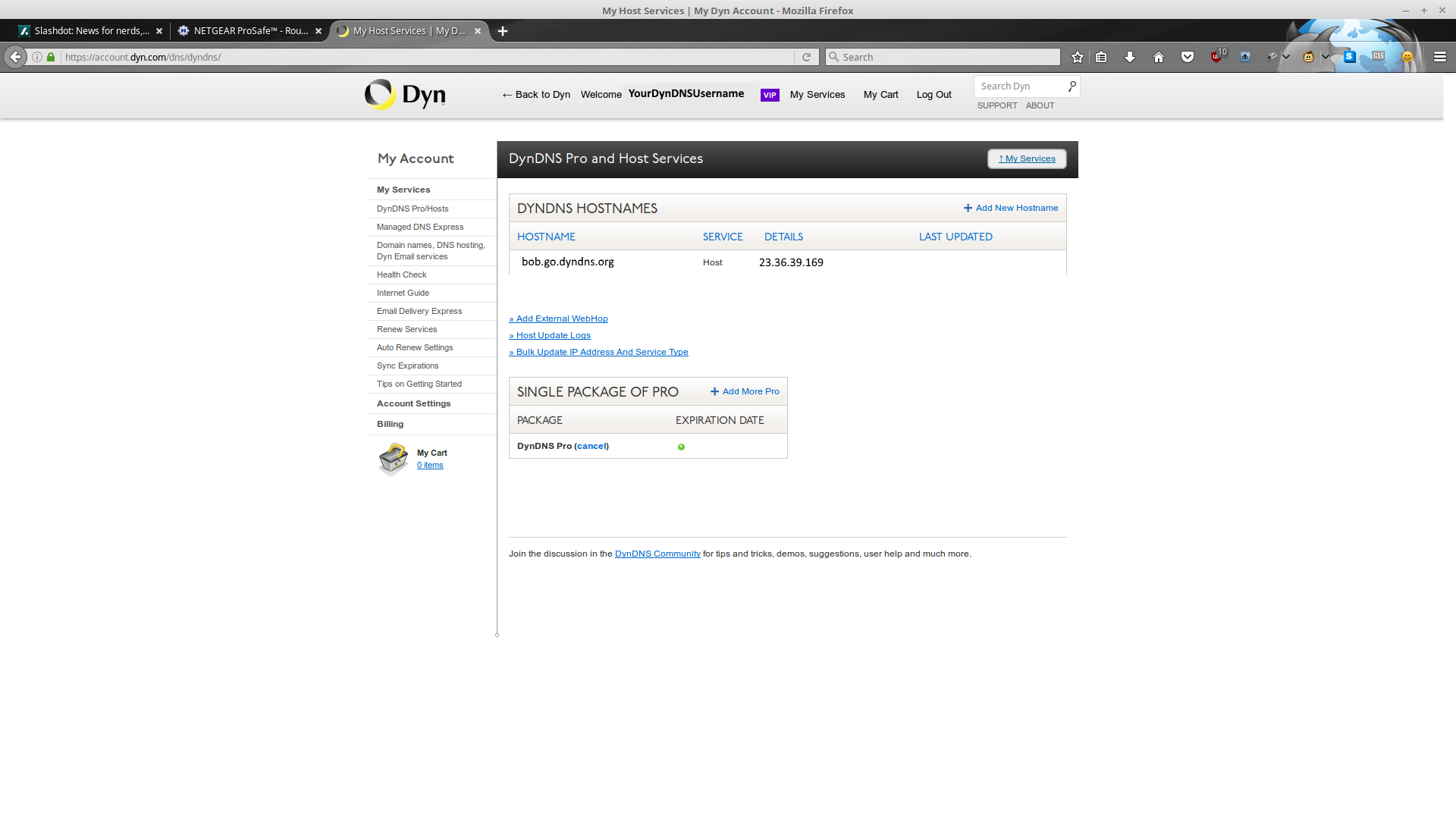
First up is DynDNS:
You are going to want the DynDNS Pro package if you are just doing VPN stuff (it's cheap). If you have a static IP, or are using some other service, feel free to ignore this part.
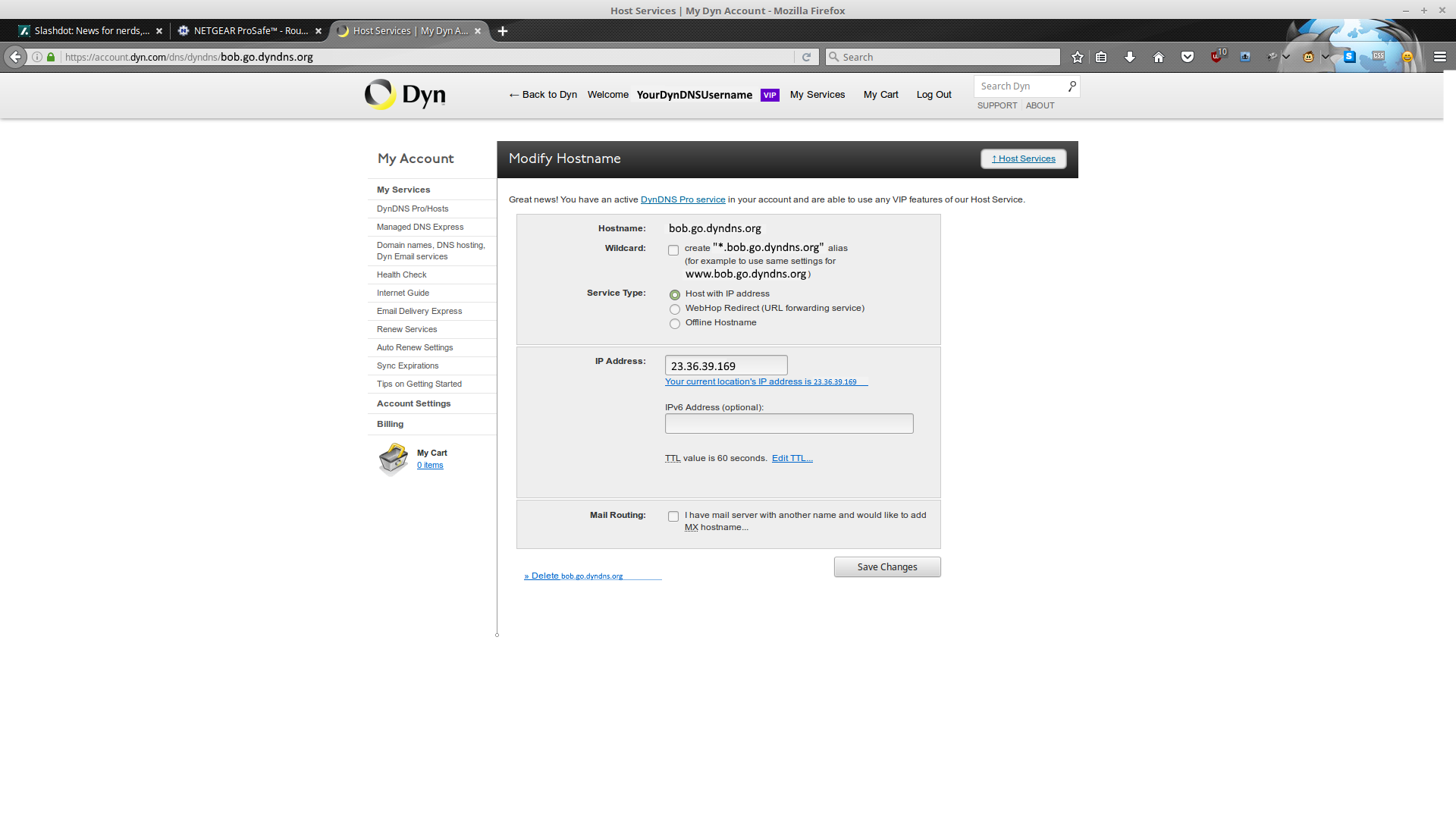
As you can see above, I've successfully registered bob.go.dyndns.org to my account, and can put it to use (which we will). It wants an IP address, so just click the 'Your current location's IP address' link to fill it with whatever WAN address it sees (we are going to tell the firewall to automatically login and keep this record up to date, so it's not a long term concern).
- lightknightrrDec 14, 2016Tutor
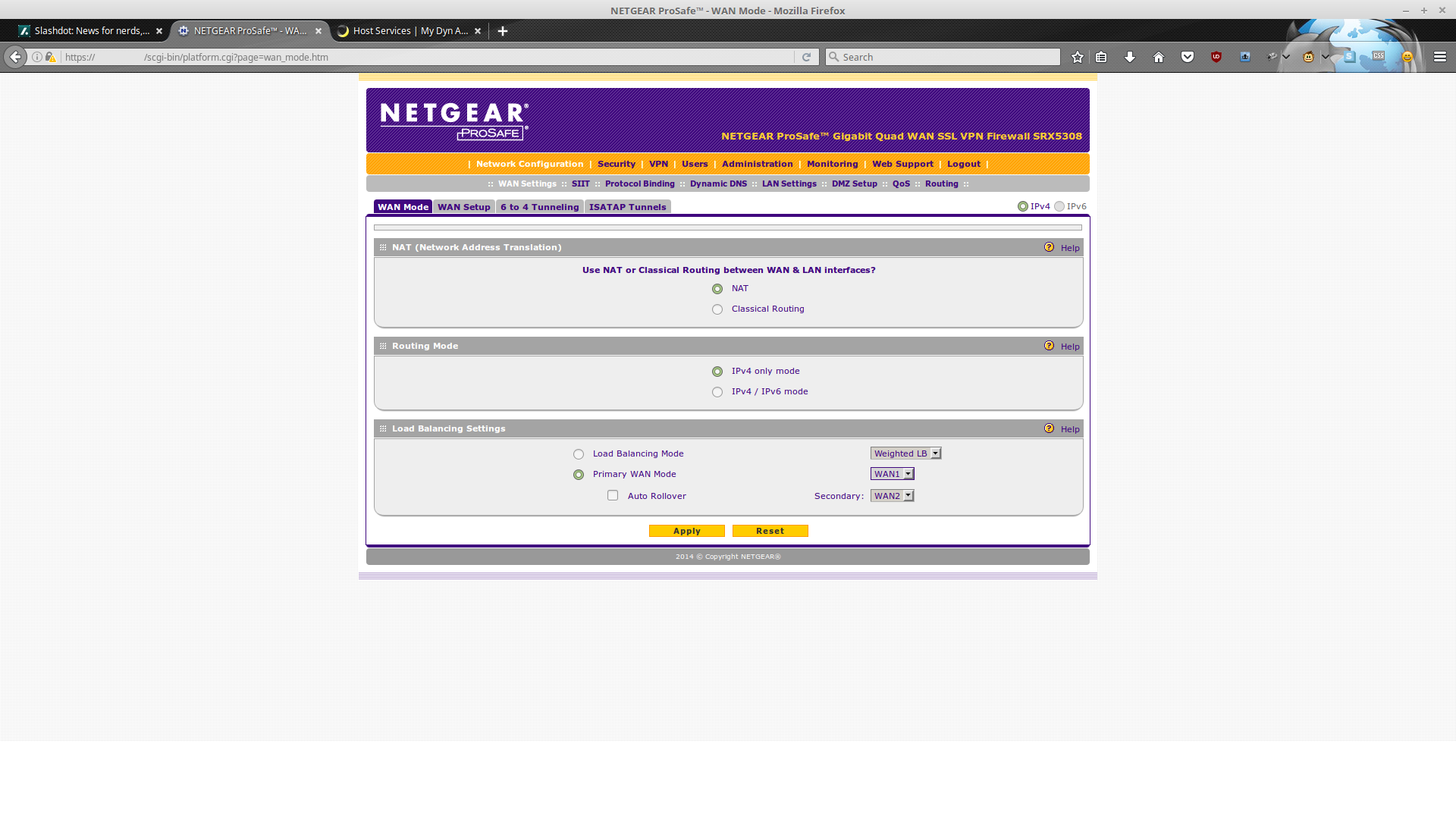
Next up is the SRX5308, where we need to double-check a few things, then make some changes.
My configuration uses NAT and IPv4 mode.
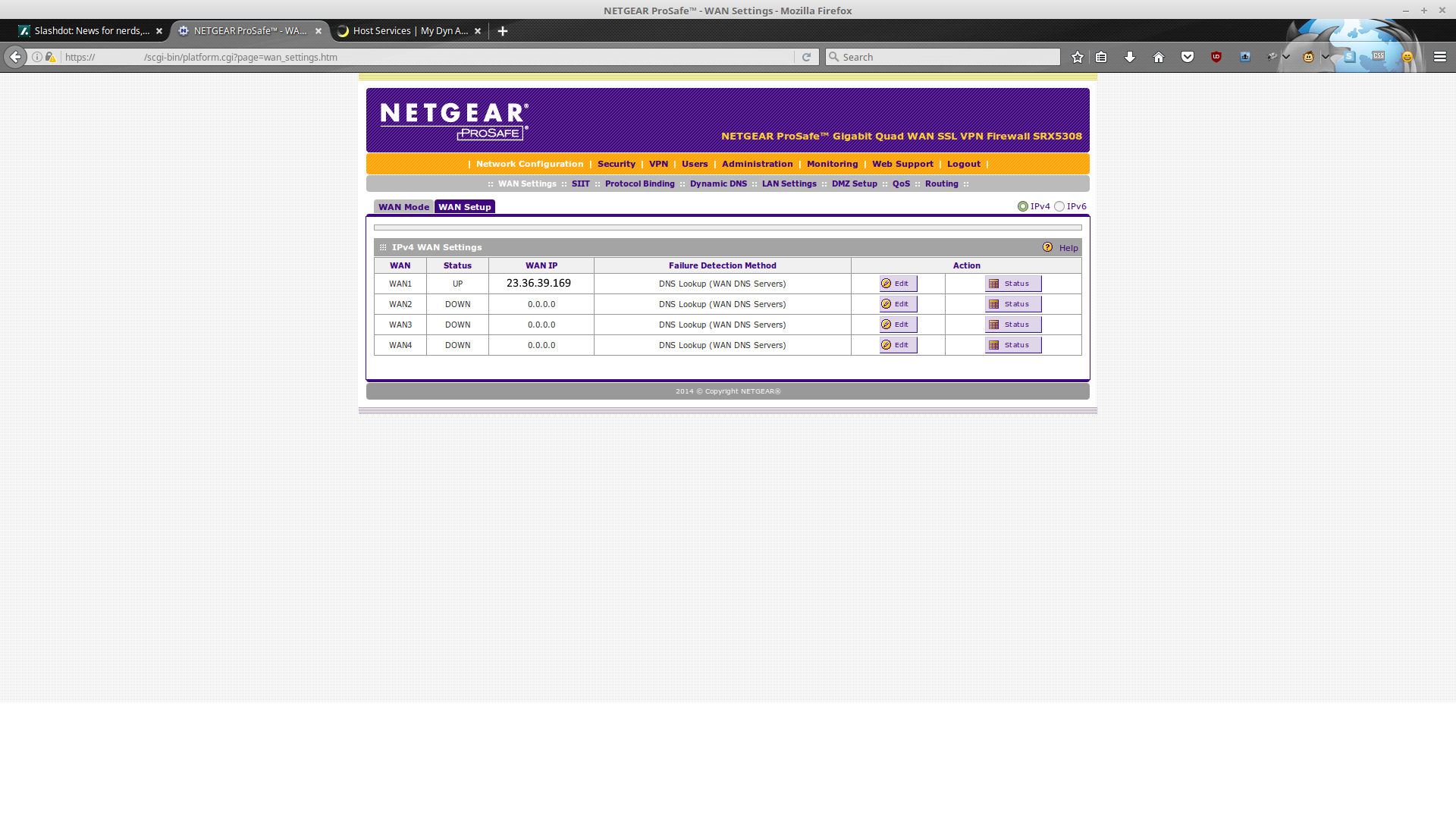
Making sure that at least one WAN interface is up, and that we have an IP address.
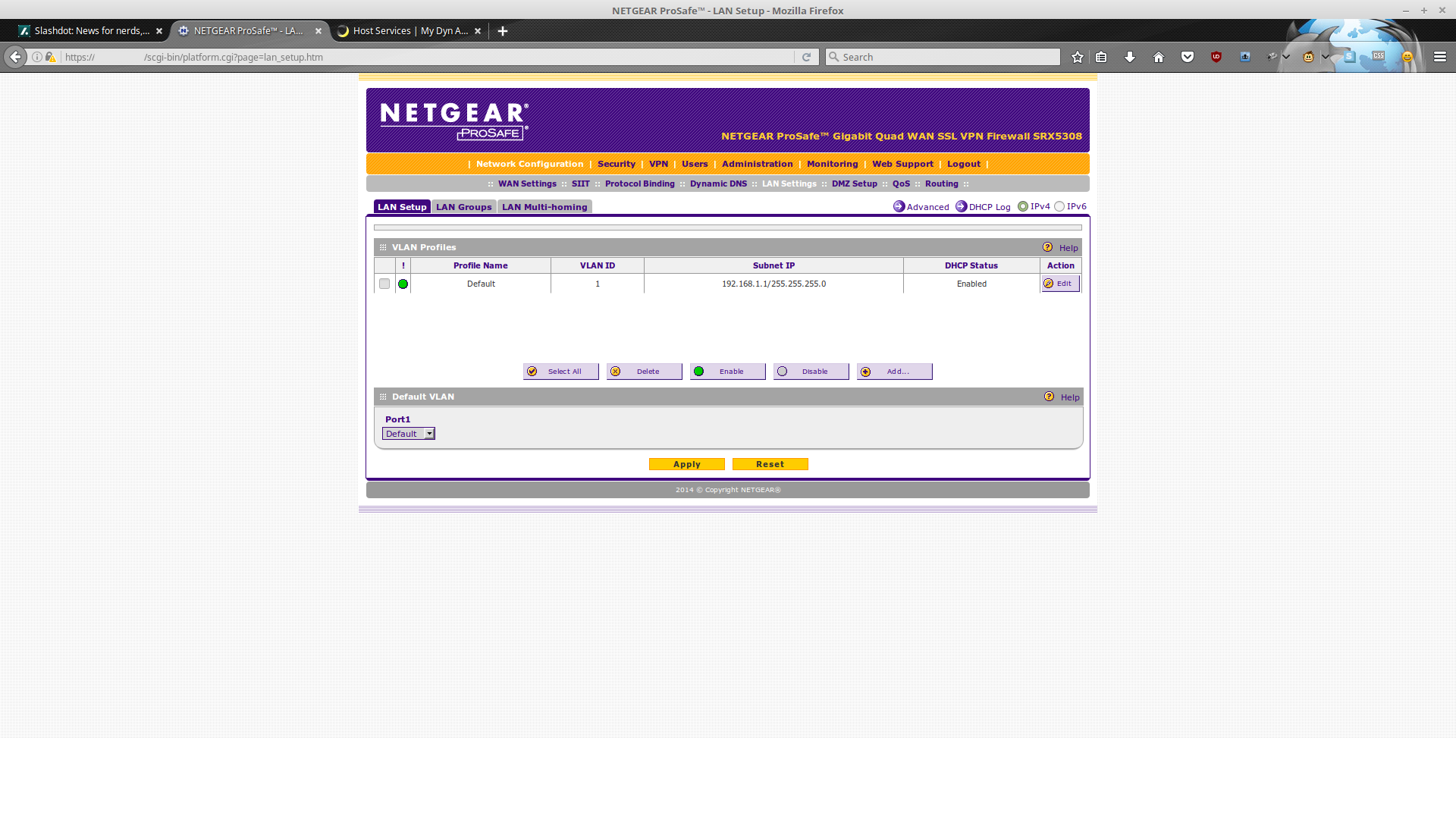
Going to need at least one VLAN...
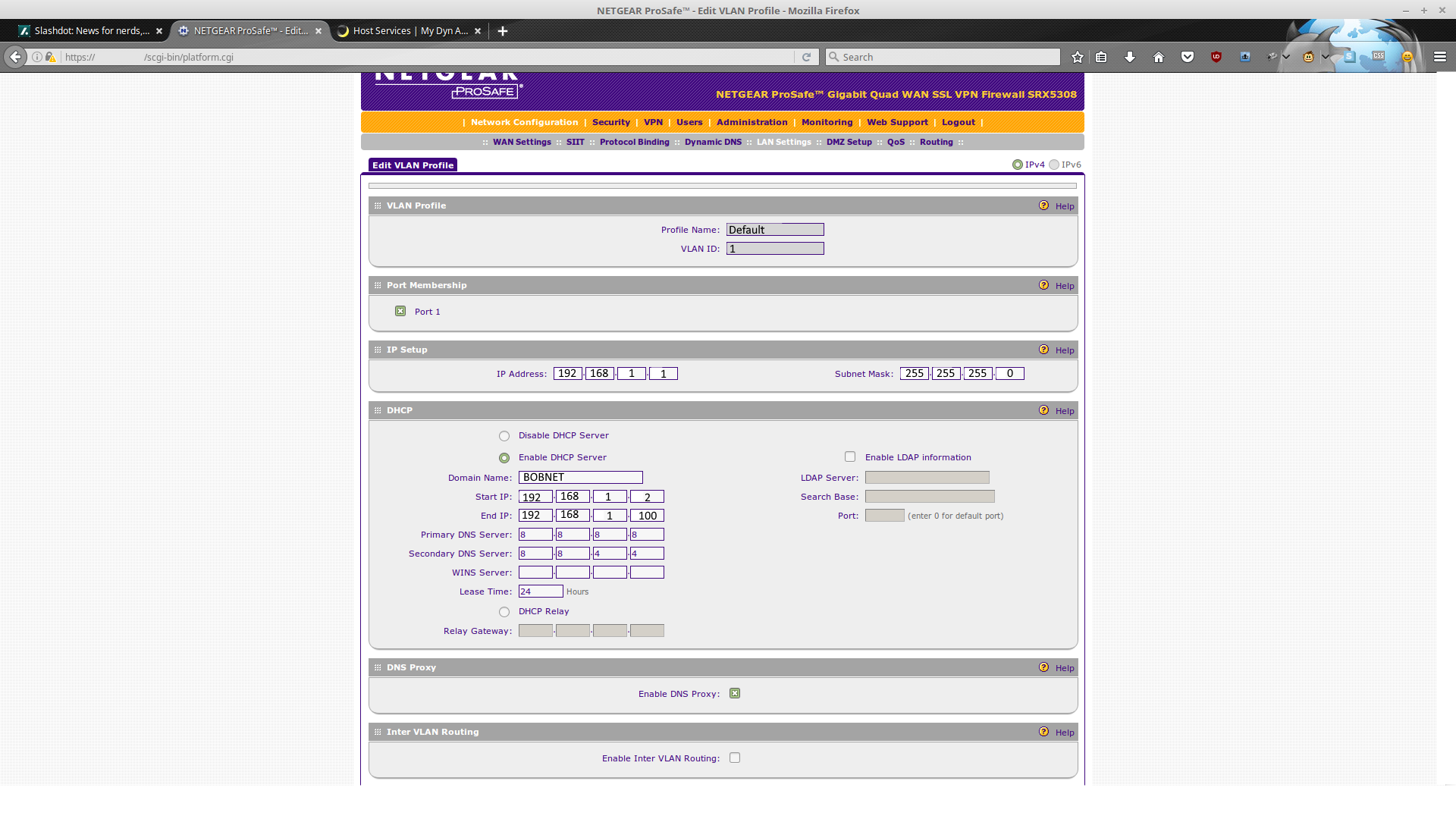
Just some checking to make sure we have valid LAN settings (VLAN & DHCP): Bobnet is looking pretty good for a small business; the DNS servers (8.8.8.8, 8.8.4.4) are Google's.
- lightknightrrDec 14, 2016Tutor
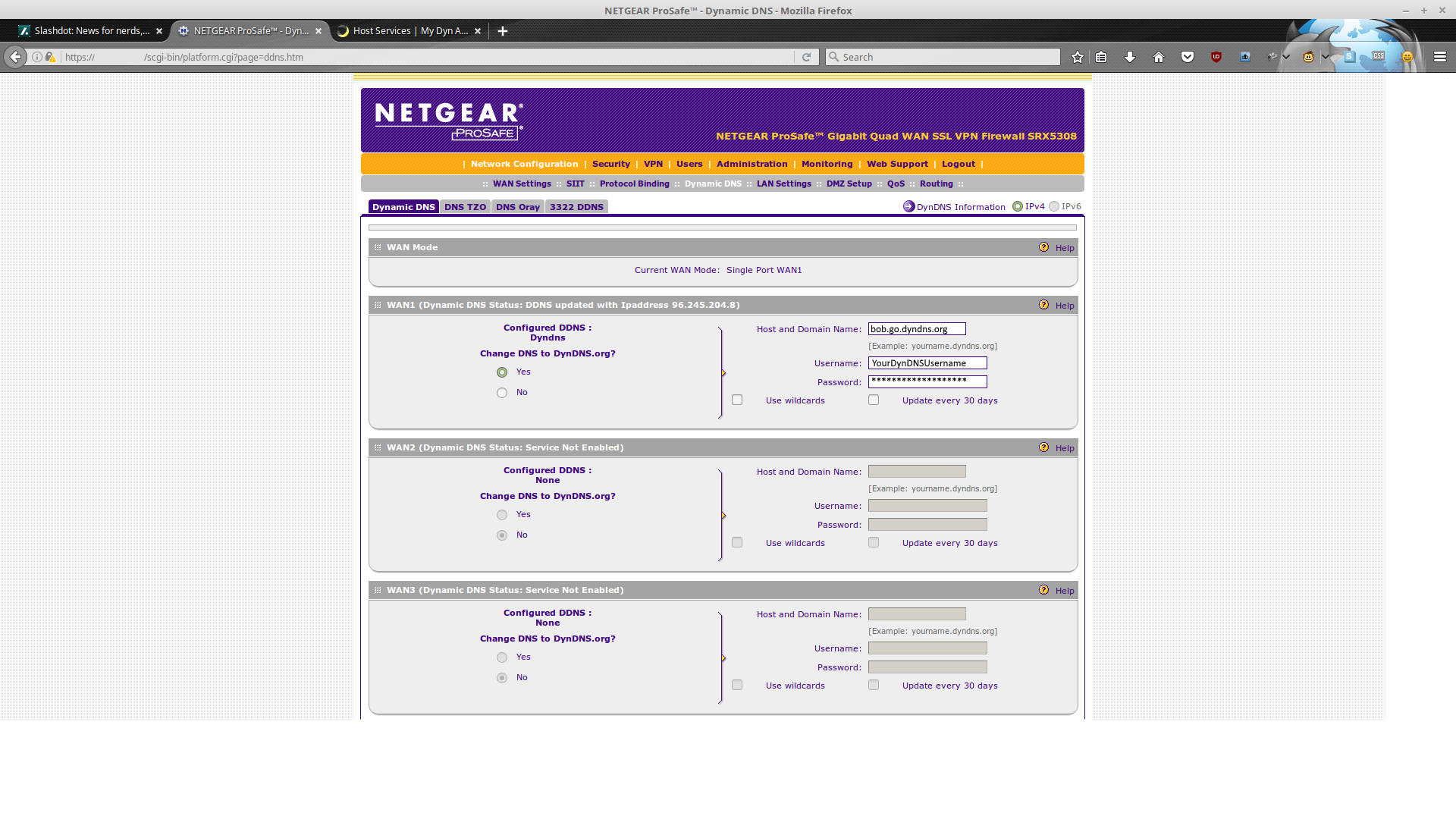
Now let's get DynDNS up and running:
The username is the same as your DynDNS username, and the password is the same as your DynDNS password. Simple, right?
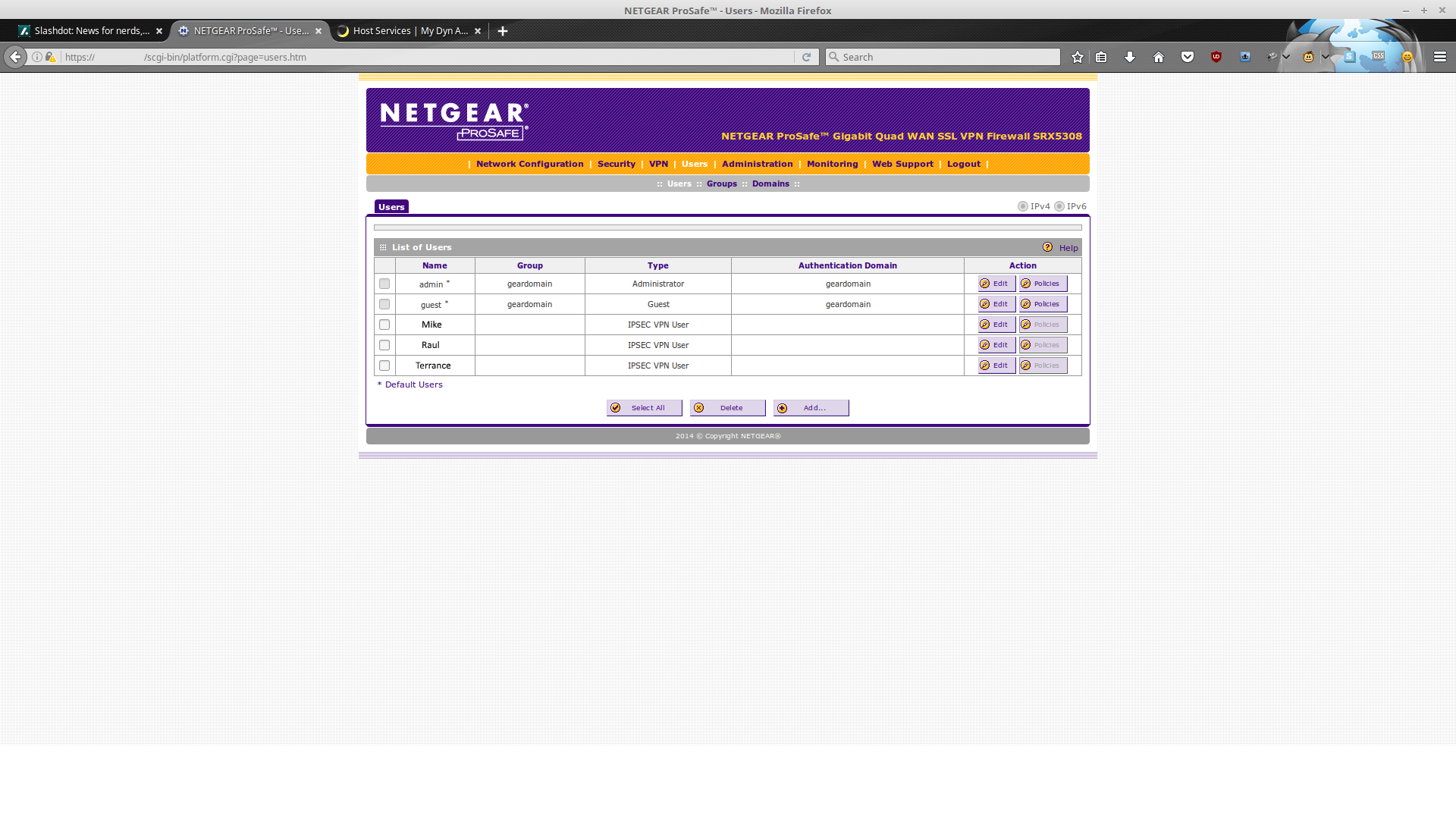
Next we are going to head over to the Users page, and add some users.
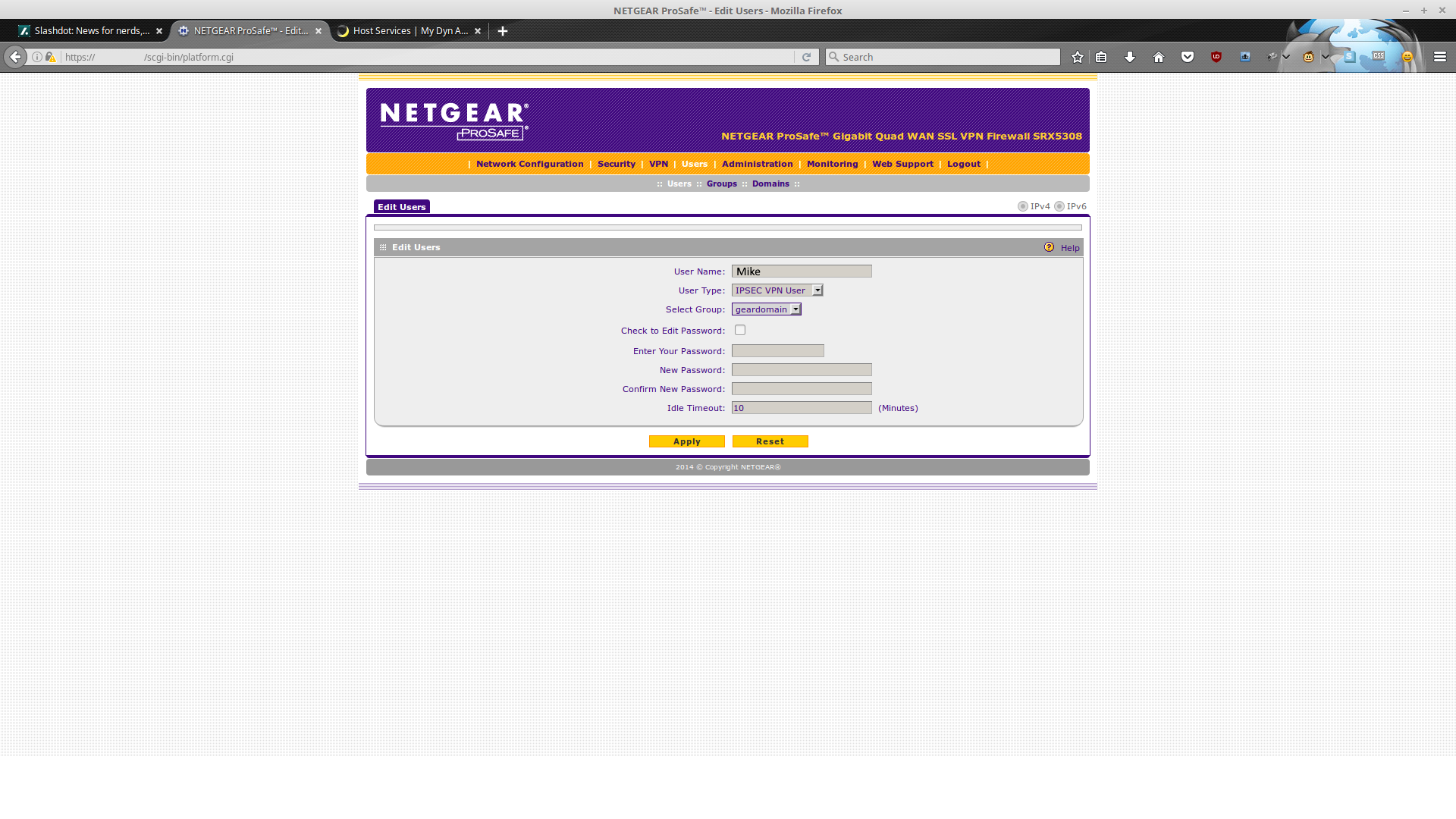
For our purposes, we are going to be using IPSEC and XAUTH which means -> you need a username & password plus a pre-shared key to login (it should be fairly secure). Add new users, selecting the 'IPSEC VPN User' as the type, and choosing appropriate passwords. Bear in mind that when you save the user with the default timeout settings, then edit that user, you'll find that the default timeout is actually 10 minutes. Something to keep in mind when you want to create a 'keep-alive' connection.
- lightknightrrDec 14, 2016Tutor
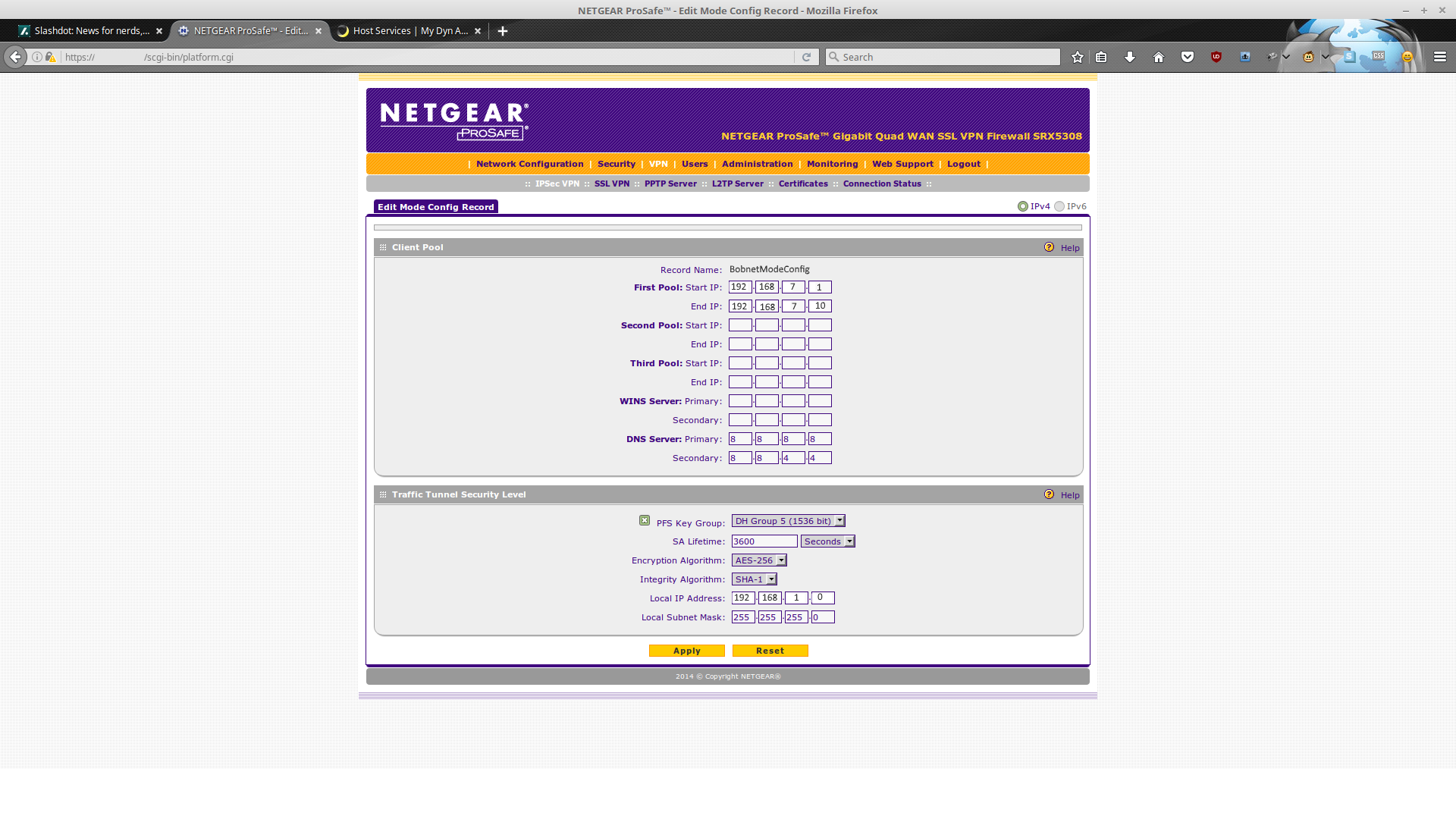
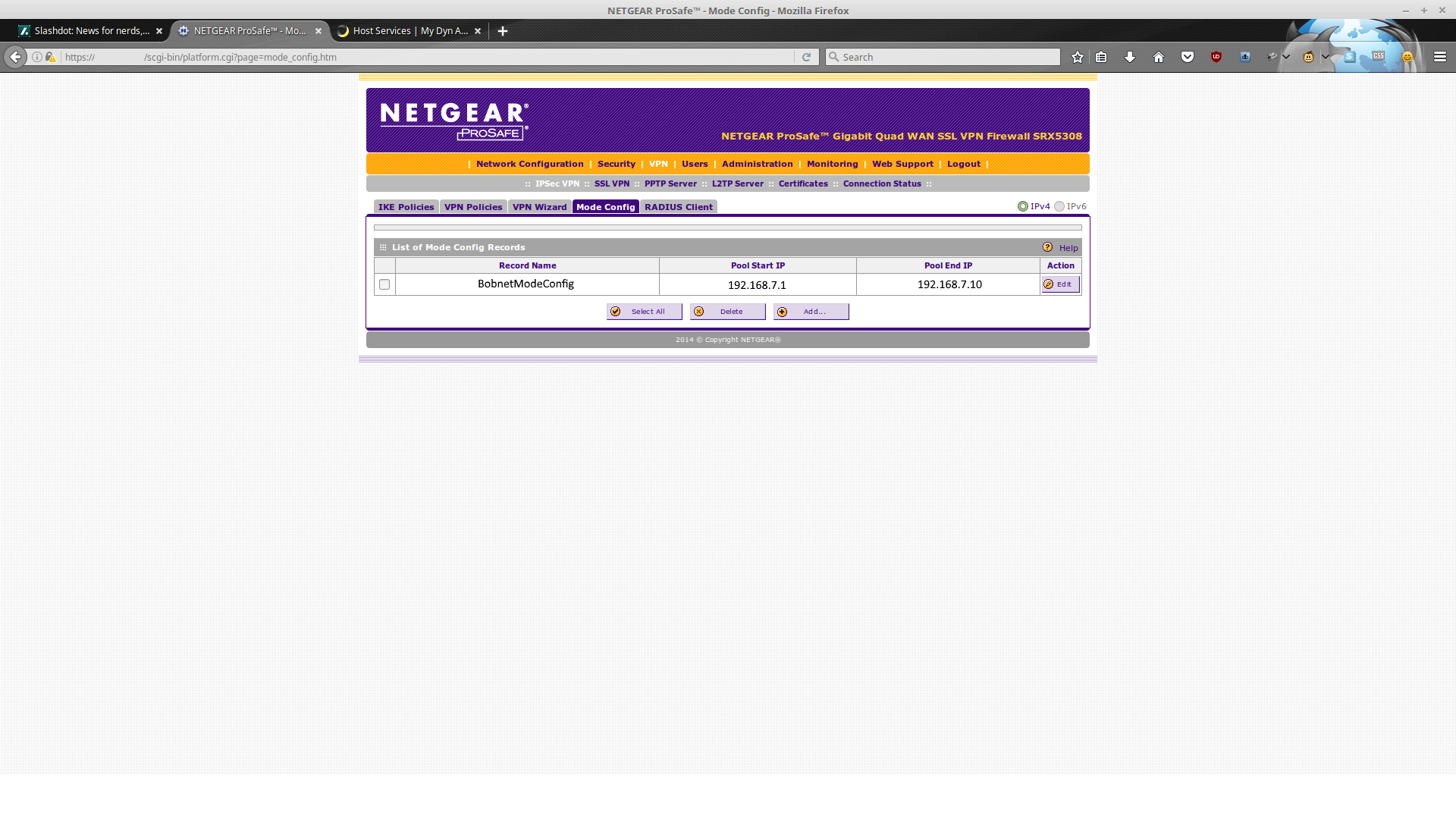
Next we will need to create a mode config. (I know, this is different from the other directions, don't ask, it works).
The IP Pool(s) are for addresses (subnets?) that are not be used anywhere else. Essentially, you are creating a new DHCP-ish pool of addresses. The DNS servers are, once again, Google's; I've enabled PFS Key Group (DH Group 5), AES-256 and SHA-1 which may be considered the best options available, and on any decent Android / Windows / Linux / Mac device you won't notice the extra work. The subnet we care about (Bobnet) is 192.168.1.0, as we can grasp from our earlier VLAN / DHCP settings.
Our BobnetModeConfig is ready for use.
- lightknightrrDec 14, 2016Tutor
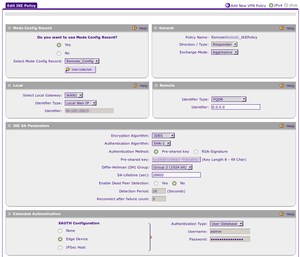
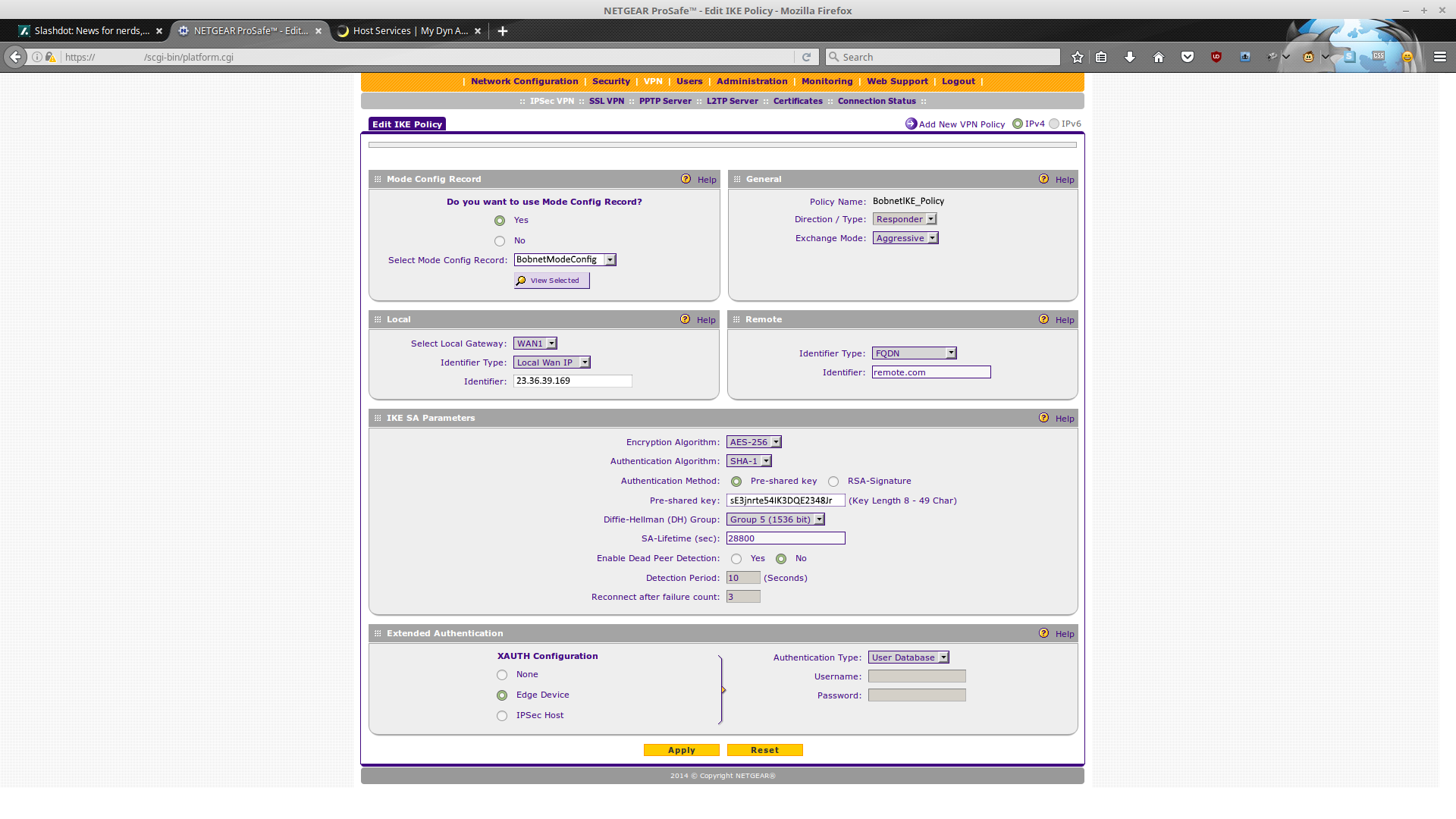
Now the IKE policy can be created:
*It's similar in many respects to the other document, but here a mode config must be created, and a VPN policy is unneeded / can't be created.
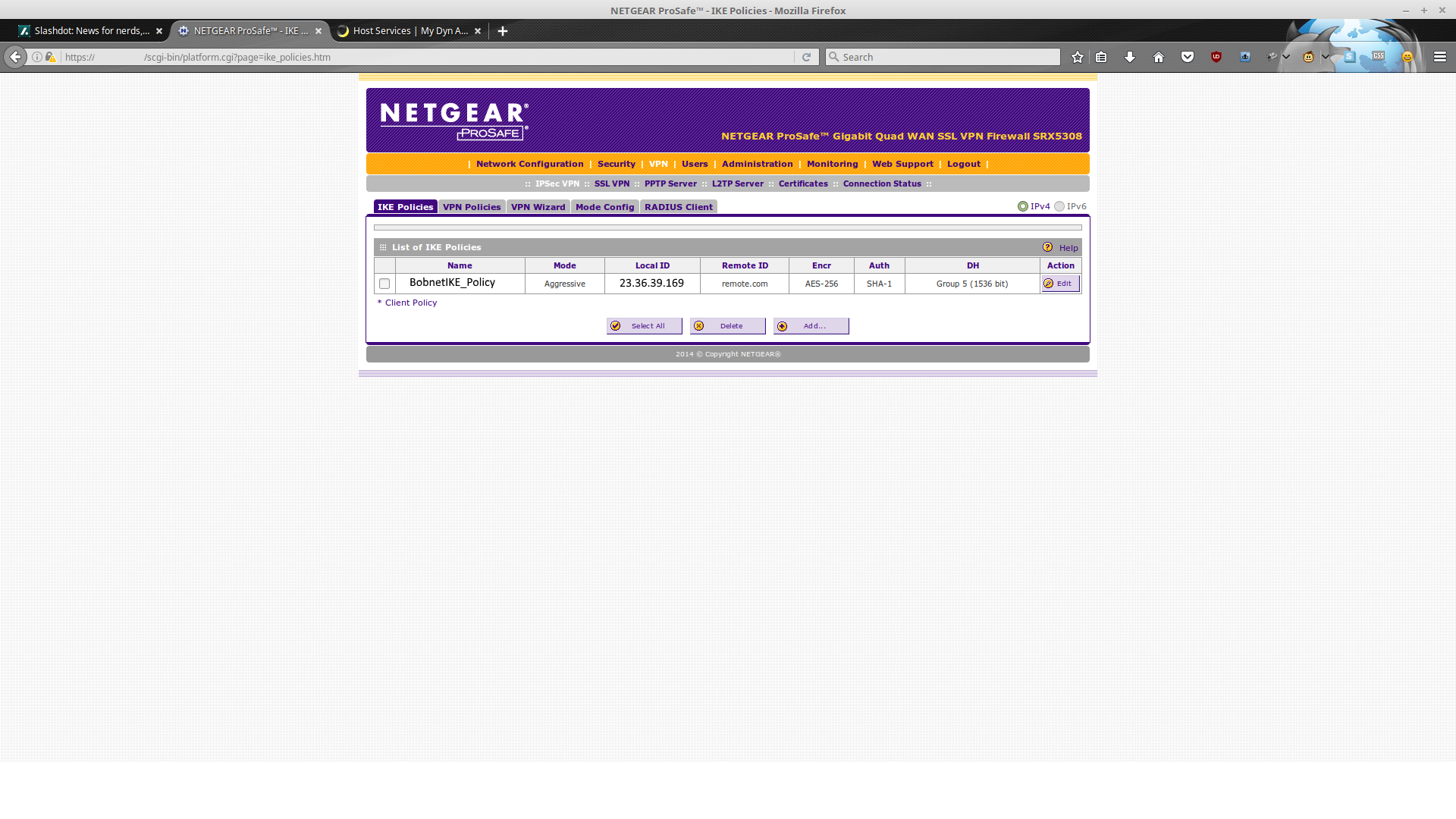
The final result, when saved, should look like something like this:
And the SRX5308 portion of this configuration should be complete.
- lightknightrrDec 14, 2016Tutor
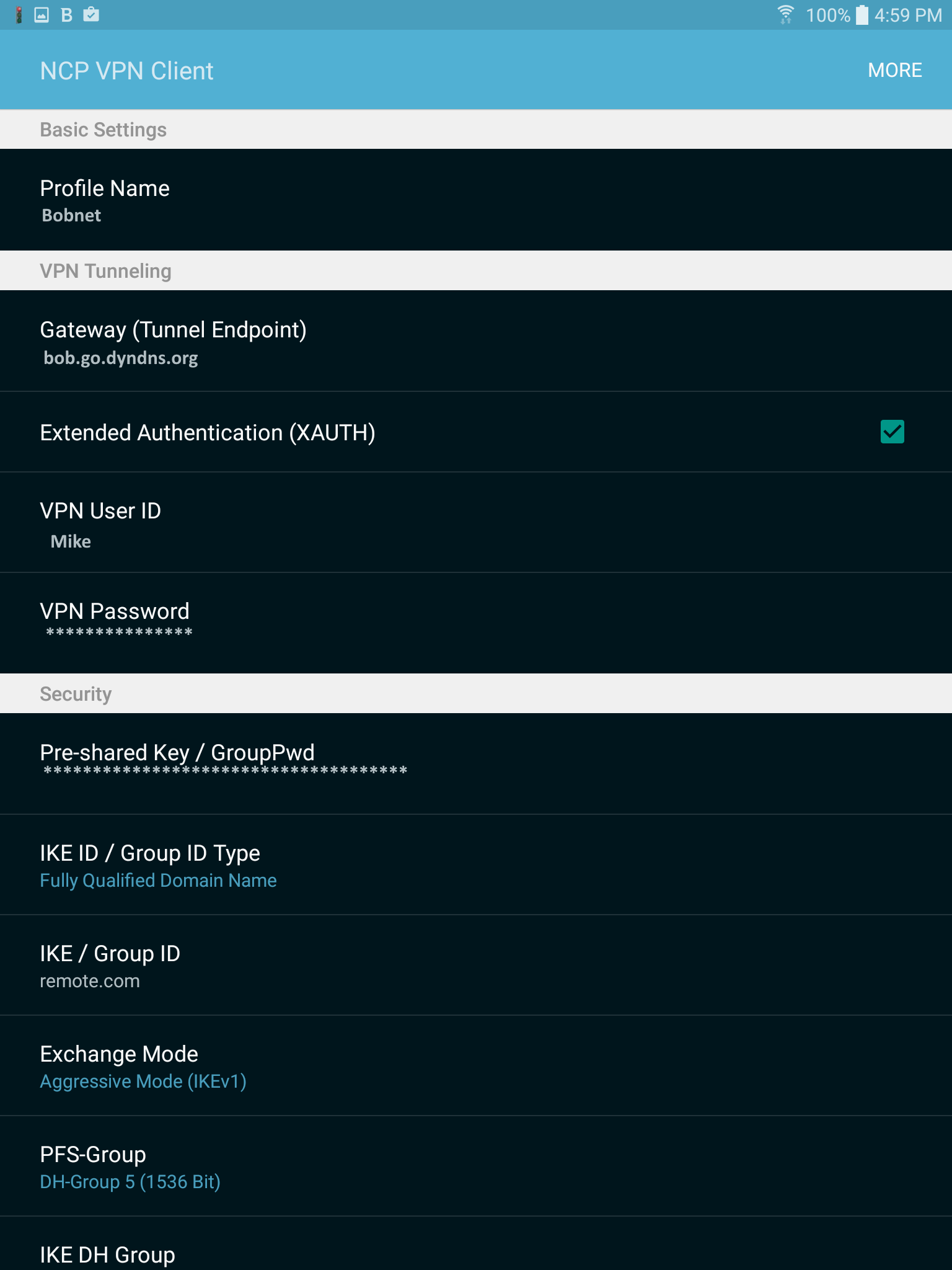
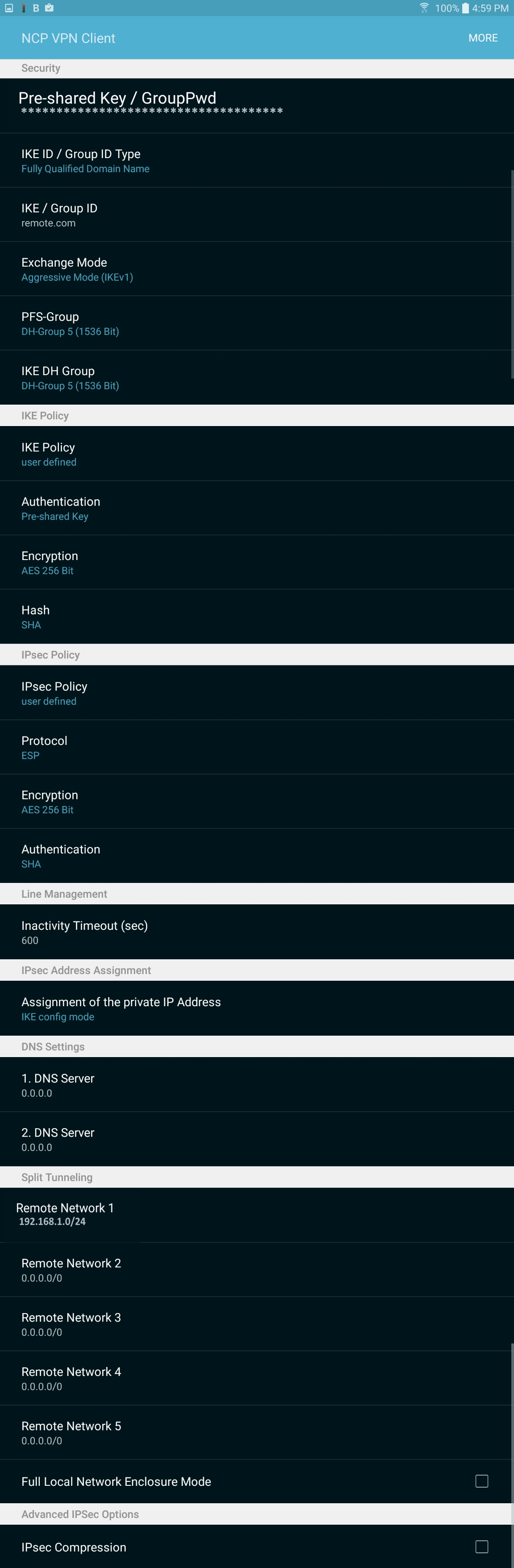
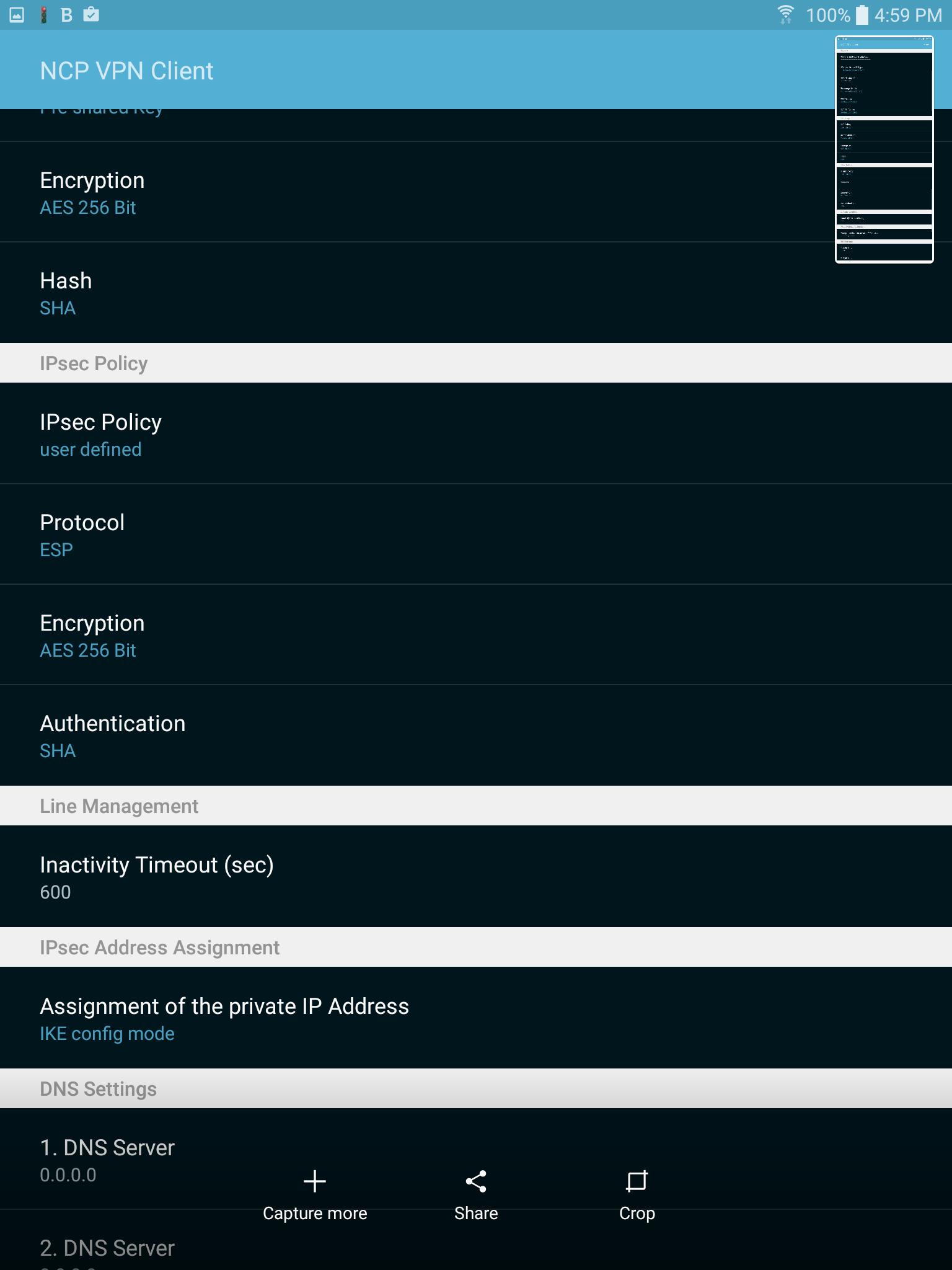
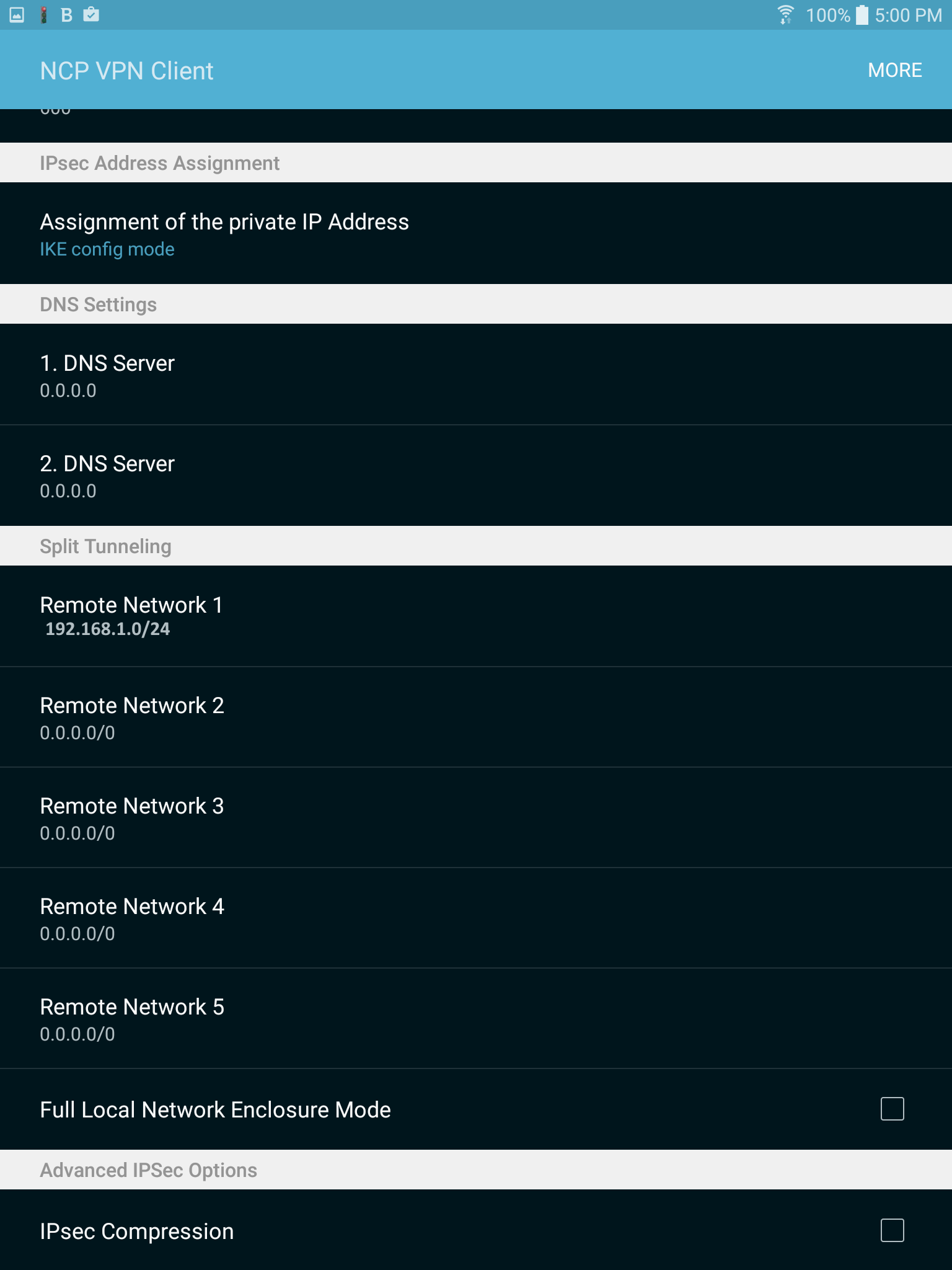
Now onto the Android portion:
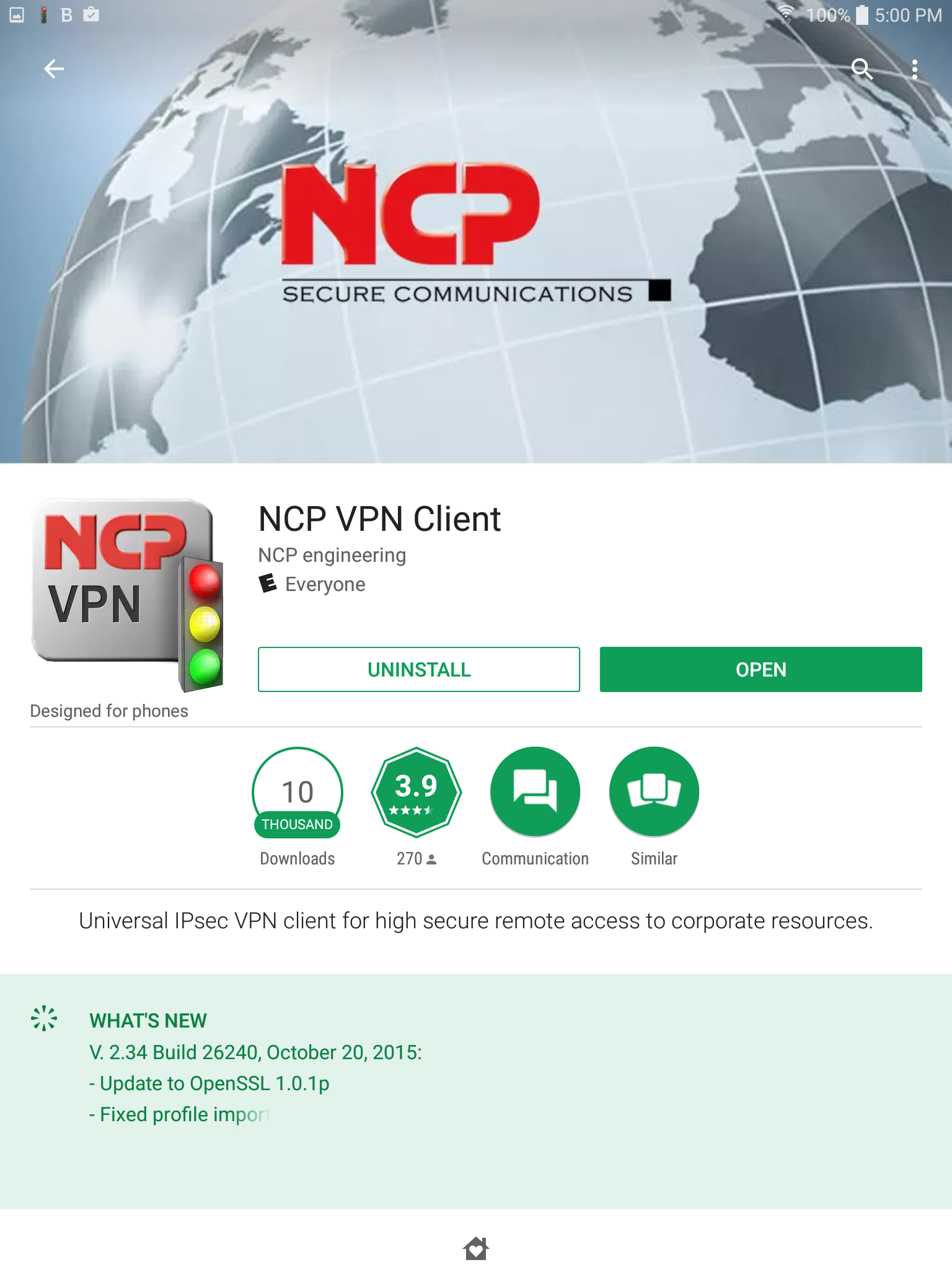
You will want this client. The ~$4 one should be fine (it's what I'm using), get the $30 if you want the extra functionality.
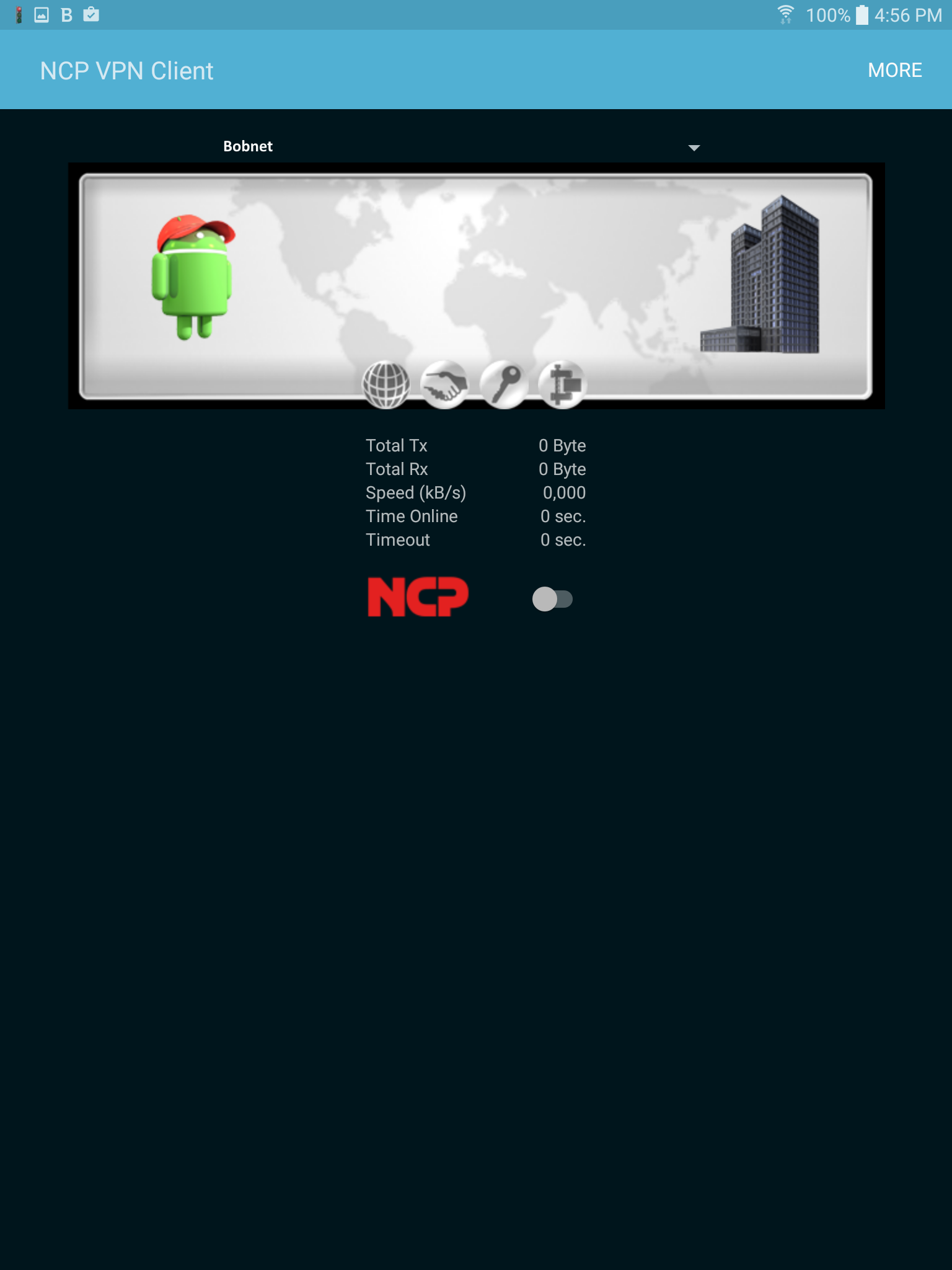
This is the screen you will eventually get to, where a single slide of that button will make the VPN connection for you.
For now, follow More->Configure->Profile configuration->Add Profile. If you've been following the guide up until now, this part should be pretty easy for you. Like goes with like.
- lightknightrrDec 14, 2016Tutor
Right, feel free to give me feedback, or ask questions if you need help. Right now I have a splitting headache, so I'm not much use to anyone...but give me a week, and if I'm not dead, then yeah, we'll do that.
I also have the Linux / Windows Shrew Soft (works with Windows 10) client settings, but I have had no time to test them at Starbucks.
-Lightknight
- DaneADec 14, 2016NETGEAR Employee Retired
Awesome! :) This would help a lot of community members.
I encourage you to mark the most appropriate post / reply as the “Accepted Solution” so others can be confident in benefiting from the solution. The NETGEAR Community looks forward to hearing from you and being a helpful resource in the future!
Cheers,
DaneA
NETGEAR Community Team
- lightknightrrJan 12, 2017Tutor
Finally made it to Starbucks. Tried out the ShrewSoft client with Mint 18.1 (I think we are up to 18.1) and Windows 10 Pro (both 64-bit, Windows 10 was a VM in VirtualBox).
Anyway, these settings should be consistent with everything else up until now (same shared key, same username, same password, etc.).
If you are on Windows, here's the link to the ShrewSoft VPN client: https://www.shrew.net/download/vpn . It's free.
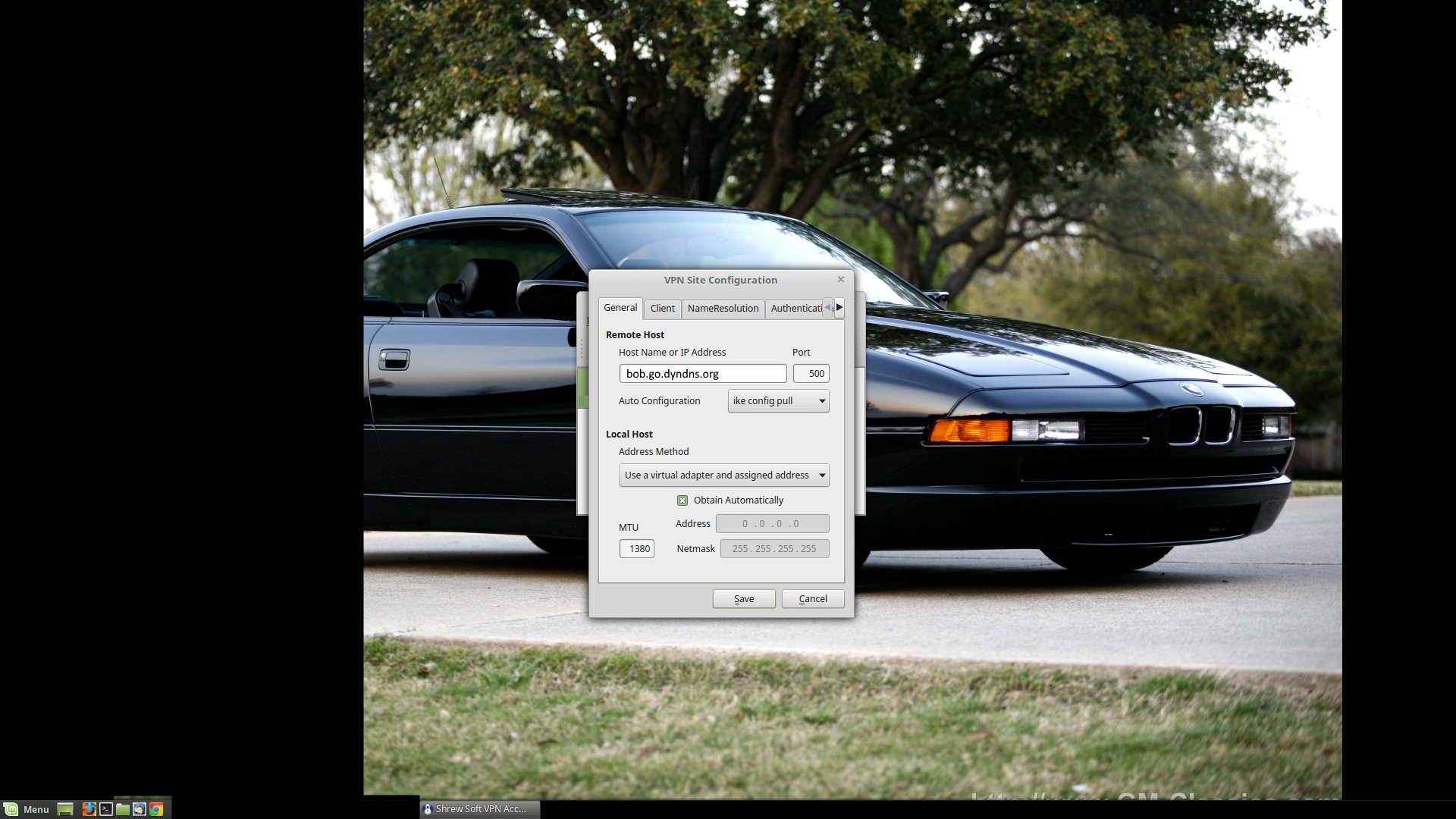
So, General Settings are above, really only need to fill in your (possibly DynDNS) hostname.
- lightknightrrJan 12, 2017Tutor
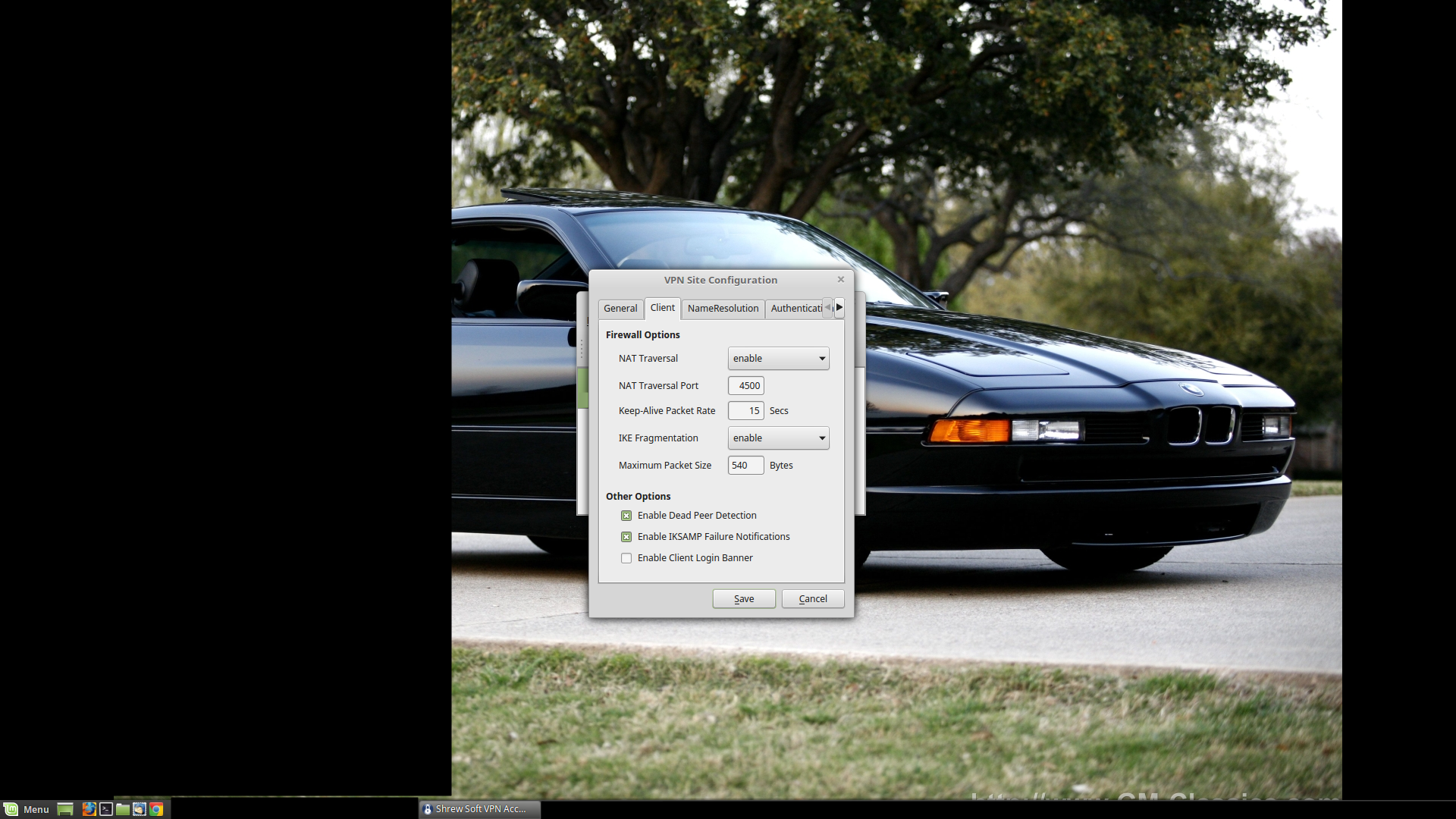
Client settings. I disable / uncheck the 'Enable Client Login Banner' box.
- lightknightrrJan 12, 2017Tutor
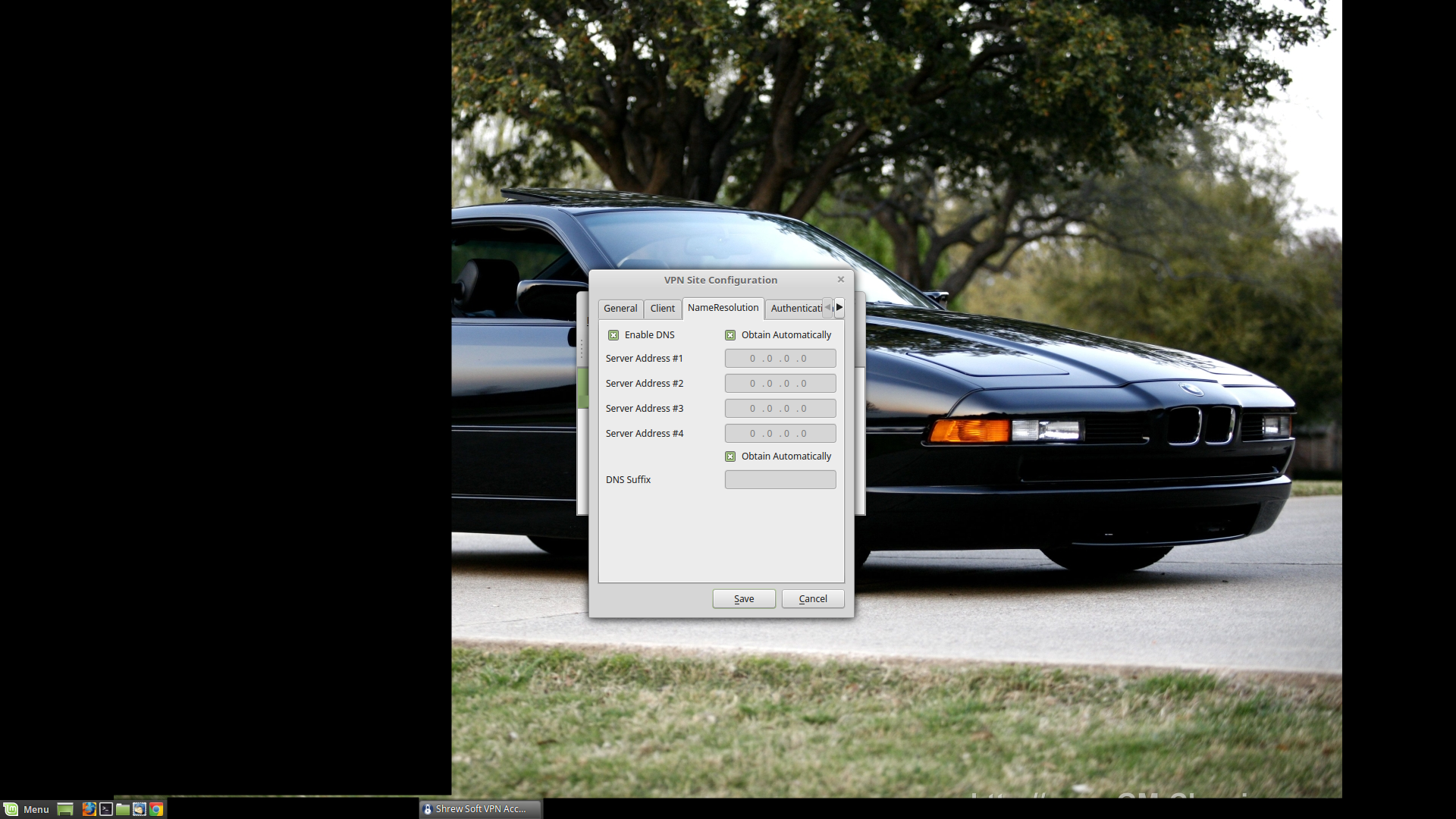
Name Resolution: I keep this as is.
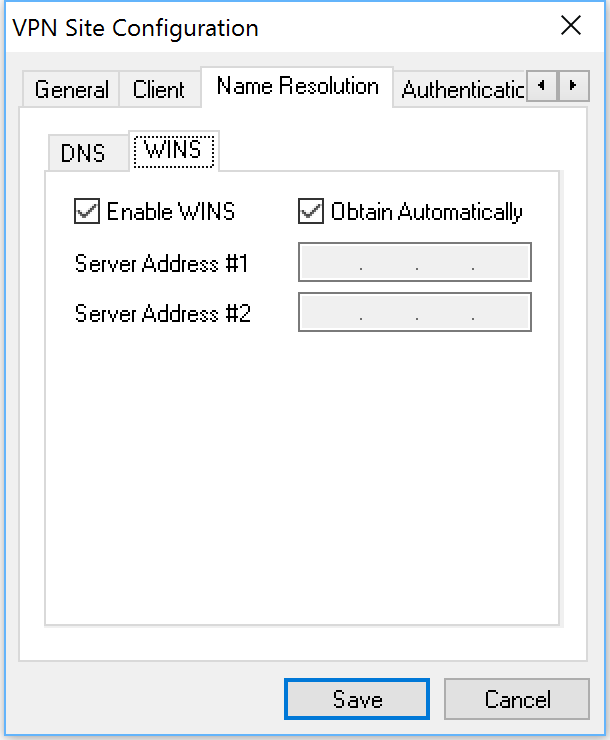
Just a side note: the Windows client has WINS settings in addition to DNS settings. I keep them as is.
- lightknightrrJan 12, 2017Tutor
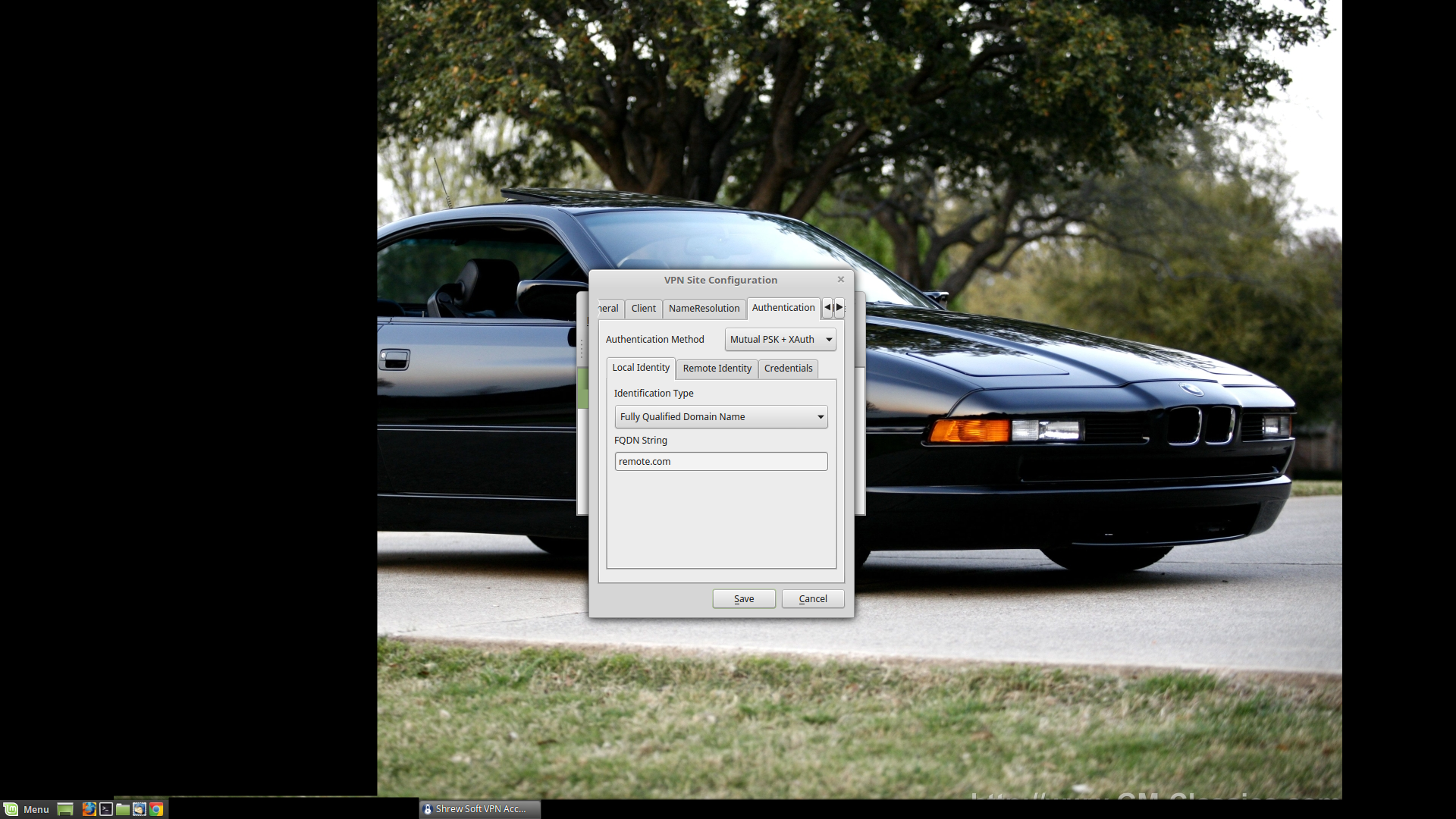
Authentication Method: What method are we using? X-Authentication with a Private Shared Key. Mutual PSK + XAuth in other words.
Local Identity: It's going to be a FQDN, and we've been using "remote.com" thus far, so "remote.com" it is.
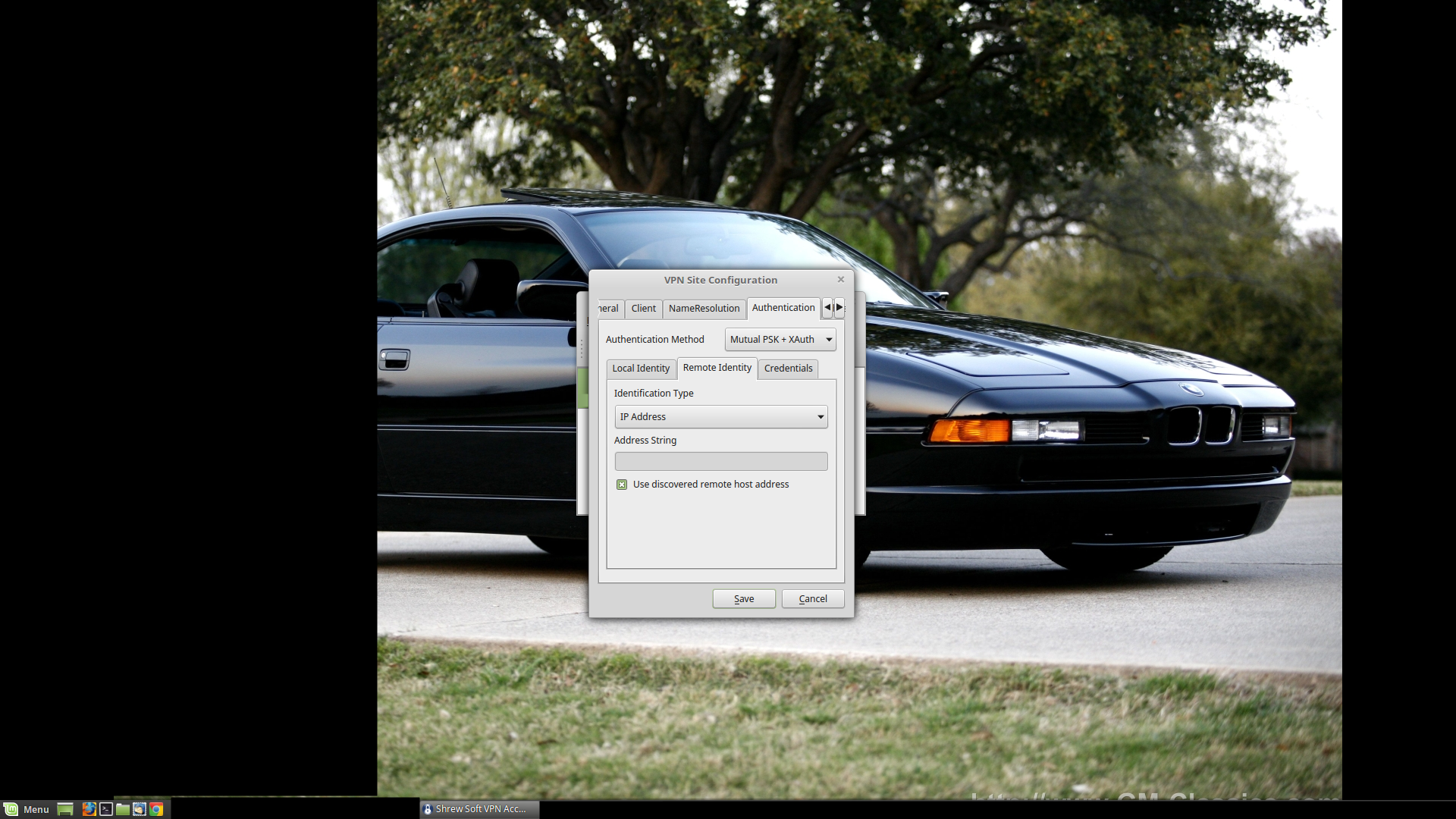
Remote Identity: IP Address. 'Use discovered remote host address' should be checked.
Once again, these settings should match the IKE Policy & friends settings from way earlier. No surprises.
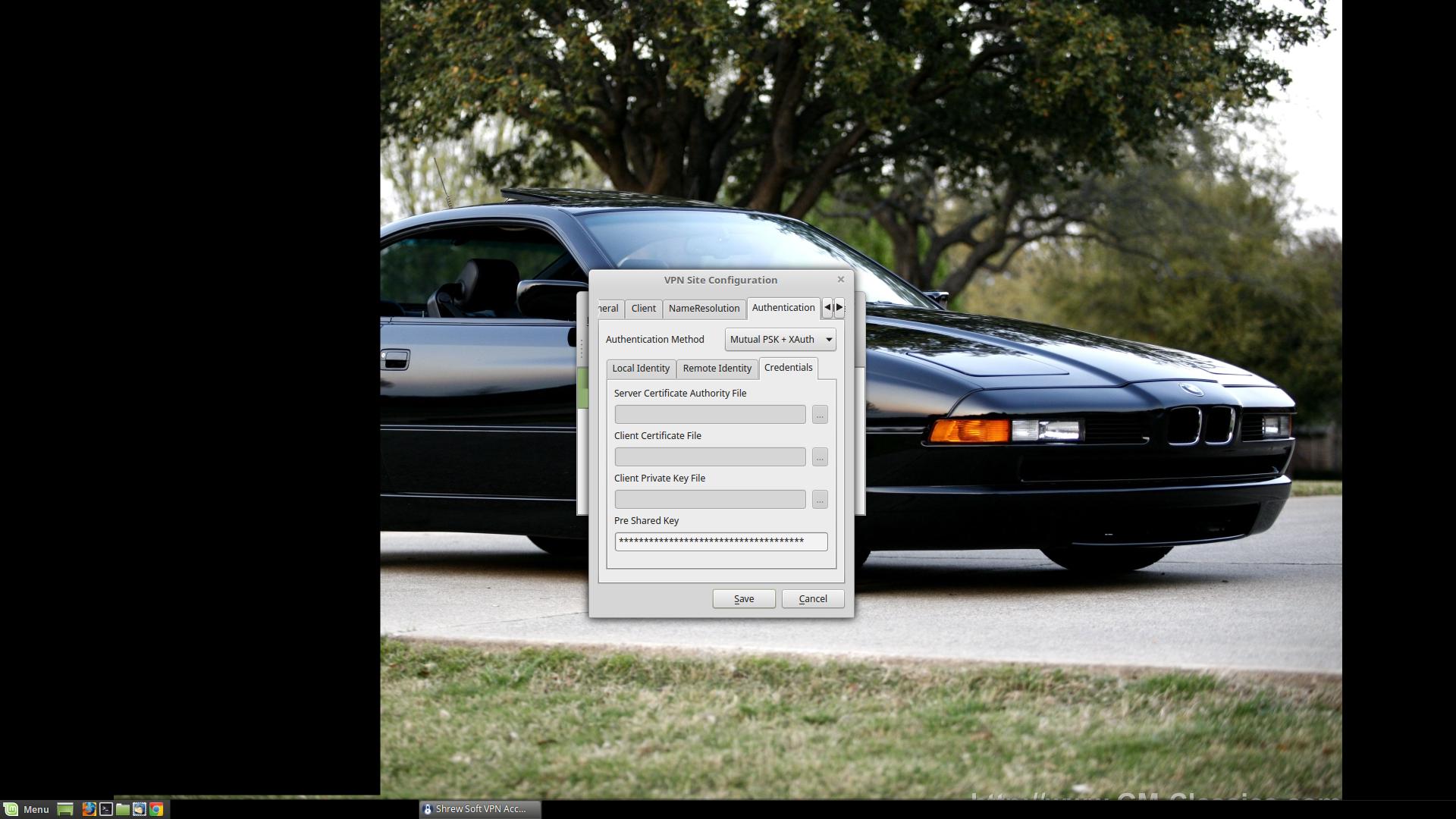
Pre-shared Key: It's going to be the same one you created earlier. Don't email it, text it, instant message it, or pass it in anyway over unencrypted electronic communications: it defeats the purpose of having a PSK.
- lightknightrrJan 12, 2017Tutor
Copy the PSK by hand. Input it by hand. Well, for anything important.
- lightknightrrJan 12, 2017Tutor
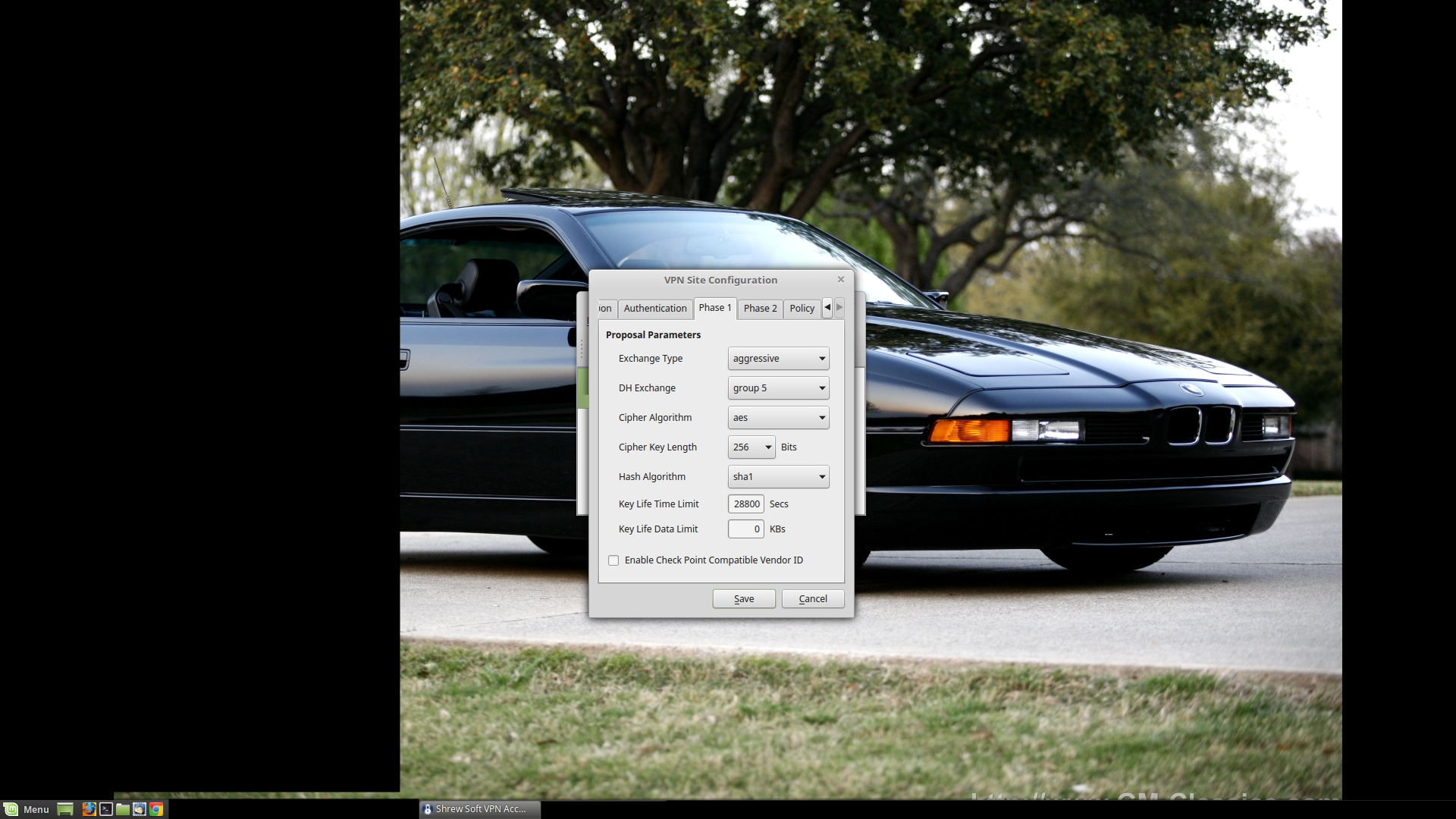
Exchange Type: Aggressive (should be the default)
DH Exchange: We are using 'Group 5', because we prefer our encrypted communications to stay that way.
Cipher Algorithm: AES (best choice, from earlier)
Cipher Key Length: 256 bits (longer is usually better, again this just reflects our settings from earlier)
Hash Algorithm: SHA1 (best choice, from earlier)
Key Life Time Limit: 28800 Secs (to match what we already have in place)
- lightknightrrJan 12, 2017Tutor
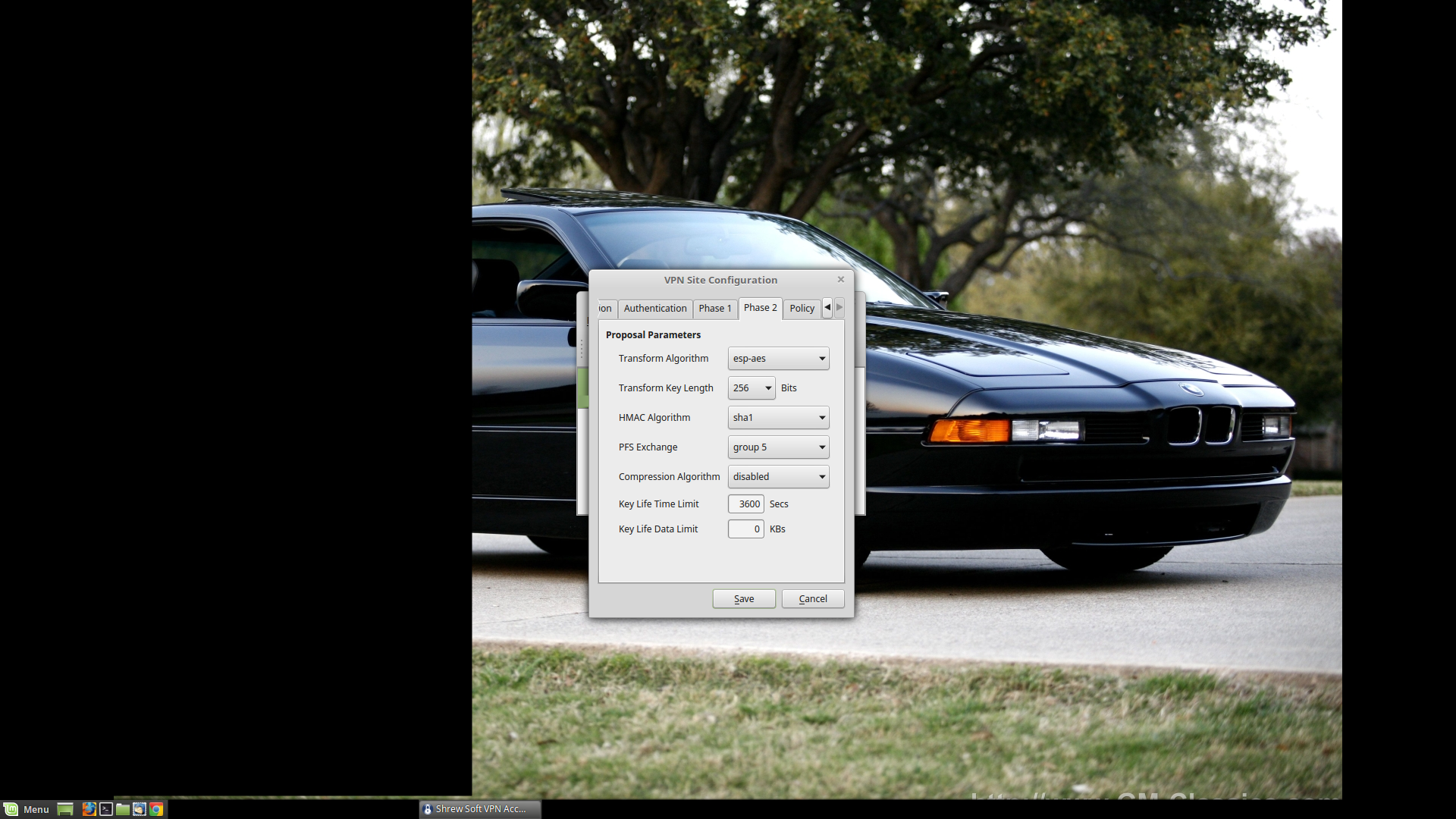
Transform Algorithm: ESP-AES
Transform Key Length: 256 Bits
HMAC Algorithm: SHA1
PFS Exchange: Group 5
Again, these settings just mirror the IKE Policy & friends.
- lightknightrrJan 12, 2017Tutor
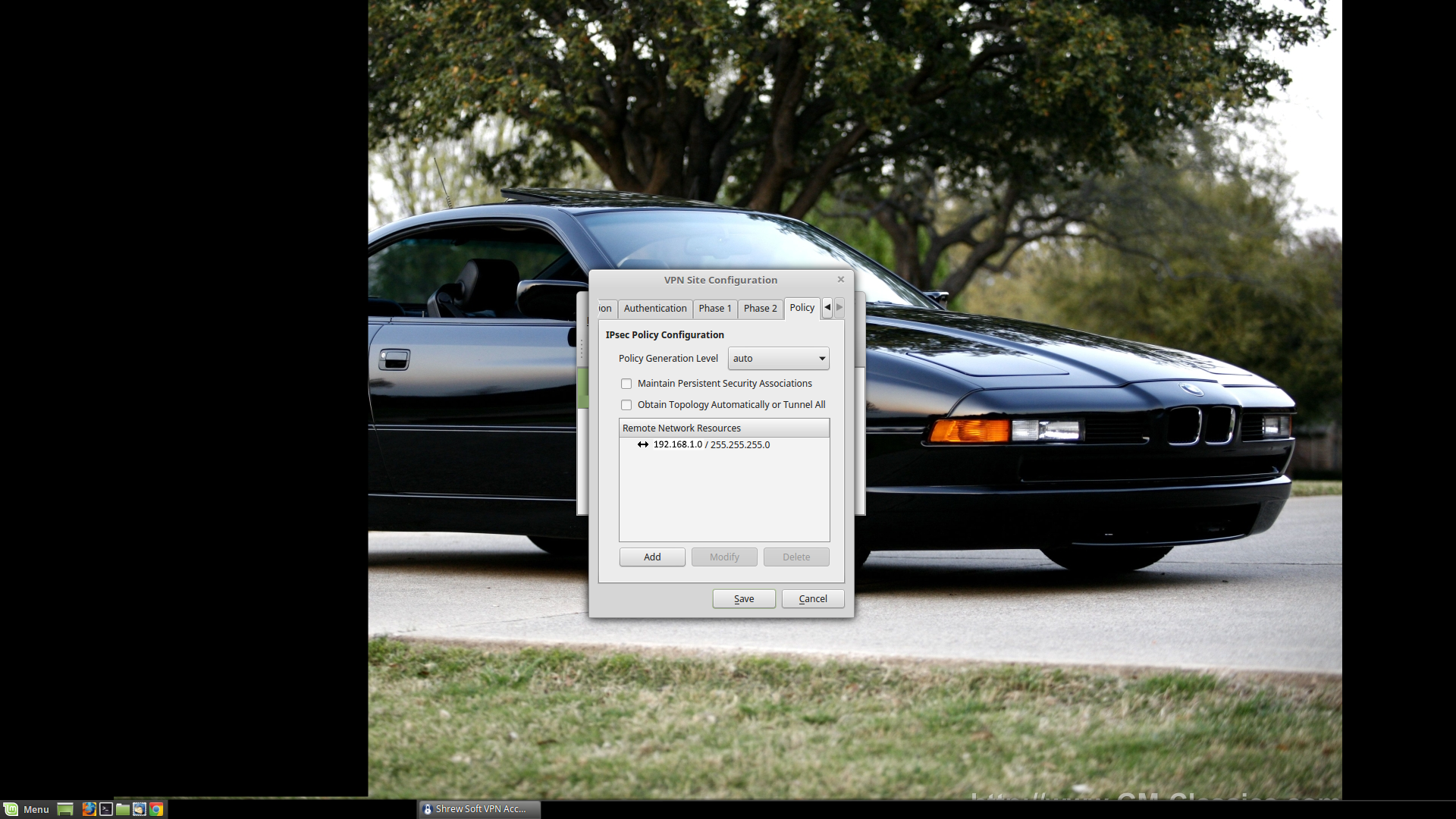
Policy:
I uncheck 'Obtain Topology Automatically or Tunnel All' (should allow creation of a split tunnel). Then I add the subnet (192.168.1.0) + subnet mask (255.255.255.0) for the network that I am interested in under Remote Network Resources.
- lightknightrrJan 12, 2017Tutor
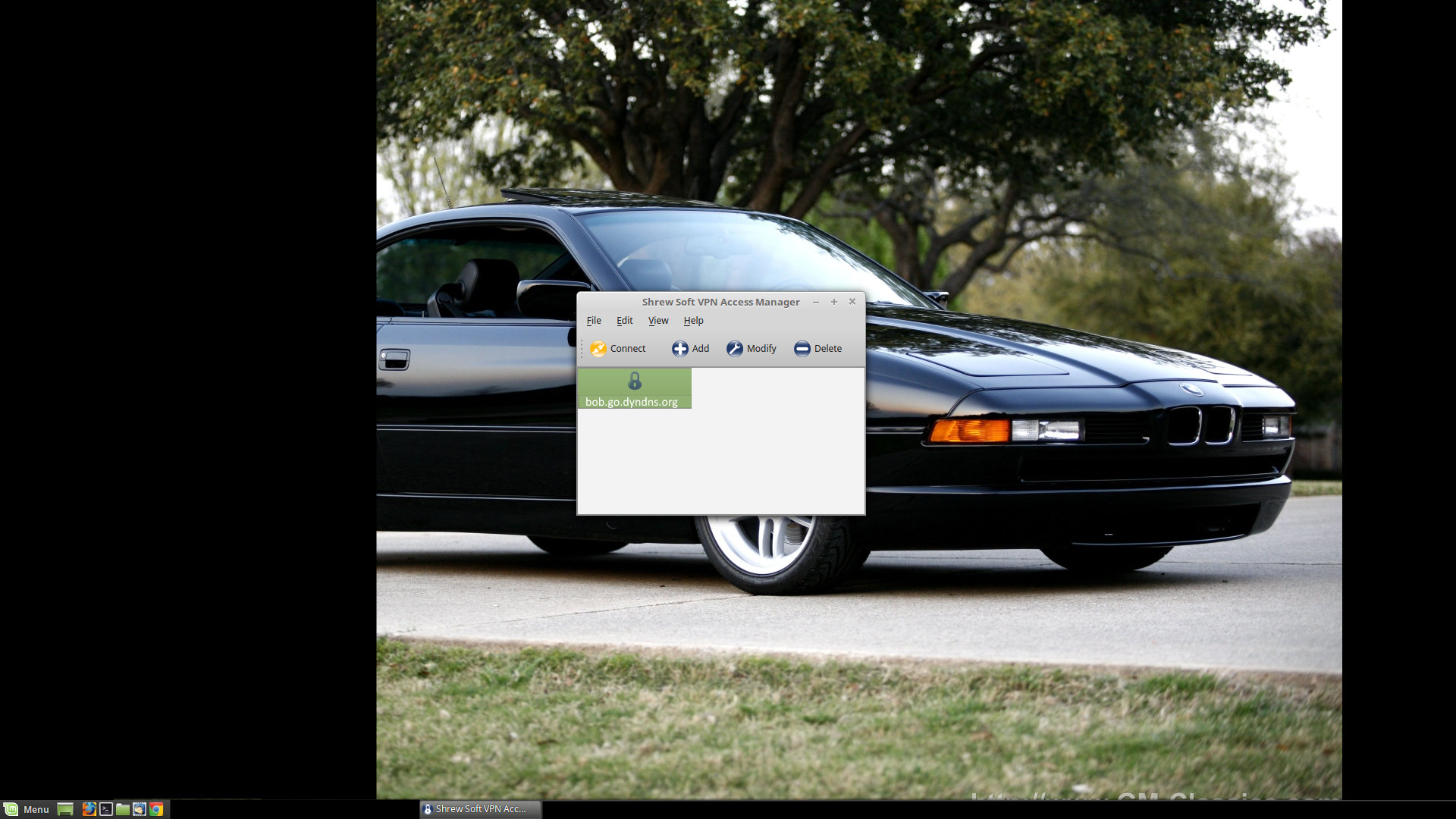
Click 'Save', and your configuration should appear in the Shrew Soft VPN Access Manager.
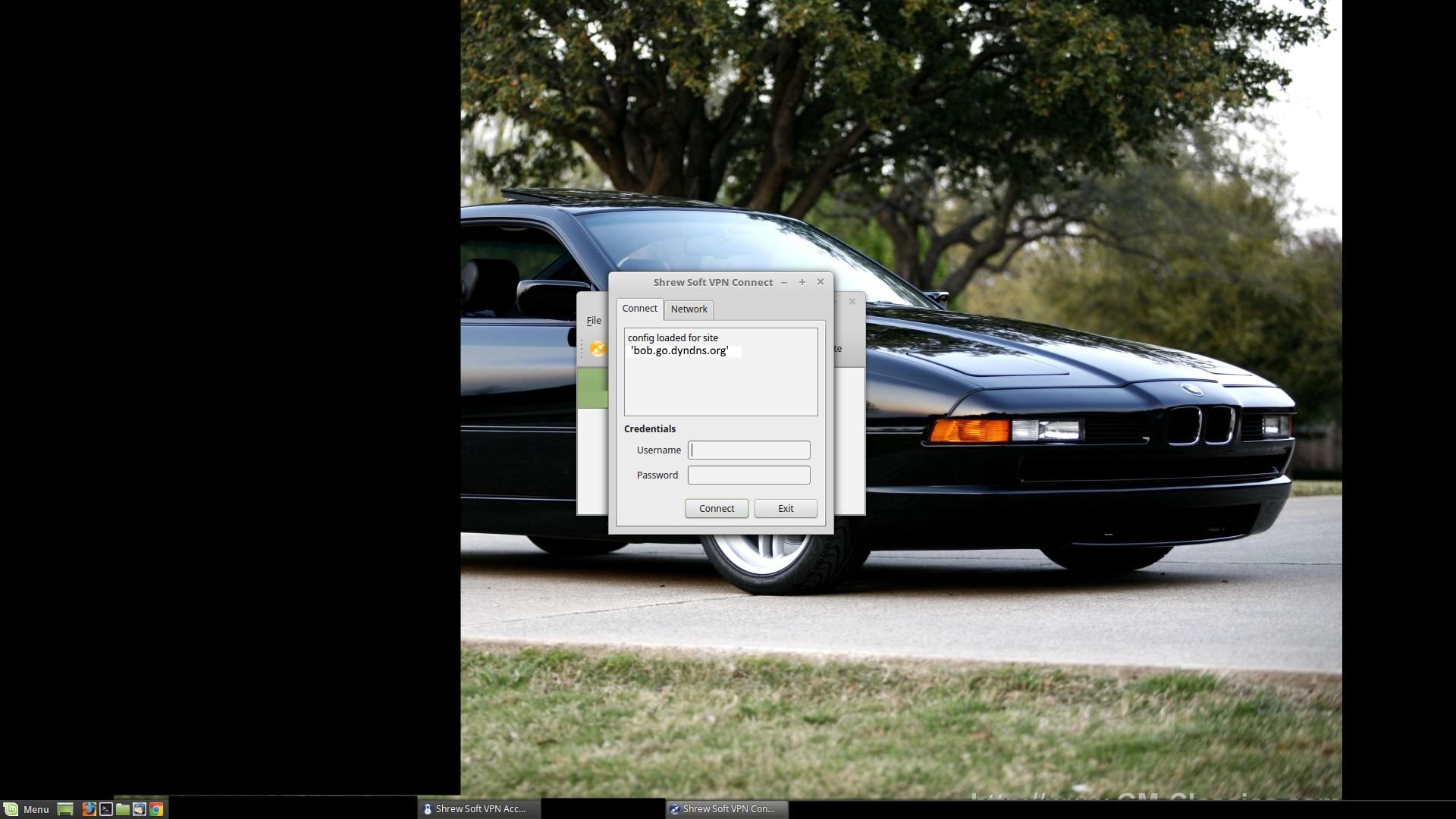
Click the 'Connect' button or double-click the lock icon, and you will be asked for your username and password. Put in the appropriate values (one of the IPSec VPN User accounts you created earlier). In a few moments, it should say something to the effect that the tunnel is established (in a little log window). If not, the information from its little log window can help you figure out what's causing the connection error.
- lightknightrrJan 12, 2017Tutor
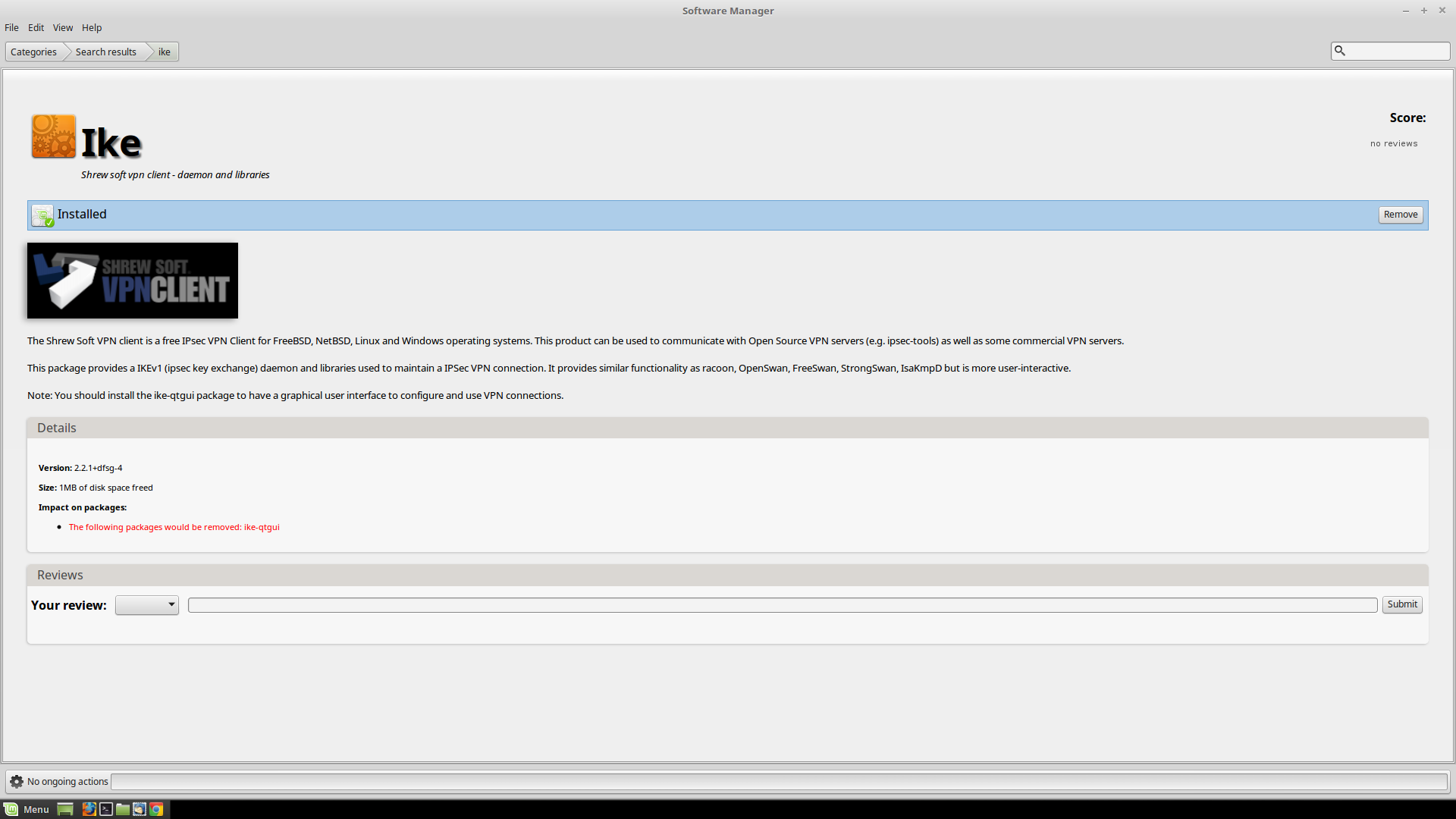
And if you are running Linux Mint / Ubuntu / Debian / any number or flavors of linux distros out there, install this (through your appropriate package manager...or compile it from a tarball if that's how you roll):
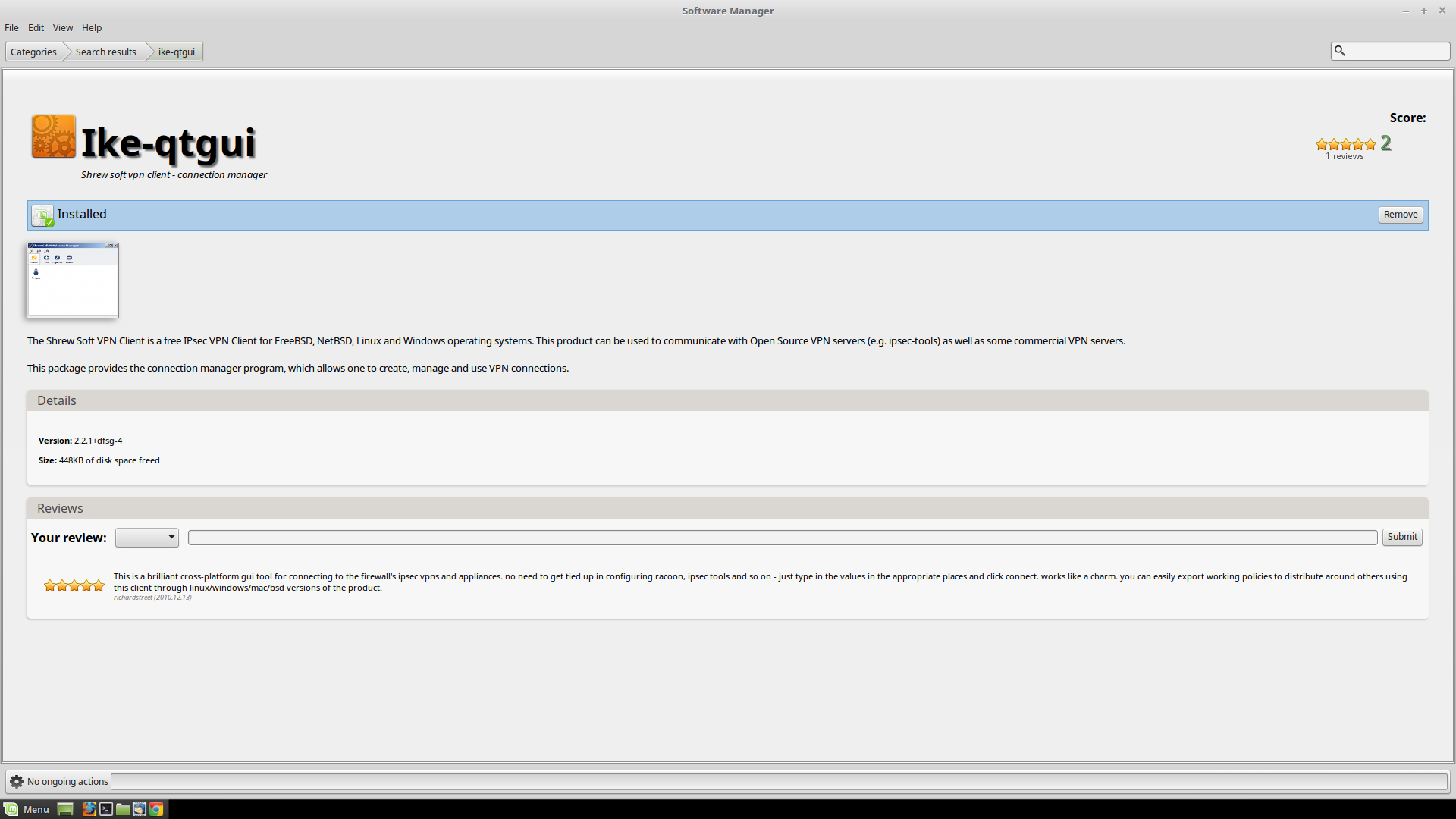
And this:
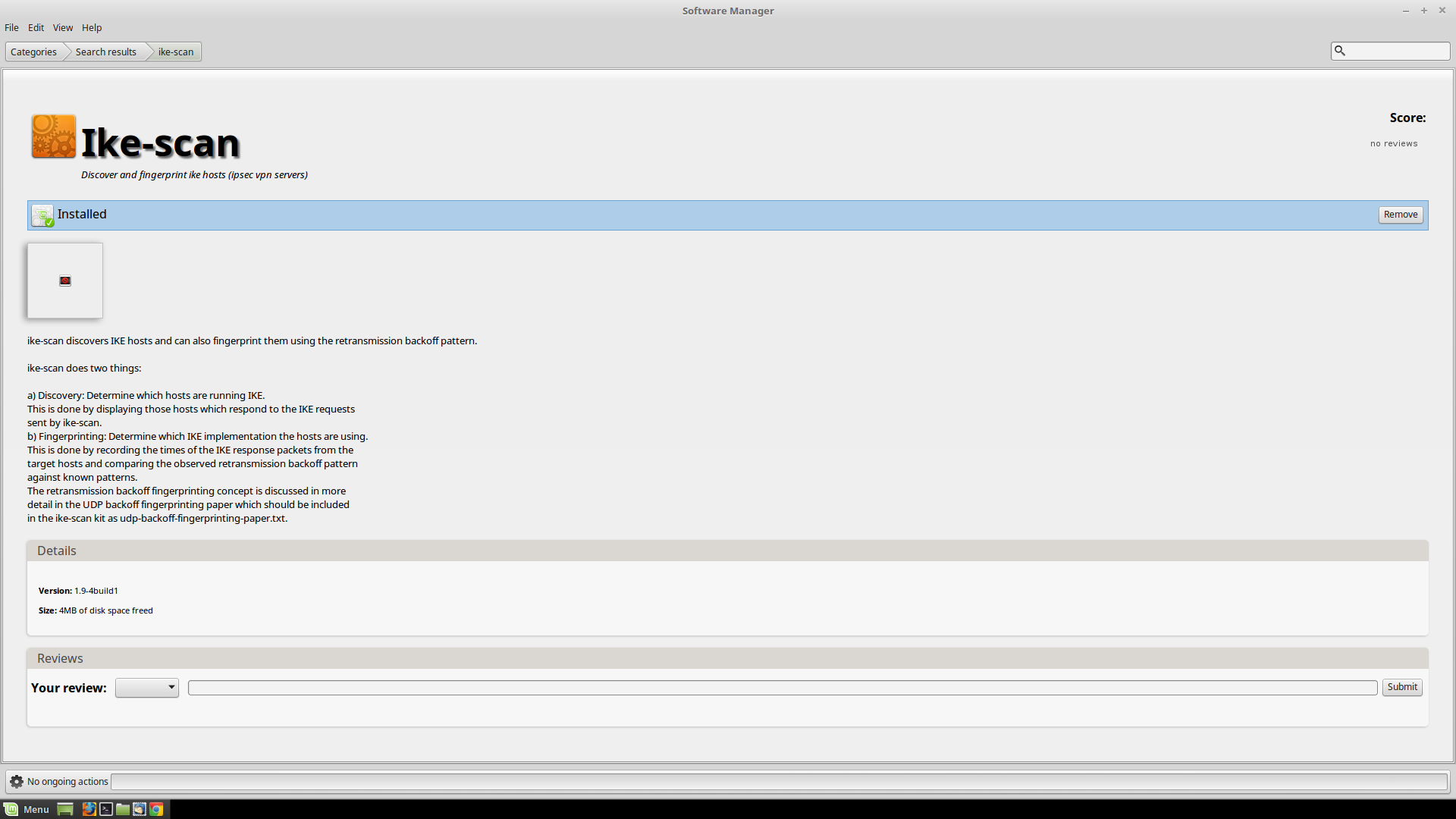
You don't need to install this, but you might want to if you are trying to track down some problems (this offer without warranty):
- lightknightrrJan 12, 2017Tutor
Questions, comments, difficulties?
Related Content
NETGEAR Academy

Boost your skills with the Netgear Academy - Get trained, certified and stay ahead with the latest Netgear technology!
Join Us!
