NETGEAR is aware of a growing number of phone and online scams. To learn how to stay safe click here.
Forum Discussion

Yoda1492
Oct 30, 2016Luminary
ReadyNAS Pioneer Pro corrupt flash no boot menu
HELP! When I power on my ReadyNAS Pioneer Pro, the LED screen just says ReadyNAS (does not show the drive LEDS) and the yellow activity light (on the front of the system above the USB port) lights a...
- May 19, 2017
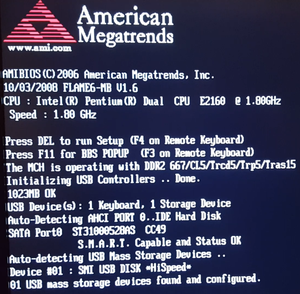
Hello. I found some time to work on this NAS. The issue may now be permanently resolved. I moved the NAS to a place where I could get a monitor and keyboard on it. I created a video of the boot sequence and took pictures of all the BIOS settings. While I was in the BIOS, I did enable Wake-On-LAN as previously requested. I also turned off the NAS from coming back on after a power hit; that was annoying as the power would go off and then on and then off again and that is bad for electronics and data volumes. I will get an UPS sometime this year.
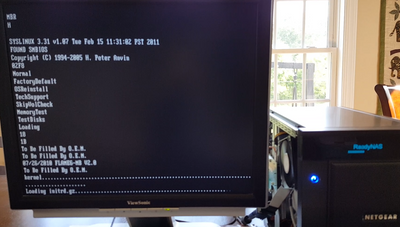
First, I will start with some information on those tick marks that were going across the NAS LED infinitely when the NAS would not boot. As shown in the picture below, that is from the Kernel loading and the initrd.gz loading:
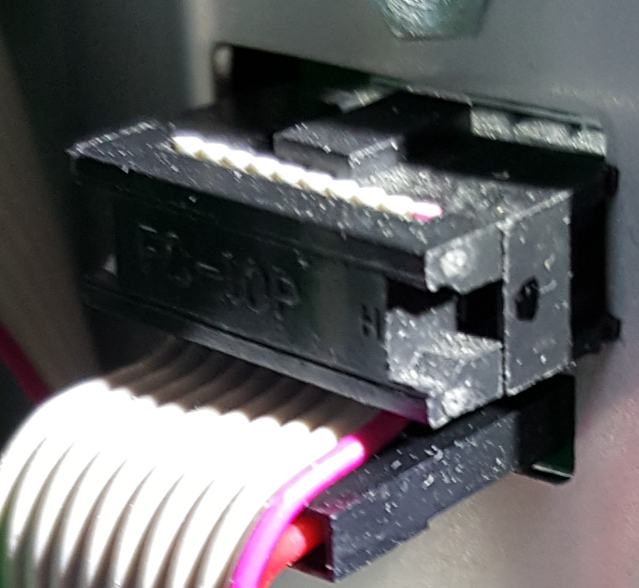
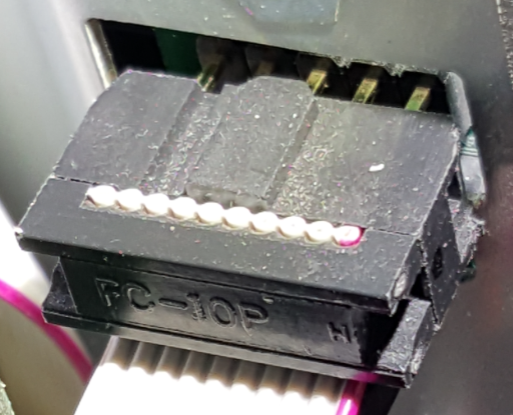
I kept going back to what someone said about it being a hardware problem. Armed with that and the clue that the NAS was shipped as part of a move and never worked consistantly after it was plugged in after the move, I looked more closely at the hardware. I took off both sides of the NAS and when I was inspecting all the cables, I saw this:
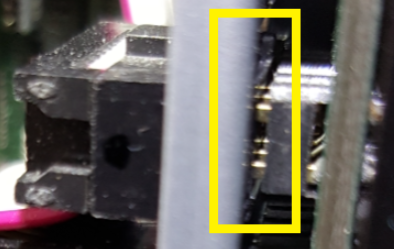
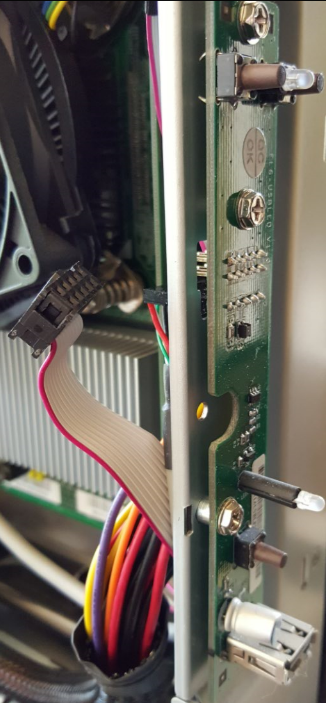
At first glance, it looks mostly ok. However, that top connector is supposed to go all the way through the cutout hole in the metal and fully into the circuit board on the other side of the metal. On the other side of the metal, you can see that the connection is not fully made:
Pulling the connector out just a little bit shows that it has no chance of making this connection without hitting the metal:
The NAS was then taken even further apart. There are 3 screws on each side of the NAS that holds the front panel of the NAS in place. All of those screws were taken out and that provided access to the cicrucit board behind the front panel that this cable plugs into. The circuit board looks like this:
The board has three screws holding it into place. However, the board has a lot of play with regards to how it lines up with the cutout hole in the metal. The connector was pushed through the hole and fully connected it to the metal pins. Then the screws were put back in for the circuit board and now the connector makes a full connection with these pins. The NAS was reassembled and it has booted ten times in a row. The power was disconnected for a few hours and the NAS booted fine after power was reapplied. I can not explain why the NAS would boot some times and not boot other times when the cable was partially connected. The NAS will be tested over the next several days before declaring this a permanent fix.

Yoda1492
Dec 08, 2016Luminary
After connecting the NAS power cable the next morning, the NAS booted fine. I then moved it to another location and it booted fine there as well. I did another power-on test and it booted fine. Two more reboots and it booted fine. I had it turned off since then and powered it on this morning and it just said READYNAS and no link light on the NIC of the NAS. I powered it off and back on again and same thing. So most likely the original power supply was fine, good thing that I kept it. I am sure that I could get it to boot with multiple attempts, but this is the issue that I am trying to resolve.
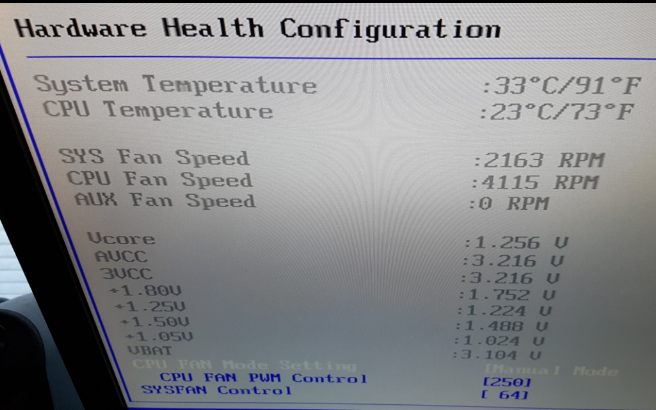
I can think of two more things to try that may or may not help fix this; both are long shots. The first is easy. Replace the 3V lithium battery on the motherboard of the NAS. I say that this is long shot based on the screenshot below and becasue the NAS does remember settings on power-on. But this test is very easy to do so I will remove the battery, do another factory reset so that the NAS gets all the settings with a new battery in place, and then try multipe power on tests.
Yoda1492
Dec 09, 2016Luminary
Welcome back to the Fix-My-NAS party! Based on something discovered during today's troubleshooting, I have a new theory. But first, an update on replacing the 3V lithium battery on the motherboard.
The 3V lithium battery on the motherboard of the NAS is very easy to replace. It looks like this on the motherboard:
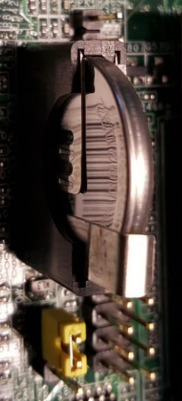
Gently bend back the small piece of metal holding the battery in place and then pull the battery straight out. Be sure to note the orienataion of the polarity (positive/negative) before removing the battery. The original battery was a CR2032 3V battery from Panasonic. The replacement battery I installed was a new CR2032 3V battery from Energizer. I tested the new battery before installing it and it showed fully charged and "good" on my battery tester. I also tested the original battery and it tested fine too. I also replaced the 9V battery in my volt meter with a 10 year lithium 9V battery, but that is irrelevant for the NAS troubleshooting info. The new battery for the NAS motherboard looks like this when installed:
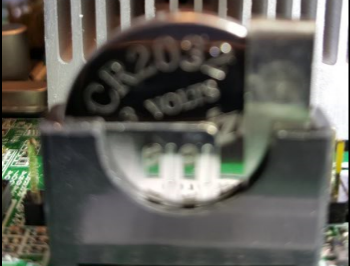
I did a Factory Rest on the NAS and that completed like normal. The logical unit is currently RSYNCing. When that finishs, I will do several power-on tests to see if the system will always boot (which is the issue I am trying to resolve).
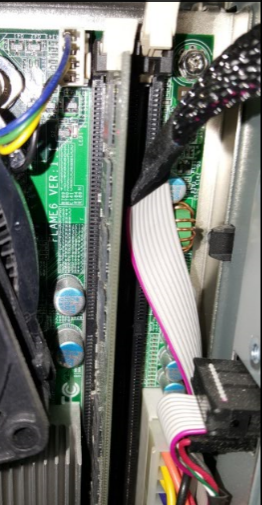
If this does not fix it, I was down to one more idea before today. However, I studied the hardware of the NAS more today when I had it open and now I have another idea that may help fix the issue. I noticed that my only DIMM is in DIMM 2's slot instead of DIMM 1's slot. Although the memory tests fine via the "Boot Menu", for some older motherboards if there was only 1 DIMM it had to be in DIMM 1's slot. I do not recall ever opening this NAS until I started this thread and I have have never done any memory upgrades on any of my Netgear NASs. So the NAS came this way. I purchased the NAS new. I found a video online that shows the same model NAS having the only DIMM in DIMM 1's slot. After I prove replacing the battery did not resolve the issue, I am going to use a grounding strap and move the memory from DIMM 2's slot to DIMM 1's slot. Then do a Factory Reset and start the testing again.
Here is a picture of the memory in the NAS:
And here is a zoom in on the DIMM slot locations:
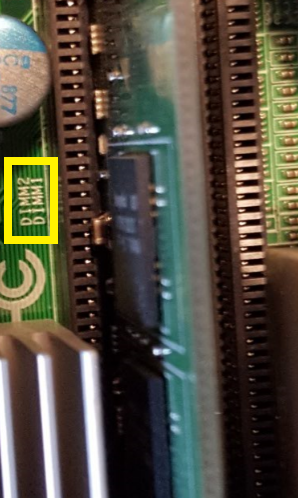
As you can see, my only DIMM is in DIMM 2's slot. This online video of a READYNAS Pro shows the only DIMM in DIMM 1's slot. I will wait for the RSYNC to finish, but this will be the next test that I will do. Does anyone think this could be the cause of the issue? If moving the DIMM does not fix it, I have one more longshot to try after moving the DIMM. Stay tuned...
Related Content
NETGEAR Academy

Boost your skills with the Netgear Academy - Get trained, certified and stay ahead with the latest Netgear technology!
Join Us!
