NETGEAR is aware of a growing number of phone and online scams. To learn how to stay safe click here.
Forum Discussion

Ihshinron
Apr 17, 2025Aspirant
ReadyNas 212 HELP needed
Hello all, I have a Readynas 212 and I need help after making many errors. I currently have 2x 4TB drives. Drive #1 is older and had data already. I turned from JBOD to RAID1 by moving for X-RAID...
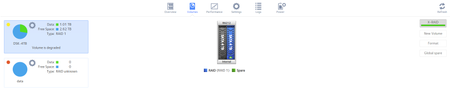
 Apr 23, 2025
Ihshinron wrote:
is there anything that can be done to try to recover the data on either 4TB #1 or #2?
First, don't bother with tailed drive. Boot up the system with only the 4 TB drive in place.
If you are still using password as the NAS admin password, then change that to something. Then double-check that ssh is still enabled in system->settings->services->ssh.
You can then download WinSCP ( https://winscp.net/eng/index.php ). That supports a protocol called SFTP. Set up a connection that uses that protocol.
Use the IP address of your Nas (not the one in the screen shot).
After you connect, the right pane should look something like this:
Somewhere in that list you should see your DSK-4TB folder. Navigate into it, and see if your shares are listed. If they are, you can copy them to a disk on the PC.
StephenB
Apr 19, 2025Guru - Experienced User
Ihshinron wrote:
Hello I've tried booting with Disk#2 (the new 4TB that had synced correctly) and I cannot access the files. I can go into Admin page but it would not show any of the files in there. The other 4TB drive would not even boot alone or together.
I'll be sharing the fresh logs with you Stephen on this.
Ths logs show that the mdadm did process the RAID volume correctly, and that it is in fact mounted.
[Sat Apr 19 09:42:59 2025] md: md127 stopped.
[Sat Apr 19 09:42:59 2025] md: bind<sda3>
[Sat Apr 19 09:42:59 2025] md/raid1:md127: active with 1 out of 2 mirrors
[Sat Apr 19 09:42:59 2025] md127: detected capacity change from 0 to 3995819835392
[Sat Apr 19 09:43:00 2025] Adding 523260k swap on /dev/md1.  Priority:-1 extents:1 across:523260k
[Sat Apr 19 09:43:00 2025] BTRFS: device label 14a70afe:DSK-4TB devid 1 transid 4553 /dev/md127
[Sat Apr 19 09:43:00 2025] BTRFS info (device md127): setting nodatasum
[Sat Apr 19 09:43:00 2025] BTRFS info (device md127): has skinny extents
[Sat Apr 19 09:43:00 2025] BTRFS info (device md127): bdev /dev/md127 errs: wr 0, rd 16, flush 0, corrupt 0, gen 0
=== df -h ===
Filesystem      Size  Used Avail Use% Mounted on
udev             10M  4.0K   10M   1% /dev
/dev/md0        3.7G  890M  2.6G  26% /
tmpfs          1009M     0 1009M   0% /dev/shm
tmpfs          1009M  528K 1009M   1% /run
tmpfs           505M  1.0M  504M   1% /run/lock
tmpfs          1009M     0 1009M   0% /sys/fs/cgroup
/dev/md127      3.7T  1.1T  2.7T  28% /DSK-4TB
But it also show the system is trying to access a volume named data.
Apr 19 09:44:57 NAS snapperd[2089]: THROW: open failed path:/data/Pictures errno:2 (No such file or directory)
Apr 19 09:44:57 NAS snapperd[2089]: reading failed
Apr 19 09:44:57 NAS snapperd[2089]: THROW: open failed path:/data/Videos errno:2 (No such file or directory)
Apr 19 09:44:57 NAS snapperd[2089]: reading failed
Apr 19 09:44:57 NAS snapperd[2089]: THROW: open failed path:/data/Music errno:2 (No such file or directory)
Apr 19 09:44:57 NAS snapperd[2089]: reading failed
Apr 19 09:44:57 NAS snapperd[2089]: THROW: open failed path:/data/Documents errno:2 (No such file or directory)
Note the first message is referencing /data/Pictures and not /DSK-4TB.
Are you still seeing both DSK-4TB and data on the Volumes page of the web ui?
Does the system boot up with only the 6 TB drive installed (and give you access to the data)? Either way, post back before you proceed any further.
Ihshinron wrote:
The other 4TB drive would not even boot alone or together.
As I told you it has failed.
Ihshinron wrote:
Windows can't read the 6TB disk, I guess it cannot read the format.
Correct. There are RAID recovery tools that can read it - one that several here have used with success is ReclaiMe
These tools are pricey (and you would need a place to offload the data), so it would be best to see if NAS boots (and gives you data access) with only the 6 TB drive in place.
Ihshinron wrote:
I guess I should:
- Find a way to backup everything in a single disk;
- Format the 4TB disks,
- Setup the redundancy,
- Move everything to the redundant 4TB and then have the 6TB disk formatted in Windows to be able to keep that non-frequent data backed up and available for Windows.
Well, you definitely need a replacement 4 TB drive, and you might also need to replace the 6 TB drive.
But using XRAID is your best option, you really shouldn't be using JBOD/FlexRAID.
So assuming we can recover the data, my approach would be to
- Do a factory default with 2x4TB drives (one new, the other the existing disk 2)
- Set up the NAS from scratch
- Restore the recovered files to the NAS over the network
- Set up a proper backup plan for the NAS (using a 4-6 TB drive in the PC would work for this). FreeFileSync is one tool you could use to keep the PC backup current.

Sandshark
Apr 19, 2025Sensei
Volume data is on the 6TB drive. Since the original 4TB has failed but the replacement did complete re-sync, I believe booting up with the 6TB and replacement 4TB will give you back your access. You seem to be avoiding booting with the 6TB drive. Is there a reason for that?
Maybe what you do not understand is that the configuration data all resides on the drive(s). And some resides only on the "primary drive", which was your 6TB one. I quote "primary drive" because I don't know what Netgear called it. I just know there is such a thing from my many drive removal and replacement experiments.
When you boot with the 4TB alone, is SSH enabled? If not, can you enable it? While the GUI is not showing your files, they most likely are still there, but you'll need SSH to get to them if you don't want to boot with it and the 6TB.
- StephenBApr 19, 2025Guru - Experienced User
Sandshark wrote:
Volume data is on the 6TB drive. Since the original 4TB has failed but the replacement did complete re-sync, I believe booting up with the 6TB and replacement 4TB will give you back your access.
The 4 TB drive is still part of a RAID-1 array, so I am thinking that this will probably not work.
My overall thinking here is
(a) if the 6 TB drive boots up on its own with data access, then we can back that up over the network
.
(b) if the 6 TB drive does not boot up, then there are three potential paths using the 4 TB drive (booting it by itself)
1. try deleting the data volume from the volumes page, and see if that restores access (leaving DSK-4TB as it is). Since data is a totally different volume, I don't think deleting it would do any harm
2. if ssh can be enabled then offload the data to the PC using WinSCP (sftp)
3. use ReclaiMe on a PC
Ihshinron doesn't appear to have any experience with linux, and I thinking that using either ssh or tech support mode would too risky a path.
- IhshinronApr 19, 2025Aspirant
StephenB wrote:Ihshinron doesn't appear to have any experience with linux, and I thinking that using either ssh or tech support mode would too risky a path.
Correct, I have very little experience and no linux partition today.
What is SSH for?
I tried enabling it and got this message:
When downloading the Key I got a txt, but have not enabled it yet as I don't know what this is for.
In the manual it states how to enable SSH access.
Would this allow me to access the data from Windows too or is it for Linux only?
- IhshinronApr 19, 2025Aspirant
This is what it looks like when booting with 6TB on bay1 and 4TB on bay2
I do have access to data on 6TB disk, but still no access to data on 4TB disk.
After a couple of minutes of this booted I see a message stating "Disk in channel 1 (Internal) changed state from RESYNC to ONLINE"
I just need to access the 4TB disk to copy some backups and then I can back everything up and start from scratch.
Would booting in Read-Only mode help to copy the files I need from 4TB drive?
Thank you
- IhshinronApr 19, 2025Aspirant
Sandshark wrote:Volume data is on the 6TB drive. Since the original 4TB has failed but the replacement did complete re-sync, I believe booting up with the 6TB and replacement 4TB will give you back your access. You seem to be avoiding booting with the 6TB drive. Is there a reason for that?
Maybe what you do not understand is that the configuration data all resides on the drive(s). And some resides only on the "primary drive", which was your 6TB one. I quote "primary drive" because I don't know what Netgear called it. I just know there is such a thing from my many drive removal and replacement experiments.
When you boot with the 4TB alone, is SSH enabled? If not, can you enable it? While the GUI is not showing your files, they most likely are still there, but you'll need SSH to get to them if you don't want to boot with it and the 6TB.
The first 4TB drive does not boot. Alone or with the 2nd 4TB disk, it just doesn't boot.
I tried enabling SSH but as StephenB said, I have very little experience with Linux and not even have a Linux partition in place at the moment. I have not tried enabling SSH yet, just checked but did not go through just in case is something I don't know how to use and would reduce my chances of recovering data from 4TB right now.
Thank you!!
- StephenBApr 19, 2025Guru - Experienced User
Ihshinron wrote:
When downloading the Key I got a txt, but have not enabled it yet as I don't know what this is for.
You don't actually need the key, as long as you enabled password authentication.
Ihshinron wrote:
What is SSH for?
Would this allow me to access the data from Windows too or is it for Linux only?
It would let you access the linux command line interface from either Windows or Linux.
Have you ever used the Windows command line interface? (It's not the same as Linux, but there are some similarities).
- StephenBApr 19, 2025Guru - Experienced User
Ihshinron wrote:
I do have access to data on 6TB disk, but still no access to data on 4TB disk.
Do you have the data on the 6 TB drive backed up somewhere else?
Is there data on the 4 TB drive that is not on the 6 TB drive?
To be clear - the goal now is to back up all the files that you care about. So if you see the data on the 6 TB drive, start by backing that data up ASAP. Don't worry about the 4 TB drive until you've processed the 6 TB drive.
Start with files that are not replaceable - personal documents, photos, etc. Then move on to other content.
Consider purchasing some cloud storage if you don't have enough disk space on the PC. (google drive and dropbox are reasonable places to look). That would be faster than purchasing another disk.
Post back when you have everything you care about copied off the 6 TB drive.
- SandsharkApr 19, 2025Sensei
I understand that the first 4TB has failed. But since it completed RAID1 sync with the new one before it failed (and, hopefully, before any data was corrupted), the second is now essentially a clone of the first. That's why my most recent suggestion was to boot with the 6TB and the second 4TB. But since you didn't do that, back up all the data on the 6TB before you move to the next step.
Just enabling SSH won't do anything harmful (in spite of the warning you get). Once you've opened a command line session, you could do something that screws things up. So if/when we get to that part, make sure you enter anything we give you exactly as shown. But since you've got access to the drives on the 6TB volume via the GUI and/or Windows Explorer, you don't need it right now.
- IhshinronApr 20, 2025Aspirant
Sandshark wrote:I understand that the first 4TB has failed. But since it completed RAID1 sync with the new one before it failed (and, hopefully, before any data was corrupted), the second is now essentially a clone of the first. That's why my most recent suggestion was to boot with the 6TB and the second 4TB. But since you didn't do that, back up all the data on the 6TB before you move to the next step.
Just enabling SSH won't do anything harmful (in spite of the warning you get). Once you've opened a command line session, you could do something that screws things up. So if/when we get to that part, make sure you enter anything we give you exactly as shown. But since you've got access to the drives on the 6TB volume via the GUI and/or Windows Explorer, you don't need it right now.
Hello Sandshark, I did boot with the 6TB and the 2nd 4TB. I posted tis in last post, I could only see data from the 6TB disk only, not for the 4TB.
It i booted on Read Only mode with the 4TB disk, should I be able to access the data there to copy?
- IhshinronApr 20, 2025Aspirant
StephenB wrote:
Ihshinron wrote:I do have access to data on 6TB disk, but still no access to data on 4TB disk.
Do you have the data on the 6 TB drive backed up somewhere else?
Is there data on the 4 TB drive that is not on the 6 TB drive?
To be clear - the goal now is to back up all the files that you care about. So if you see the data on the 6 TB drive, start by backing that data up ASAP. Don't worry about the 4 TB drive until you've processed the 6 TB drive.
Start with files that are not replaceable - personal documents, photos, etc. Then move on to other content.
Consider purchasing some cloud storage if you don't have enough disk space on the PC. (google drive and dropbox are reasonable places to look). That would be faster than purchasing another disk.
Post back when you have everything you care about copied off the 6 TB drive.
I do not have a backup for the 6TB nor the 4TB.
6TB disk as almost all data, there's just a couple of folders in 4TB that I would need to have everything backed up in the 6TB disk and format all.
What would be the next step? After backing up data formattin all 3 disks?
I do have a 3rd 4TB disk, brand new.
I could format that one on the PC and move as much as I can from the 6TB disk, safe on that one.
Then I would only need to see how to get the last couple of folders from the 4TB disk.
In last message to Sandshark I asked about booting in Read Only mode, maybe that way I can access those files that way...?
For the 3rd 4TB disk would you recommend to format it in Windows and copy everything over the network?
OR... Option #2: maybe it would be easier to format it in the PC, then connect it to NAS via USB3.0 and move files from 6TB to 3rd-4TB disk. Could that be a good option?
- SandsharkApr 20, 2025Sensei
Booting to read only mode won't give you access to anything you don't have access to in normal read/write mode. The reason for using it is so nothing the OS or you do can inadvertently make things worse.
You have a two-drive NAS. You have no way to use three drives, at least in any way that a NAS is supposed to be used. It's your attempt to do that, compounded by drive failures when you did, that have gotten you into this mess. A NAS is not like a USB drive enclosure where you can swap drives around all the time. It's basically a dedicated Linux computer, just a "headless" one.
- IhshinronApr 20, 2025Aspirant
I'm not looking to use 3 disks on a 2-bay NAS. I'm trying to back up the data I need....
Then start from scratch and do things better, with more experience =p
- StephenBApr 21, 2025Guru - Experienced User
Ihshinron wrote:
StephenB wrote:
Ihshinron wrote:
I do have access to data on 6TB disk, but still no access to data on 4TB disk.
Do you have the data on the 6 TB drive backed up somewhere else?
Is there data on the 4 TB drive that is not on the 6 TB drive?
To be clear - the goal now is to back up all the files that you care about. So if you see the data on the 6 TB drive, start by backing that data up ASAP. Don't worry about the 4 TB drive until you've processed the 6 TB drive.
Start with files that are not replaceable - personal documents, photos, etc. Then move on to other content.
Consider purchasing some cloud storage if you don't have enough disk space on the PC. (google drive and dropbox are reasonable places to look). That would be faster than purchasing another disk.
Post back when you have everything you care about copied off the 6 TB drive.
I do not have a backup for the 6TB nor the 4TB.
6TB disk as almost all data, there's just a couple of folders in 4TB that I would need to have everything backed up in the 6TB disk and format all.
What would be the next step?
Focus on backing up the 6 TB drive. After that is done, let us know and we can start on the 4 TB drive.
- IhshinronApr 23, 2025Aspirant
StephenB wrote:Focus on backing up the 6 TB drive. After that is done, let us know and we can start on the 4 TB drive.
All right, 6TB is backed up now.
The count of disks is like this now:
#1 - 4TB OLD: This one is the one you mentioned started failing since 2023 with reallocated and pending sectors.This one used to be in the Flex-Raid with disk #2 (Could have the data pending to backup). NAS would not boot with this drive alone. When booting with disk #2, this disk would not be recognized correctly and power light would blink slowly constantly.
#2 - 4TB New1: This one has the data still pending to back up but files do not show when browsing via admin page.
NAS can boot with this drive alone.
It should have the same data than #1, but no data is available.
This is all that shows when browsing this disk:
#3 - 6TB: This disk has been backed up already. This is the "data" volume (JBOD) and it boots correctly.
#4 - 4TB New2: This disk has all the data backed up from "#3 - 6TB". (1.6TB of data backed up)
This disk has been formatted in windows.
Now, StephenB, is there anything that can be done to try to recover the data on either 4TB #1 or #2?
Once data is backed up from either #1 or #2, I would like to make a step by step of how to make this right and have a 4TB with redundancy NAS.
Thank you as always for your help and patience!
- StephenBApr 23, 2025Guru - Experienced User
Ihshinron wrote:
is there anything that can be done to try to recover the data on either 4TB #1 or #2?
First, don't bother with tailed drive. Boot up the system with only the 4 TB drive in place.
If you are still using password as the NAS admin password, then change that to something. Then double-check that ssh is still enabled in system->settings->services->ssh.
You can then download WinSCP ( https://winscp.net/eng/index.php ). That supports a protocol called SFTP. Set up a connection that uses that protocol.
Use the IP address of your Nas (not the one in the screen shot).
After you connect, the right pane should look something like this:
Somewhere in that list you should see your DSK-4TB folder. Navigate into it, and see if your shares are listed. If they are, you can copy them to a disk on the PC.
- IhshinronApr 23, 2025Aspirant
Unfortunately I can't enable SSH:
Same issue has been happening when tried to enable DLNA.
- IhshinronApr 24, 2025Aspirant
StephenB wrote:Try booting up with 6 TB + 4 TB, and see if ssh is (or can be) enabled.
If it is, then try the same steps.
Booting both allowed to enable SSH.
Looks like I've connected via SSH with WinSCP and nothing is showing up:
Both folders there are completely blank. I logged in using the admin user and the "martin" user as well. Same result in both cases.
- StephenBApr 24, 2025Guru - Experienced User
Ihshinron wrote:
Looks like I've connected via SSH with WinSCP and nothing is showing up:
Both folders there are completely blank. I logged in using the admin user and the "martin" user as well. Same result in both cases.
Are you in the DSK-4TB folder? It looks like you might instead be in the home folder.
Try clicking on the top folder icon (..) to bring you up a level. When you get to <root> at the top, you should see DSK-4TB in the folder list.
- IhshinronApr 25, 2025Aspirant
Ihshinron wrote:
StephenB wrote:Try booting up with 6 TB + 4 TB, and see if ssh is (or can be) enabled.
If it is, then try the same steps.
Booting both allowed to enable SSH.
Looks like I've connected via SSH with WinSCP and nothing is showing up:
Both folders there are completely blank. I logged in using the admin user and the "martin" user as well. Same result in both cases.
Stephen, you are my savior! I'm backing all the data from the 4TB disk that was missing.
Once this is backed up I plan to format everything and start again but the back up disk is one of the new 4TBs (Windows formatted). So would be be sound to do this?
- Format via admin page with disks #1 (old and somewhat faulty 4TB disk) and #2 (first new 4TB disk) both in the NAS.
- Set up a redundancy config with X-RAID (RAID1).
- Move files back from backup to this new X-RAID.
- Keep 6TB as backup for when 4TB Old disk completely fails. In that case it would be just a matter of removing the faulty one and insterting the replacement one?
Meanwhile keep the 2nd 4TB disk as spare back up just in case all goes to hell again.
Or should I format them individually, use the newest one as JBOD, move all the backed up data over network and then add the back up disk to sync up?
Again, thank you VERY much StephenB, you saved me!
- StephenBApr 26, 2025Guru - Experienced User
Ihshinron wrote:
I'm backing all the data from the 4TB disk that was missing.Great!
Ihshinron wrote:
- Format via admin page with disks #1 (old and somewhat faulty 4TB disk) and #2 (first new 4TB disk) both in the NAS.
- Set up a redundancy config with X-RAID (RAID1).
- Move files back from backup to this new X-RAID.
- Keep 6TB as backup for when 4TB Old disk completely fails. In that case it would be just a matter of removing the faulty one and insterting the replacement one?
Disk 1 is not "somewhat faulty". It has failed, and shouldn't be used at all.
What you should do is put in disk 2 and the new 4 TB drive, and then do a factory default. You can do this from the boot menu when you power up, or you can do it from system->settings->update in the admin web ui. (If the system is syncing the new disk, you don't need to wait for it to finish - you can do the factory default right away).
Then reconfigure your NAS settings while the RAID sync is going on (re-creating shares, and other settings). When the sync finishes, restore your data from your backups.
As far as the 6 TB drive goes, if you want to access it in the future, you would
- power down the NAS
- remove both 4 TB drives
- insert the 6 TB drive by itself
- power up
Though personally, after the 2x4TB setup is completely operational I either get a USB enclosure for it or install it in a PC. Then reformat it as NTFS, and use it as part of my backup plan (running backups on schedule using the NAS backup job facility).
- IhshinronApr 26, 2025Aspirant
StephenB wrote:As far as the 6 TB drive goes, if you want to access it in the future, you would
- power down the NAS
- remove both 4 TB drives
- insert the 6 TB drive by itself
- power up
Though personally, after the 2x4TB setup is completely operational I either get a USB enclosure for it or install it in a PC. Then reformat it as NTFS, and use it as part of my backup plan (running backups on schedule using the NAS backup job facility).
So let's scratch the old 4TB off the list of disks.
Yes, I plan on occasionally using one drive via USB to the PC. That could be the 6TB disk and have the 2 NEW 4TB as NAS. Problem is: I have backed up the data into one of the NEW 4TB disks...
If I insert both 4TB disks to NAS and follow those stepf for Factory reset, wouldn't that eliminate the data on those inserted disks like a format would?
- SandsharkApr 26, 2025Sensei
Your best bet is to set up what you intend to use as a backup system and put the backup files on it before doing what StephenB suggested. The following alternative will work, but your data will be at risk without a backup:
- Do a factory default with just the 4TB without the backup data and create a JBOD volume.
- Copy the data from the backup to the NAS.
- Add the 4TB to the NAS and FORMAT it. This destroys your backup, so you're without one unless you create a new method. XRAID will then add the second 4TB to the volume in RAID1.
- StephenBApr 26, 2025Guru - Experienced User
Sandshark wrote:
The following alternative will work, but your data will be at risk without a backup:
- Do a factory default with just the 4TB without the backup data and create a JBOD volume.
- Copy the data from the backup to the NAS.
- Add the 4TB to the NAS and FORMAT it. This destroys your backup, so you're without one unless you create a new method. XRAID will then add the second 4TB to the volume in RAID1.
Ihshinron - In step one, just stay with X-RAID and keep the default volume. No need to switch to FlexRAID.
- IhshinronApr 26, 2025Aspirant
Sandshark wrote:Your best bet is to set up what you intend to use as a backup system and put the backup files on it before doing what StephenB suggested. The following alternative will work, but your data will be at risk without a backup:
- Do a factory default with just the 4TB without the backup data and create a JBOD volume.
- Copy the data from the backup to the NAS.
- Add the 4TB to the NAS and FORMAT it. This destroys your backup, so you're without one unless you create a new method. XRAID will then add the second 4TB to the volume in RAID1.
Sounds linke a plan, what I could do is:
- Do a factory default with just the 4TB without the backup data and create a JBOD volume.
- Copy the data from the backup to the NAS.
- Format 6TB in windows.
- Connect 6TB via USB to NAS as external drive and copy all the backed up data.
- Add the 2nd 4TB (with original backup to the NAS) and FORMAT it. This destroys your backup, so you're without one unless you create a new method. XRAID will then add the second 4TB to the volume in RAID1.
Will stay away from Flex Raid. But what do I need to do in step 5 after inserting the 2nd 4TB disk to change from JBOD to RAID1 correctly? I guess it would be first format that new disk and then turn to RAID1?
Thank you both
- StephenBApr 26, 2025Guru - Experienced User
Ihshinron wrote:
- Do a factory default with just the 4TB without the backup data and create a JBOD volume.
- Copy the data from the backup to the NAS.
- Format 6TB in windows.
- Connect 6TB via USB to NAS as external drive and copy all the backed up data.
- Add the 2nd 4TB (with original backup to the NAS) and FORMAT it. This destroys your backup, so you're without one unless you create a new method. XRAID will then add the second 4TB to the volume in RAID1.
- Do a factory default with just the 4TB in place. (That will create the volume you want, no need to make a different one)
- Configure the NAS - creating shares etc
- Copy the data from the 4 TB backup to the NAS shares
- Format the 6 TB drive and copy the data to it. Set up automated backup (on a schedule)
- hot-insert the 2nd 4TB (with original backup to the NAS) and FORMAT it. XRAID will then add the second 4TB to the volume (converting it to RAID-1).
There are a couple of options with (4).
- You can do your backups with the drive connected to your Windows PC. FreeFileSync is one of several tools that can automate that (doing it on a schedule). This works well if the PC is a desktop (or perhaps a laptop that you never move).
- You can also connect the disk to the NAS and create one or more NAS backup jobs to update the backup on a schedule. I generally create one backup job per share.
Either way, you need to keep an eye on the backup status, and make sure it is running correctly. I am guessing that might be easier for you if you connect the drive to a Windows PC. But both approaches are used by people here.
Related Content
NETGEAR Academy

Boost your skills with the Netgear Academy - Get trained, certified and stay ahead with the latest Netgear technology!
Join Us!
