NETGEAR is aware of a growing number of phone and online scams. To learn how to stay safe click here.
Forum Discussion

brabinowitz
Sep 21, 2023Follower
M4300 Stacking, SDVoE Network and IGMP Failure
Hello, I have 3x M4300-96X switches that were purchased to host an SDVoE network. These switches were installed and configured by a contractor, I am now trying to clean up their work as the init...

LaurentMa
Sep 28, 2023NETGEAR Expert
Hi brabinowitz ,
Thank you for your message. This is not a bug, it's simply misconfiguration. Please download the tech-support files out of the switches (IT GUI; Maintenance; Export' HTTP File Export; tech-support in the dropdown menu, click Apply). Please send the tech-support files to ProAVDesign@netgear.com with a link to this post. One of us will help you fix it.
Stacking is not the best practice because all the multicast present on one switch is "sent" through the stack links to the other switches, by design. While it is OK to stack two core switches with enough capacity in between the stack links for the entire multicast present on the network (need to do the math and select switches with enough uplinks), it is rather an issue in your case with 10G video between M4300-96X's - unless you populate half the slots with 40G port cards for symmetric capacity.
So what you need here is IGMP Plus, letting the switches "standalone" without stacking. With IGMP Plus, no flooding, and only the subscribed traffic will flow between the switches.
Switches should be un-stacked first in your network. Stacking ports should be turned to Ethernet mode and in each switch previously stacked, the other units should be "deleted".
When you have the three switches standalone, you should upgrade them to the latest firmware: https://www.netgear.com/support/product/m4300#download
After reboot, using still the IT main GUI (as I guess the AV UI wasn't used in this install), you should go to Switching\LAG and enable the Auto-LAG Admin Mode. Please apply, and save the configuration using the disk icon (upper right).
Just in case, go next to Switching\VLAN\/Advanced\VLAN Trunking Configuration and enable the Global Auto-Trunk admin mode. Click apply, and save the config.
Now, you can interconnect the three switches with as many links you need between them, considering one switch as you core switch, and connecting the two other switches to it.
The ports will form LAGs dynamically after a few seconds.
Of course, it ould be wise to finally go to Switching\Mutlicast\IGMP Snooping, and verify that IGMP Plus is enabled in \Configuration; that you don't have any "Admin mode" enabled at the port level in \Interface Configuration - instead you want to have IGMP Plus enabled for each VLAN in \IGMP Snooping VLAN Configuration.
I hope this will help; of course as I said, feel free to email ProAVDesign@netgear.com for any help.
A more radical (and better solution) would be to factory default the three switches after the FW upgrade, and use this time the AV User Interface to configure them (with Auto-LAG and Auto-Trunk enabled). All three could be even configured at once using the NETGEAR Engage Controller (www.netgear.com/engage-download .
Thank you, L
Then,
jamnh
Oct 04, 2023Initiate
Hi Laurent,
Thank you for the super helpful notes! Brandon and I are on the same team working on this project.
After un-stacking and converting the stacking ports to ethernet ports, can we use the 40G ports as interconnects?
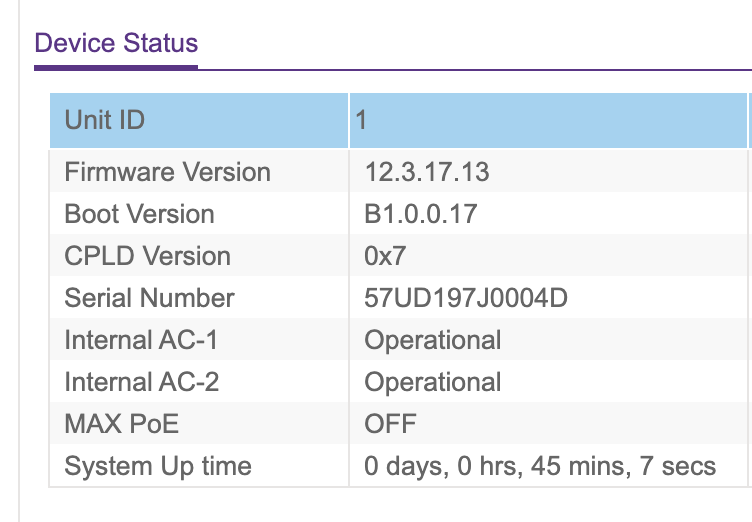
We are planning to use our spare switches to start from scratch and build from factory defaults as you suggested. One of the spare switches has 12.3.17.13 firmware, which is later than the current firmware (12.0.17.13) listed on your website: https://www.netgear.com/support/product/m4300#download. Please see the attached image. Should we downgrade the firmware to 12.0.17.13?
Thank you.
Jae
- jamnhOct 13, 2023Initiate
Hi Laurent,
We have resolved the issue. We updated the firmware to 12.0.17.13, consolidated 3 switches down to 2, and configured 2x40G LAG ports. Thank you.
Jae
- LaurentMaOct 13, 2023NETGEAR Expert
Thank you for letting us know, jamnh
I am sorry, it looks I missed your previous question. You did well with the 12.0, but it would have worked with the 12.3 firmware too. The 12.3.17.13 is the firmware that our current Engage controller is using; the only difference is in the API we use between the controller and the switch - the firmware itself is the same as 12.0.17.13. We are waiting for our next maintenance release (early November), and with the new firmware then, there will be no more difference between the standalone firmware and the Engage controller firmware numbering.
Congratulations, and please never hesitate to reach out to us using the ProAVDesign@netgear.com email address, for any questions.
Regards,
Laurent Masia
Related Content
NETGEAR Academy

Boost your skills with the Netgear Academy - Get trained, certified and stay ahead with the latest Netgear technology!
Join Us!