NETGEAR is aware of a growing number of phone and online scams. To learn how to stay safe click here.
Forum Discussion

littomalt
Jan 08, 2021Aspirant
Space warning, less than 20%. But more than 50% is inaccessible...
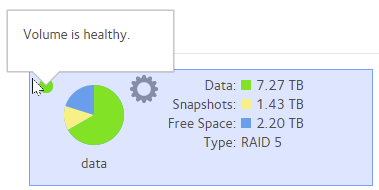
Hi I get warning that space is less than 20%. When i take a look into total NAS i see Unaccessible space more than 50%. Total Capasity is 10,8 Tbyte Total visible "used" is 4,5 Tbyte Unacc...

StephenB
Jan 10, 2021Guru - Experienced User
Overall, there is no clear evidence here that anything is wrong with the file system itself (I think rn_enthusiast is jumping a bit too quickly down that rabbit hole).
Your most recent volume screenshot says it has 7.7TiB of data, and an additional 939 GiB of total space in the snapshots. To understand if the 939 GiB space usage (and the number of snapshots) is reasonable or not, we'd need to know more about how you are using the NAS, and what snapshot settings you are using.
For instance, if you are using a share to download torrents, the snapshot size for that share will grow very rapidly. In general, snapshots should be turned off on shares where there are a lot of in-place updates to files (which is the issue with torrents), and on shares where there are lot of temporary files that are being created and deleted.
So I suggest trusting the file system report on the volume page and shares page for the moment, and talking more about what you how you were using the shares on the NAS over the time that the snapshot space grew. That will help us understand if the snapshot growth is excessive or not, and could lead to a more effective set of snapshot settings.
One thing that is odd in your screenshots - normally the "available" space is the same for all the shares (assuming you have a single volume). In your case the Logs share shows a very small available space. Have you set a quota for that particular share?
You also mention being confused on the "split" of root and data. "Root" is the OS partition - which is only 4 GB in size. The NAS boots from this - so that is where linux is installed, as well as the NAS application. "Data" is your data volume, and holds all your files.
As far as SpaceSniffer goes- as I said earlier, it can't see the on-disk structures on the NAS. It's not open source, so there's no easy way to tell where the "inaccessible" report is coming from. I don't see much point in pursuing it, as I think it is a distraction from main focus here - which I think is whether the snapshot growth on your NAS is excessive, and what you should do about that.
FWIW, I suggest deleting snapshots from the admin web ui, instead of using ssh.

rn_enthusiast
Jan 10, 2021Virtuoso
StephenB wrote:Overall, there is no clear evidence here that anything is wrong with the file system itself (I think rn_enthusiast is jumping a bit too quickly down that rabbit hole).
We don't really have evidence to say one what or another here. I don't see the issue of turning off quotas and rebooting. Quite an easy test. If space is "reclaimed" then that was the issue, if space is not reclaimed this way - then the NAS shows the correct figures and he/she can just enable quotas again - and in that case OP just need to dig out where the space is taken from (snapshots, unexpected large dirs somewhere, etc.).
But we can all agree that "Spacesniffer" isn't the tool to use.
- StephenBJan 10, 2021Guru - Experienced User
rn_enthusiast wrote:
We don't really have evidence to say one what or another here.
Which is the point I was trying to make.
- rn_enthusiastJan 11, 2021Virtuoso
littomalt wrote:btrfs qgroup show /data
ERROR: can't list qgroups: quotas not enabledThis message happens when quotas are disabled. Did you disable Quotas in the web interface at this stage? it seems like it.
 littomaltJan 12, 2021Aspirant
Thanks for reply
"This message happens when quotas are disabled. Did you disable Quotas in the web interface at this stage? it seems like it."
Thats correct. And I have not enabled it after. Do I need quota, i dont have any users but me? Is qouota only way I can see used space?
Did you find anything interesting in my btrfs subv list /data list?
- rn_enthusiastJan 12, 2021Virtuoso
The BTRFS filesystem that the NAS uses, it has a feature called "quotas". Quotas are used for a couple things but the most important is that it enables you to see the size of each share and each snapshot. The output you showed earlier just confirmed that there are 76 snapshots.
The technical term is that each share and each snapshot is a "subolume" and the quota module is needed in order to calculate space taken by individual subvolumes. Therefore, you will notice that you can no longer see space taken broken down into "snapshots" and "data". Now it is all just rolled into one big pool. You will also notice under the shares page, that the space taken by each share is not longer reported.
You are free to re-enable quotas if you like. The reason I asked you to disable it temporarily was simply because I wanted to test/see if the space consumption changed when you turned it off, but I assume the NAS reports 80% consumed (i.e. 2.2TB Free space)? The quota module can in rare circumstances calculate incorrect and it can lead to the NAS to thinking more space is being used than what actually is.
If you turned off quotas and you still see the same picture - 80% space taken, then quotas aren't the problem and in that case I have no other conclusions other than you are using 80% of the NAS capacity right now.
Again, you are free to re-enable quotas if you like. They aren't necesary per se but can be handy to have enabled as it allows you to see share and snapshot usage.
Cheers
- littomaltJan 12, 2021Aspirant
rn_enthusiast StephenB Sandshark
Thanks a lot for your effort to help me understand NAS disk use.
I now accept that I use 80%, and I need to delete or insert a new disk in bay 6.
I will aslo switch on quotas, I like to see space used.
Cheers
- StephenBJan 12, 2021Guru - Experienced User
I turn on quota for that reason also.
I'm not 100% certain from your posts, but it sounds to me like you deleted all the snapshots, ran a balance, and about a day later had about 1 TB of space going to snapshots.
If that is the case, then you should also look at your snapshot settings. That's a lot of space for a relatively small volume. If that space is going to one share in particular, then that is a clue that snapshots should be turned off for that share.
FWIW, I always suggest using custom snapshots and not the default "smart" snapshots. Then you can explicitly set retention - which is another way to limit the amount of disk space that goes to snapshots.
Related Content
NETGEAR Academy

Boost your skills with the Netgear Academy - Get trained, certified and stay ahead with the latest Netgear technology!
Join Us!
