NETGEAR is aware of a growing number of phone and online scams. To learn how to stay safe click here.
Forum Discussion

VolkerB
Nov 06, 2021Aspirant
RN214 refuses to take snapshots
Hi! After factory-resetting and reinstalling my RN214 (check out https://community.netgear.com/t5/Using-your-ReadyNAS-in-Business/Admin-page-unavailable-after-cancelled-backup-job-amp-hard/m-p/21...
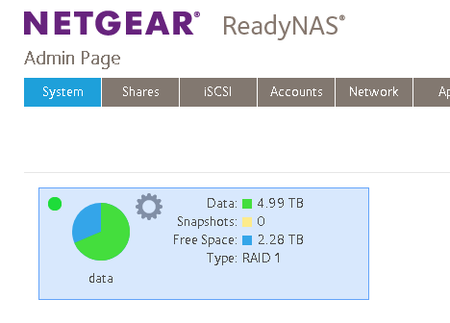
- Nov 08, 2021
VolkerB wrote:[...] snapshots (neither smart nor custom, no matter what schedule) did not seem to work anymore for the home shares of all users. Manual and automatic snapshots for other shares not related to individual users worked fine. There was no issue with insufficient space (no snapshot pruning taking place) [...] So I have created a new user "test" with all default settings in the "Users" group. [...] for user "test" automatic snapshots are actually taken successfully, while at the same time, no snapshots for user "volker" are stored even though he is sharing the same schedule. As it happens to be, [X] Allow snapshot access was enabled for volker and [ ] Protection was disabled, user "test" had it the other way round. [...]
Currently, I'm running a test with various combinations of (dis)allowing snapshot access and en-/disabling the protection feature, (de)activating bit rot protection and compression for the other shares to find out what exactly spoils the fun here.
The tests have completed. Conclusion:
If you don't activate the [X] Protection option in the Home Folders > Settings > Snapshot Access for all the users where snapshots should be taken, no schedule whatsoever is going to work. Everything else (Bit-rot-protection and compression for shares, snapshot access for individual users, the type of schedule and whether you want snapshots even if nothing changed) does not matter.
So if some Netgear dude is listening: Perhaps this critical relationship could at least be made more clear in the manual or probably even a warning displayed if the admin deviates from a setting that implicitely disables snapshots.
HTH & Greets,
Volker

StephenB
Nov 08, 2021Guru - Experienced User
VolkerB wrote:
I unfortunately don't quite understand, what "only make snapshots with changes" mean
It only makes a snapshot if there's been a change to the main share after the previous snapshot was taken.
VolkerB
Nov 08, 2021Aspirant
StephenB wrote:
VolkerB wrote:I unfortunately don't quite understand, what "only make snapshots with changes" mean
It only makes a snapshot if there's been a change to the main share after the previous snapshot was taken.
So if "something" changes in the entire share, then a snapshot is created that comprises all the files and directories of that share where all unchanged file(s) and directory/-ies point to the same location (a hard link probably) and only the changed file(s) and directory/-ies get a new link.
On a more figurative level: For snapshots accessible by the users (mapped to the /home/user/snapshot directory), you would have:
Original state:
/home/user/ A, B, C
/home/user/snapshot/ <empty>
Modified state (option a):
/home/user/ A, B, C'
/home/user/snapshot/ A, B, C
or is it rather (option b):
/home/user/ A, B, C'
/home/user/snapshot/ C
Smart snapshots always show you the entire (sub)volume and it is up to the user to diff the changes between the snapshot he's looking at and the current state or earlier/later snapshots. Hence I wondered if custom snapshots "[X] with changes only" refers to when a snapshot is taken or also to what it contains (only the changed content or the entire volume).
Greets,
Volker
- StephenBNov 09, 2021Guru - Experienced User
"Smart" snapshots will be made every hour, even if the share contents haven't changed. Custom Snapshots with "Only take snapshots with changes" will only be made if something has changed. So if the share hasn't changed, the snapshot will be skipped. Since most of my shares aren't changed that often, this is much more convenient.
All snapshots show you the complete share as it existed when the snapshot was made. There is a way to see only the changes if you use ssh, but Netgear hasn't built it into the web ui. If you want to research that, it's the btrfs send command with the --no-data flag. It's much faster than using diff.
VolkerB wrote:
where all unchanged file(s) and directory/-ies point to the same location (a hard link probably) and only the changed file(s) and directory/-ies get a new link.Not a hard link, but not the worst conceptual starting point. More like hard links on steroids. Snapshots are a BTRFS feature, that are built on the copy-on-write feature of the file system.
When a snapshot is taken, the files in the snapshot and the main share are all shared data blocks. "Copy on write" means that when something in the main share is modified, the change will be written to new blocks. The original blocks are now only used by the snapshots, the modified blocks are used only by the main share (until another snapshot is taken).
This is not done at the file level (so not a hard link). It is done at the block level. If one block in a very large file is changed (w/o rewriting the entire file), then the file in the main share becomes fragmented (since it is still sharing all but one block with the snapshots). Defragging the share will rewrite the entire file in the main share (which will increase the total space used by the share, since none of the file blocks will be shared by the snapshots anymore).
The CoW feature can also be used to advantage when copying files, by adding --reflink to the SSH cp command. When you copy a folder with --reflink, the copy takes no additional on-disk space. You can then modify the original, without modifying the copy - so again, not a hard link. You can even use --reflink when copying to another share (subvolumes).
FWIW, "bit rot protection" is a combination of features. CoW is one (it can be enabled/disabled with BTRFS). Another is BTRFS block checksums, and the third is a proprietary Netgear feature. The feature uses a combination of RAID parity blocks, and block checksums to try and recover any data that suffered bitrot (silently changed on the disk). I wish that Netgear hadn't combined all three features into one checkbox, but I guess they thought it would be simpler.
Snapshots of course require CoW. But if bit rot protection is turned off, the NAS is supposed to turn CoW on in order to make the snapshot (and then turn off CoW again afterwards). Similarly, a ReadyNAS "push" back job (local source) makes a snapshot before the backup starts, and then backs up the snapshot. When the job completes, the snapshot is destroyed. That makes the backup coherent.
- VolkerBNov 11, 2021Aspirant
StephenB wrote:
"Smart" snapshots will be made every hour, even if the share contents haven't changed. Custom Snapshots with "Only take snapshots with changes" will only be made if something has changed. [...] All snapshots show you the complete share as it existed when the snapshot was made.[...] Snapshots are a BTRFS feature, that are built on the copy-on-write feature of the file system. [...] When a snapshot is taken, the files in the snapshot and the main share are all shared data blocks. "Copy on write" means that when something in the main share is modified, the change will be written to new blocks. The original blocks are now only used by the snapshots, the modified blocks are used only by the main share (until another snapshot is taken).
Ah, OK. Thanks for explaining. So if snapshots are reflecting the diff on a block level, you might even get away with quite some benefit if there is just something added to a huge file - depending on the block size of course.
StephenB wrote:This is not done at the file level (so not a hard link). It is done at the block level. If one block in a very large file is changed (w/o rewriting the entire file), then the file in the main share becomes fragmented (since it is still sharing all but one block with the snapshots). Defragging the share will rewrite the entire file in the main share (which will increase the total space used by the share, since none of the file blocks will be shared by the snapshots anymore).
Understood. So it was actually a good idea that I ran a defrag before reenabling snapshots on my box.
StephenB wrote:The CoW feature can also be used to advantage when copying files, by adding --reflink to the SSH cp command. When you copy a folder with --reflink, the copy takes no additional on-disk space. You can then modify the original, without modifying the copy - so again, not a hard link. You can even use --reflink when copying to another share (subvolumes).
Quite convenient - especially for large amounts of data The "copy" (which is then just some work in an allocation table) will then probably happen in an instant.
StephenB wrote:FWIW, "bit rot protection" is a combination of features. CoW is one (it can be enabled/disabled with BTRFS). Another is BTRFS block checksums, and the third is a proprietary Netgear feature. The feature uses a combination of RAID parity blocks, and block checksums to try and recover any data that suffered bitrot (silently changed on the disk). I wish that Netgear hadn't combined all three features into one checkbox, but I guess they thought it would be simpler.
Snapshots of course require CoW. But if bit rot protection is turned off, the NAS is supposed to turn CoW on in order to make the snapshot (and then turn off CoW again afterwards).
According to my findings in this post BTRFS is/was turned on in all (sub)volumes of the home share, so I obviously just forgot to turn on [X] Protection option in the Home Folders > Settings > Snapshot Access for all the users where snapshots should be taken and all is good. I'll do a couple of tests to verify this, your tip with the BTRFS send command and the --no-data option for sure will be helpful. But I don't expect any irregularities there, since the NAS was using "protection" for the new test user by default and snapshots immediately worked. A warning dialog would have saved me quite some time (Hey, Netgear developers!) but whatever...
Finally I need to point out that I don't run my RN214 24/7 - for various reasons.
Firstly, it is rather a convenience option that I switch on if it is necessary to access my big archive of raw video, audio and image files, i. e. if I need to do some video and/or image editing. On my PC, I just have 128GB of local storage for the OS and another 500GB for "data", both on Samsung SSD. I don't see a need to spend big $$$ on massive capacity there - if I need to work on a project, I either copy over a portion temporarily or even work directly on the NAS. With link aggregation and two Seagate IronWolf, it's not that slow.
Secondly I also switch on the RN214 whenever it's time for syncing the PC with network storage (robocopy on the Windows machine and rsync on Ubuntu), which is not fully scripted yet (e. g. I could do Wake-on-LAN and also boot the PC automatically) or backup to USB3-drives that I connect to the NAS (local rsync job attached to the backup button) in a rotating schedule. So chances are quite high that at least a couple files are always different (think email database, files in /home/user, etc.) whenever I run the sync, so it doesn't matter much whether I take "smart" or "custom" snapshots. I like the retention/promotion feature of smart snapshots but that for sure is a matter of personal preferences.
It's a bit of a pain though to create a decent snapshot schedule if the NAS is off most of the time. So I told it to boot every Saturday at 0:00AM and do weekly snapshots (they are supposed to be taken Friday at Midnight and the last one promoted to a monthly snapshot at the end of the month, see this article). Only to find out that no snapshots were taken at all and you rather need to boot the machine one hour earlier (Friday 11PM) and let it run for two hours. That is no big problem since spun down disks are woken up for weekly snapshots but still feels a bit unnecessary. "Custom" snapshots are no exception to that.
And I would love the NAS to stay in/revert to it's original power state in case there is a power loss. So: If it has been off, it should stay off if the power comes back and vice versa. Every PC has a BIOS option to control that (and the RN214 probably has as well), but the BIOS is inaccessible - at least from my knowledge level. As it is configured right now, it always turns on if power comes back which requires an unnecessary power schedule entry (e. g. at midnight) if you don't want to have it running for days and days if you come back from a couple days of vacation or a business trip.
OK, that is probably lamenting on the highest level now. I have to say that I'm quite happy with the RN214, in terms of reliability, build quality (took it apart recently to clean the fan) and feature richness. It took quite some investigation to arrive at this Netgear product and in comparison the cheaper devices from QNap and Synology just stink. That I had to preform a factory reset after a backup gone wrong and the volume filled up to the brim is a bit disappointing but probably my own fault. I should have watched more carefully if the job was indeed cancelled or not.
So: Thanks again for your support, for sure I again have learned something. And probably other users wanting to find out about BTRFS, snapshots and user's home (sub)volume as well. Have a nice day!
Volker
- StephenBNov 11, 2021Guru - Experienced User
VolkerB wrote:
And I would love the NAS to stay in/revert to it's original power state in case there is a power loss. So: If it has been off, it should stay off if the power comes back and vice versa. Every PC has a BIOS option to control that (and the RN214 probably has as well), but the BIOS is inaccessible - at least from my knowledge level. As it is configured right now, it always turns on if power comes back which requires an unnecessary power schedule entry (e. g. at midnight) if you don't want to have it running for days and days if you come back from a couple days of vacation or a business trip.
I have several ReadyNAS, the main one is on 24/7 (with spindown enabled), the backups are on a power schedule.
I wish it had an option there as well. FWIW, connecting the NAS to a UPS will solve this, as the NAS then won't see a power loss when the power fails. It also protects against unclean shutdowns (which can result in an out-of-sync RAID array).
It's a bit of a pain though to create a decent snapshot schedule if the NAS is off most of the time. So I told it to boot every Saturday at 0:00AM and do weekly snapshots (they are supposed to be taken Friday at Midnight and the last one promoted to a monthly snapshot at the end of the month, see this article). Only to find out that no snapshots were taken at all and you rather need to boot the machine one hour earlier (Friday 11PM) and let it run for two hours. That is no big problem since spun down disks are woken up for weekly snapshots but still feels a bit unnecessary. "Custom" snapshots are no exception to that.
Yeah, I power up the backups at 11 pm. No big problem, but a bit annoying to have that constraint.
If you use the scheduled maintenance (disk test, balance, volume scrub, defrag), then you'll also find that some of those tasks will be terminated when the shutdown time arrives (instead of holding off shutdown until the task completes). I've modified one of the Netgear scripts to change that behavior. I also modified the cron schedule for those tasks (for example, to run on the first Friday of the month if the NAS is powered up on Fridays).
Related Content
NETGEAR Academy

Boost your skills with the Netgear Academy - Get trained, certified and stay ahead with the latest Netgear technology!
Join Us!
