NETGEAR is aware of a growing number of phone and online scams. To learn how to stay safe click here.
Forum Discussion

DonD
May 02, 2016Guide
FVS318N ensuring adequate bandwidth for streaming encoder
Well, I streamed our Sunday service this morning. It should have been in 720p HD, but apparently the encoder automatically dropped down the resolution because of poor bandwidth. I'm running the enc...

- May 22, 2016
Well, all I can say is Whew!!! I had a flawless stream this morning at church. The encoder was provided with the proper constant bandwidth to ensure an HD broadcast. Looks like the things I did that I mentioned in the previous post did the trick! By the way, I also changed the Outbound and Inbound Minimum bandwidth in the Bandwidth Profile to 5000 Kbps. The streaming encoder I'm using is Livestream.com's Broadcaster Pro. I'm putting some large stick-on feet on the bottom of it to ensure there is adequate space under it for ventalation, as it gets hot on the top and bottom. And, we will keep it away from heat sources. I'm considering this problem solved, and I thank DaneA and JohnRo for their assistance.
Regards,
DonD
DonD
May 03, 2016Guide
I did some reading in the router manual. Boy, QoS and bandwidth management sure is complicated. Noticed I did not set up a firewall rule to associate with the QoS profile. So, now I have an outgoing and incoming rule both associated to a QoS profile. Is is necessary to setup a QoS profile under "Network Configuration/QoS" and "Security/Services/QoS Profiles"?

DaneA
May 03, 2016NETGEAR Employee Retired
Hi DonD,
I think that one way to ensure that the adequate bandwidth is met for the Livestream Broadcaster Pro Streaming Encoder is by trying to connect it directly to one of the LAN ports of the FSV318N then capture the packets in real time using the Packet Capture Tool. To access the Packet Capture Tool on the web-GUI of the FVS318N, go to Monitoring > Diagnostics then on the Diagnostics page see the Router Options. Once you have started the packet capture, at the same time begin to stream videos through the Livestream Broadcaster Pro Streaming Encoder connected to one of the LAN ports of the FSV318N.
For the packet capture to be analyzed, I suggest you to open an online case with NETGEAR Support then let them know about your concern. Attach the packet capture on the online case you have opened for it to be analyzed by the engineering team.
Regards,
DaneA
NETGEAR Community Team
- DonDMay 03, 2016Guide
Great ideas, DaneA!
Thank you for your help!
Regards,
DonD
- DaneAMay 04, 2016NETGEAR Employee Retired
Hi DonD,
If ever you have already opened an online case, keep us posted.
Regards,
DaneA
NETGEAR Community Team
- DonDMay 12, 2016Guide
DaneA,
I've decided not to open a support ticket, as the church can't affort the Netgear Support plan. The unit is older than 90 days now, so it doesn't quality for complementary support. So, I'm try to figure this out with the help of this community. See my new post titled "FVS318N - QoS or Bandwidth Profile?". I would appreciate any help you and any others can provide.
Thanks much!
DonD
- DaneAMay 15, 2016NETGEAR Employee Retired
Hi DonD,
In relation to the QoS setup on the FVS318N, I think you'll need to create a firewall rule (for example: an outbound rule against IP of the encoder 192.168.0.240) and to that rule then he can assign a QoS Profile and also a Bandwidth profile to ensure the encoder has the required bandwidth. In the FVS318N reference manual see page 173 onwards here.
Hope it helps. :)
Regards,
DaneA
NETGEAR Community Team
- JohnRoMay 18, 2016NETGEAR Employee Retired
Hello DonD,
We’d greatly appreciate hearing your feedback letting us know if the information we provided has helped resolve your issue or if you need further assistance.
If your issue is now resolved we encourage you to mark the appropriate reply as the “Accepted Solution” so others can be confident in benefiting from the solution. The Netgear community looks forward to hearing from you and being a helpful resource in the future!Thanks,
- DonDMay 19, 2016Guide
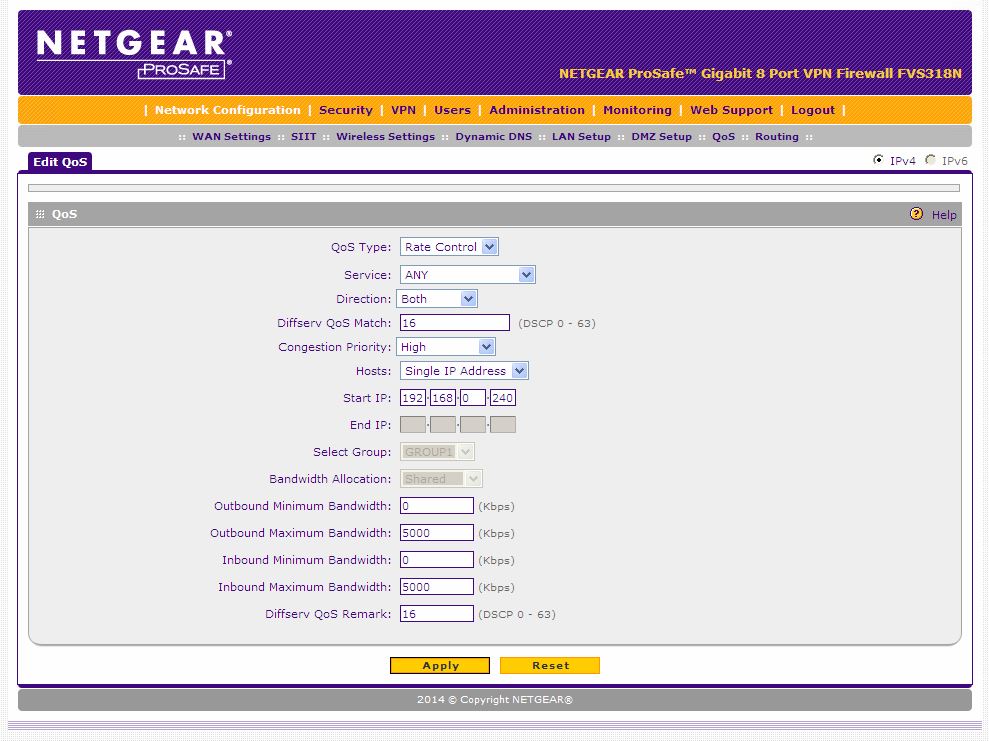
Well, here is the surprise! In my struggle to get adequate reserved bandwidth for the encoder, I noticed the overall bandwidth on the router LAN ports was diminishing, to the point where it was only about 3 Mbps down and about the same for the up speed. I ran with that rate for a couple days so I know it wasn't just a temporary thing. I checked the ISP bandwidth by putting the laptop right on the modem output and it was always 50 down and 10 up, which are exactly what we are buying from our ISP.
In my desperation, I decided to make a config file of my settings, then restore the router to factory settings. I then, using that config file, restored my settings. And, WALA!, the router LAN port outputs were showing 47 Mbps down and 10 Mbps up, very close to what I would expect. This indicates to me that the embedded routing software code the rounter creates as a result of each configuration change/addition becomes defective and suffers from reduced performance. So, we did a stream of our Sunday service last Sunday and it was holding very close to the 2 Mbps needed for the upstream. It held for almost the entire service, then near the end it suddenly dropped to around 600 Kbps, which is too low to support HD streaming at 720p. Now, I did have the Guest VLAN enabled during the service, and someone might have attempted an upload or something, but I would think that if I have the Outbound and Inbound rules, their referenced QoS Profile, and Bandwidth Profile all set properly, that should have guaranteed bandwidth for the encoder regardless of activity on the Guest VLAN.
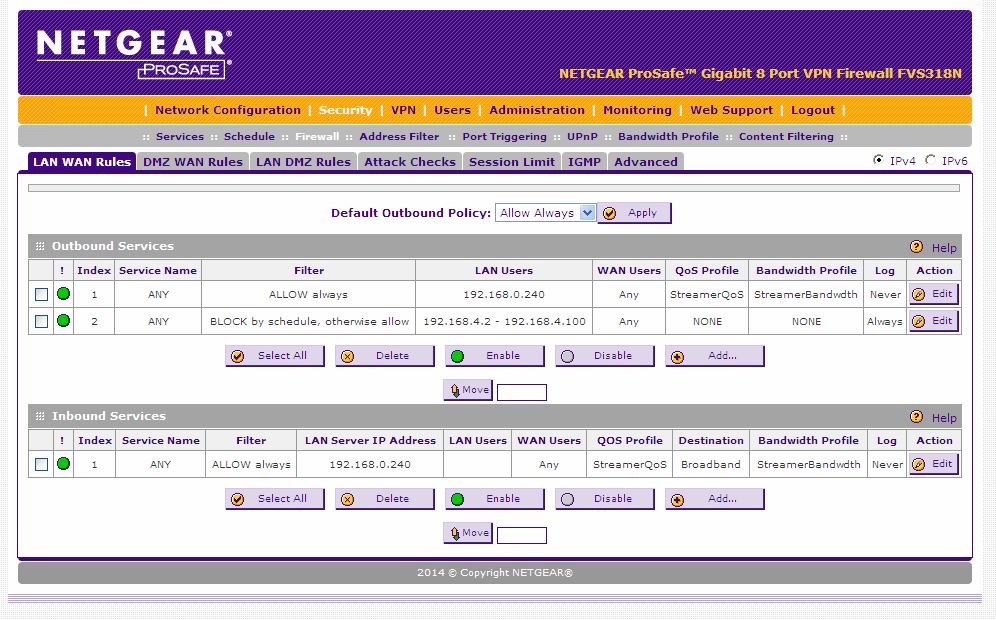
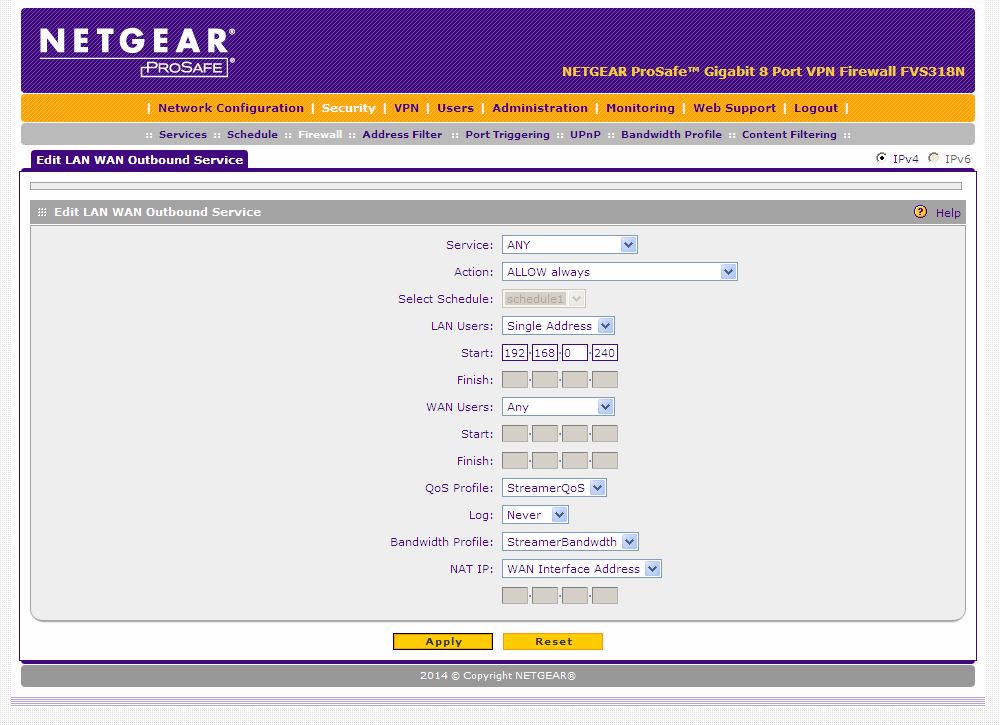
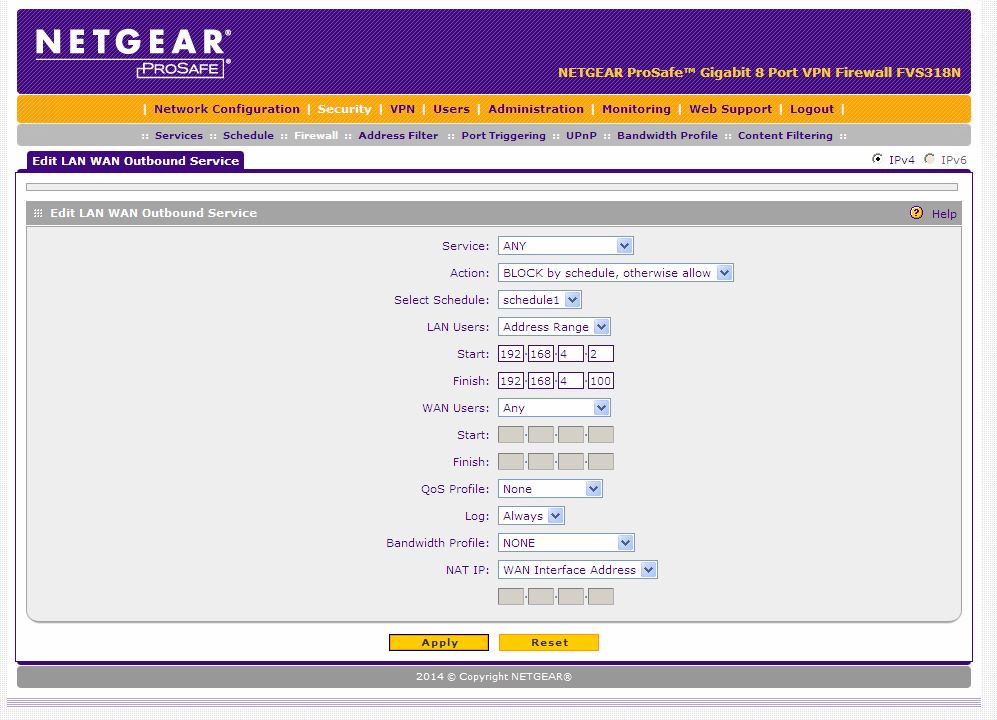
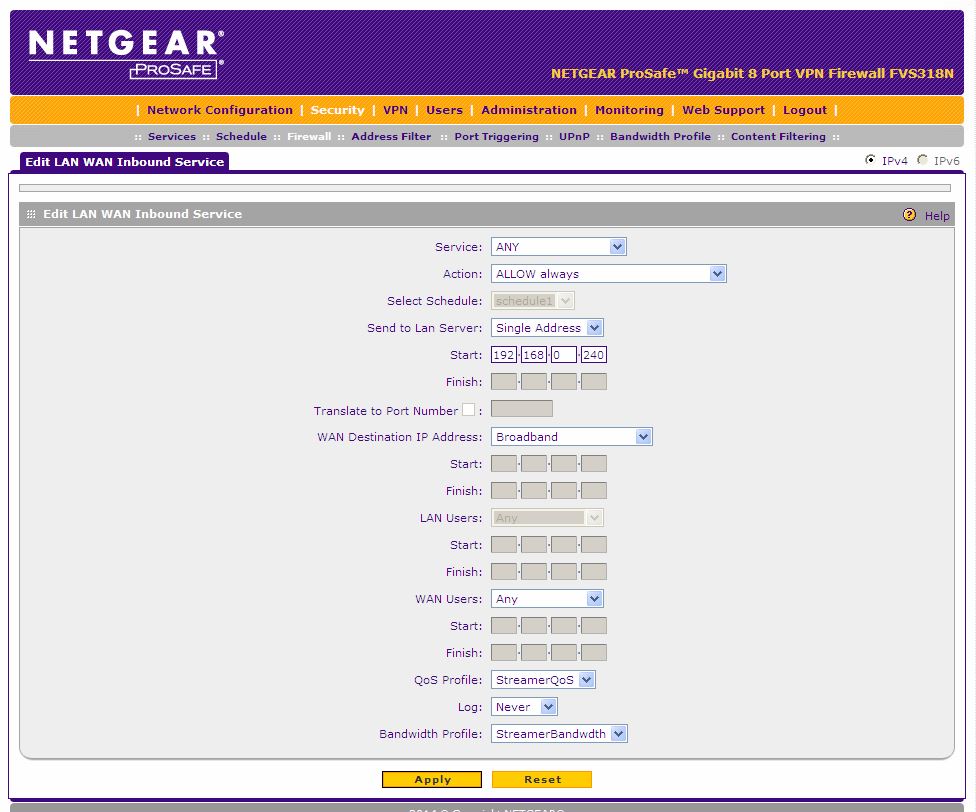
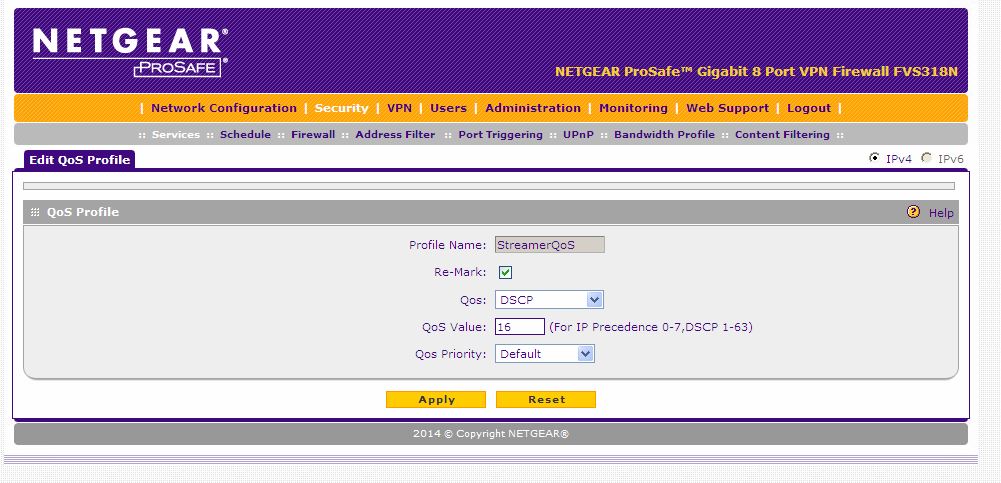
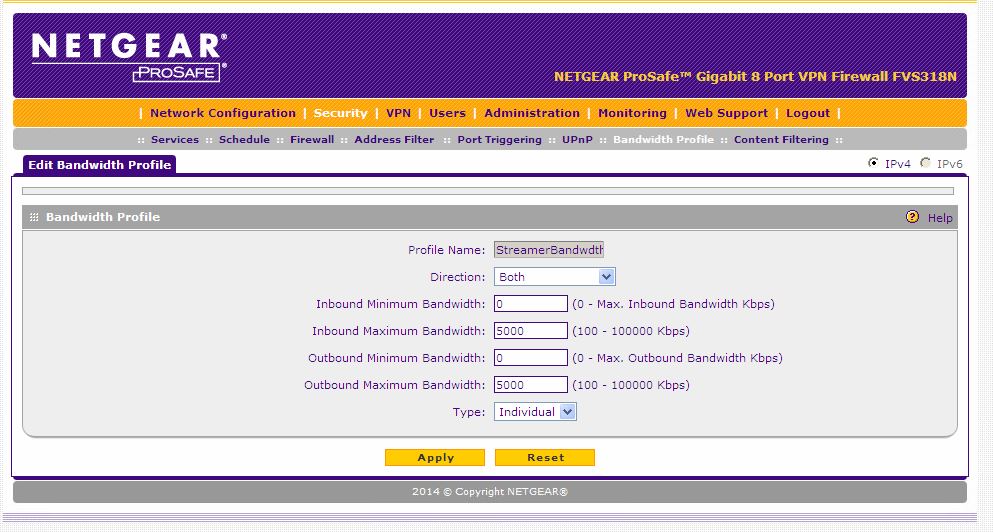
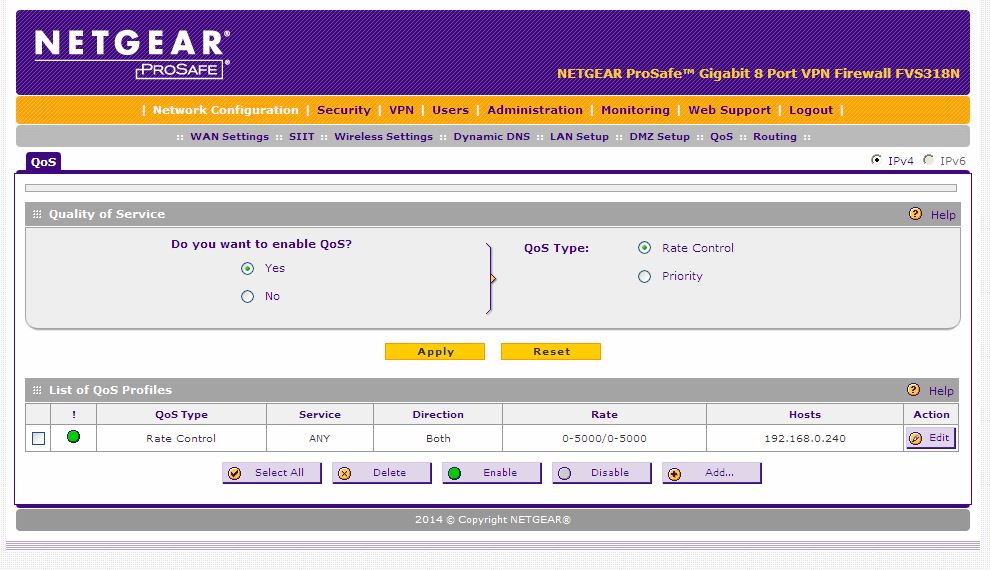
I would appreciate anyone's help with this, as I would like to be done with this once and for all. Here are screenshots of the router showing how I have it configured relative to this discussion.
Thanks for any help,
DonD
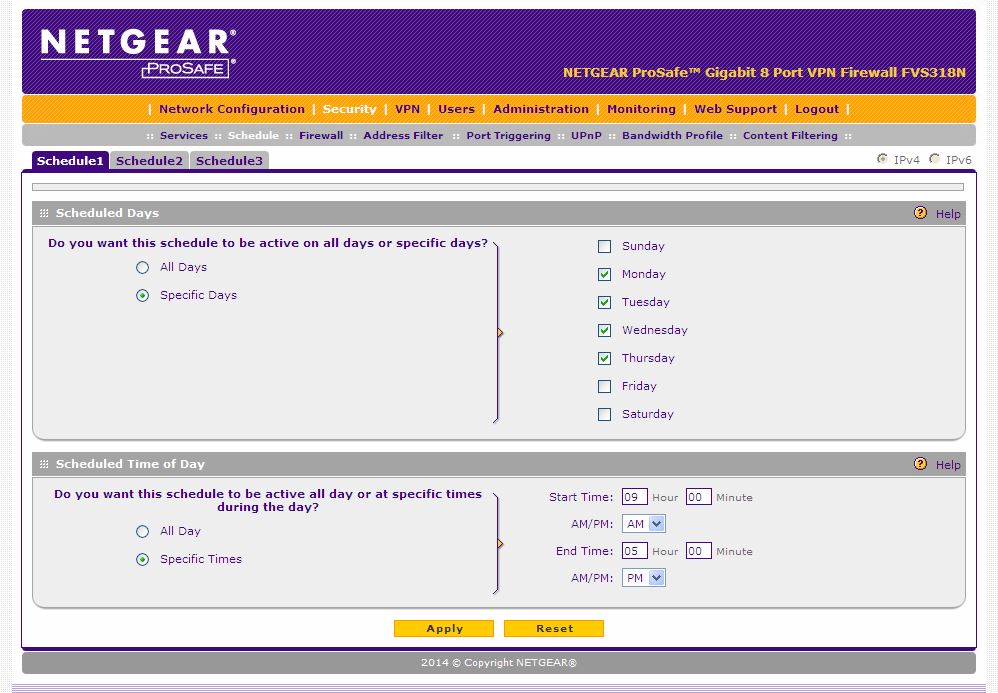
Note, the Guest VLAN is only blocked during church office business hours to maximize staff performance.
We don't want it blocked on Sunday, as we want members to be able to use it before and after the service.
I expected that the QoS Profile and Bandwidth Profile would guarantee the encoder would have adequate
bandwidth regardless of Guest activity.
I don't understand if I really need the following 2 configuration shots, as I already setup a QoS Profile under Security Services. Any ideas???
End of screenshots --
- DonDMay 21, 2016Guide
Yesterday, I eliminated the QoS settings under Network Configuration and ran a long streaming test with only the 2 streaming security rules and their corresponding QoS Profile and Bandwidth Profile services. Everything went well for almost an hour, then the streaming encoder indicated it didn't have enough bandwidth. I did notice the encoder was very hot. I noticed I had it placed right next to the laptop such that the laptop's fan vent blew hot air right on the encoder. So, I moved it away and ran another long test for over an hour with no problems. I will be running a stream tomorrow morning at our church service, so we will see how it goes. I will also have my laptop on line to run Wireshark to get network packet captures, should the problem arise again.
I will report back here in a few days with my findings.
DonD
- DonDMay 22, 2016Guide
Well, all I can say is Whew!!! I had a flawless stream this morning at church. The encoder was provided with the proper constant bandwidth to ensure an HD broadcast. Looks like the things I did that I mentioned in the previous post did the trick! By the way, I also changed the Outbound and Inbound Minimum bandwidth in the Bandwidth Profile to 5000 Kbps. The streaming encoder I'm using is Livestream.com's Broadcaster Pro. I'm putting some large stick-on feet on the bottom of it to ensure there is adequate space under it for ventalation, as it gets hot on the top and bottom. And, we will keep it away from heat sources. I'm considering this problem solved, and I thank DaneA and JohnRo for their assistance.
Regards,
DonD
- DaneAMay 23, 2016NETGEAR Employee Retired
Hi DonD,
You're welcome! :) I'm very glad that the problem has been resolved.
I appreciate that you shared your experience and the steps you've done to resolve the problem here in the community. This will serve as reference for other community members. :)
Cheers,
DaneA
NETGEAR Community Team

Related Content
NETGEAR Academy

Boost your skills with the Netgear Academy - Get trained, certified and stay ahead with the latest Netgear technology!
Join Us!
