orbi wifi 7
17 Topics2.4Ghz IoT Network Speed Test Comparison
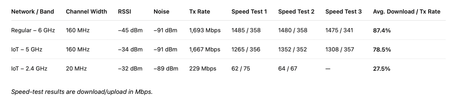
I performed comparative speed testing of the IoT network configured for 2.4 GHz only. I wanted to provide some controlled data because users have reported relatively low Internet download speeds—often around 25–50 Mbps—when connected to the 2.4 GHz IoT network. For these tests I used my M4 MacBook Pro as the client. The Mac was approximately 8 feet from my third-floor RBE970 satellite, which is Ethernet-backhauled to the RBE971 router. I tested the regular network on 6 GHz, the IoT network on 5 GHz, and then the IoT network restricted to 2.4 GHz. All tests therefore used the same client, location, Internet connection and nearby RBE970. The results are in a table in the attached image. The wireless connection information shows a very substantial difference between the three connections. On the regular 6 GHz network, the M4 connected on channel 69 at 160 MHz with a Tx rate of 1,693 Mbps. On the 5 GHz IoT network, it connected on channel 48 at 160 MHz with a Tx rate of 1,667 Mbps. Those connections produced average Internet download throughput of approximately 1,480 Mbps and 1,308 Mbps respectively. On the 2.4 GHz IoT network, the Mac connected on channel 11 using a 20 MHz channel, with a reported Tx rate of 229 Mbps. Actual Internet throughput was consistently much lower, at 62–64 Mbps download and 67–75 Mbps upload. The 2.4 GHz test was performed under what should be close to ideal RF conditions. RSSI was −32 dBm and noise was −89 dBm, for approximately 57 dB of signal-to-noise margin. The M4 was also only about eight feet from the RBE970. Therefore, weak signal strength or excessive distance from the satellite should not explain the approximately 63 Mbps download result. The comparison should also largely eliminate my Internet connection, Ethernet backhaul or general RBE970 throughput as explanations. The same Mac in the same location was immediately capable of approximately 1.3 Gbps over the 5 GHz IoT network and approximately 1.48 Gbps over the regular 6 GHz network. The large throughput reduction appears specifically when the client is connected to the 2.4 GHz IoT network. Certainly, some reduction is expected. The 2.4 GHz connection is using only 20 MHz of channel width, compared with 160 MHz on 5 and 6 GHz, and its negotiated Tx rate is only 229 Mbps, compared with approximately 1.7 Gbps on the other two bands. A 229 Mbps PHY/Tx rate also should not be interpreted as 229 Mbps of available TCP or Internet throughput. Wi-Fi protocol overhead, acknowledgments, contention, retransmissions and half-duplex operation all reduce real-world throughput, and 2.4 GHz can be a particularly busy RF environment. However, I think there is another aspect of these results worth examining. The actual download throughput as a percentage of the reported Tx rate differs considerably between the bands. The 6 GHz connection delivered approximately 87% of its reported Tx rate, and the 5 GHz connection approximately 78%. The 2.4 GHz connection delivered only approximately 28% of its 229 Mbps reported Tx rate. I realize that these percentages cannot be directly compared as though PHY-to-application throughput efficiency should be identical across different bands and channel widths. A 20 MHz 2.4 GHz connection has substantially different airtime and overhead characteristics from a 160 MHz 5 or 6 GHz connection. Nevertheless, approximately 28% seems low enough to raise the question of whether the observed 62–64 Mbps throughput is actually what Netgear expects from this connection. For perspective, even 45% efficiency from the reported 229 Mbps Tx rate would produce approximately 103 Mbps of actual throughput; 50% would be approximately 115 Mbps; and 55% would be approximately 126 Mbps. I am not suggesting that any particular one of those figures is necessarily the correct expected throughput. Rather, they illustrate why the approximately 63 Mbps result may deserve further investigation instead of being attributed solely to the narrower 20 MHz channel. This also changes somewhat how I view the Community reports of 25–50 Mbps. On one hand, those speeds are certainly plausible for older or less capable clients, single-stream devices, devices farther from the router or satellite, or devices operating in a more difficult 2.4 GHz RF environment. My M4 represents a much more favorable case. On the other hand, my test reproduces relatively low 2.4 GHz throughput even with a modern Wi-Fi 6 client, only eight feet from the RBE970, at −32 dBm RSSI and approximately 57 dB SNR. That makes the result more interesting. Rather than demonstrating that 25–50 Mbps must be normal, I think my testing establishes a useful best-case baseline against which those reports can be evaluated. So my main question for Netgear engineering would be: Is approximately 60–65 Mbps of actual throughput expected from a capable Wi-Fi 6 client that has negotiated a 229 Mbps 802.11ax connection at 20 MHz, with −32 dBm RSSI and excellent SNR? Or, under these conditions, would Netgear expect the client to achieve something closer to or above 100 Mbps? If approximately 60–65 Mbps is expected, then the 25–50 Mbps results being reported by users may indeed be quite reasonable once differences in clients, distance and RF conditions are taken into account. But if Netgear expects substantially more throughput from a 229 Mbps PHY connection under these conditions, then my test may be reproducing the same underlying 2.4 GHz performance issue that other users are reporting. Article originated and authored by donawalt32Views0likes0CommentsOrbi Systems Manual Factory Reset Process
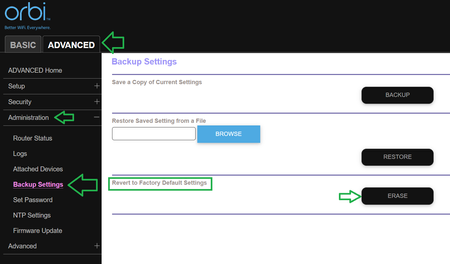
A Guide for use in troubleshooting system problems and used for problems seen after a firmware update should problems been seen after this has occurred. Can be also performed before or after a FW update has occurred. All Orbi AC, AX, AXE and BE series systems Recommend bringing any remote RBS satellites to nearby or in same room as the RBR for ease of viewing the RBS front LED behaviors. MS Edge Or Safari or Firefox browsers are recommended. Erase Button on RBRs Web Page: (Recommended) NOTE: This also sends the factory reset command to any, and all synced and connected RBS satellites. Otherwise, you can manually factory reset using the reset button behind the RBR and RBS: Press the back reset button for 15 seconds then release. https://kb.netgear.com/31486/How-do-I-reset-my-Orbi-system-to-factory-default-settings Wait for ANY RBS to auto connect the RBR after factory reset has taken place. RBS should auto connect to the RBR using factory default SSID named configuration on the RBR router. When RBS front LEDS are BLUE, means there connected to the RBR router. Give about 2-3 minutes. Have 192.168.1.1 web page for the RBR in the web browser ready. When RBS front LEDs are BLUE, select the "If you don't have a compatible smartphone, click here" at the bottom of the RBRs setup wizard web page. Select NEXT at the Welcome to Orbi screen. Agree to the Terms and Conditions. Setup wizard will check for internet services. Select NEXT after detection completes. Input the desired admin password and give Questions and Answers to the Security questions. Be sure to write important information down for safe keeping. At the Set Up Your WiFi page, leave the SSID name and Password default. Don't change it here. Just select NEXT: Select "I am connected to it" at the Personalized Your Orbi Router screen. Select NEXT at the Configuration Complete screen. Select NEXT at the Firmware Update screen. Skip any FW updates if seen here. Can do this later. Select NEXT at the Setup Orbi Satellites: If any, and all RBS were ON and connected and showed BLUE before beginning the setup routine, all RBS should be detected correctly here. Select Try again if needed: Might wait a couple of minutes if needed. All present RBS should be detected. Select NEXT after all RBS satellites are shown to be connected. The web page will be re-directed to the Let's Register Your Product page. You can continue this here or re-type in 192.168.1.1 in the browser and be taken to the RBR log in window screen. Log in to the RBR web page. Select Never Remind me again if you see the NETGEAR Armor screen. If you want this, you'll need to use Orbi app to activate it later. Confirm that you see RBS satellites listed under Attached Devices menu on the RBR web page. Any, and all RBS should show a GOOD status and connected. Out of Sync should not be seen here. Front LEDs on RBS maybe BLUE for up to 3 minutes then turn OFF: If “Out of Sync” is seen for the RBS status, give 2-5 minutes extra for the system to update the status on the RBRs web page. All present and connected RBS should eventually show a GOOD status. Final Configuration Now change the default WiFi SSID name and Password configuration under the Basic Tab/Wireless to something desired and intuitive. Change both 2.4Ghz and 5Ghz channels to manual channels if desired. Can leave channel configuration as is. Select APPLY when new configuration has been input and changed. The RBR and RBS should soft reboot. Though no front LED indication will be or maybe seen on the RBR. RBS may show BLUE on the front LED for up to 3 minutes then turn OFF. Give about 3-5 minutes. Confirm new SSID name and channel configuration is seen on any RBS web page by logging into their web pages found using their assigned IP address seen on the RBRs Attached Devices page. RBS log in web page credentials is the same as RBRs log in web page. Confirm with wireless devices, phones or pads, that they see the new wireless SSID name you configured on the system and that they can connect and get internet services. Be sure to disable any MAC Address randomizers on phones and pads while at home: https://community.netgear.com/t5/Orbi-App/NETGEAR-Mobile-Applications-and-Apple-Devices-FAQ/td-p/2220016/jump-to/first-unread-message System should be now ready for normal use. If you had brought any RBS to near or same room as the RBR, you can now power these OFF and return the RBS to their remote placement locations and power them ON and they should re-connect to the RBR at their remote locations. It's recommended to make a backup configuration at this point for safe keeping and keeping a good clean installation back up just in case and to save time if a factory reset is needed. Then continue to make desired configurations and enable any feature apps like Armor or Smart Parental Controls or additional wireless configuration features. After making all desired system configuration changes, make another backup configuration to file for this configuration. https://kb.netgear.com/000062080/How-do-I-back-up-the-configuration-settings-on-my-Orbi-WiFi-System It's recommended to give the system 5-10 minutes to fully come to ready and any new changes in configuration to take place and become fully ready. Enjoy.2.7KViews0likes0CommentsUsing signal strength detection to place Orbi Satellites FAQ
This document describes how to use Wi-Fi signal strength detection to optimally place Orbi satellites — both their location and the total number deployed. A common mistake is placing more satellites than necessary under the assumption that “the more, the better.” In mesh networking, however, the opposite is often true. Too many Orbi units can create excessive signal overlap, leading to disconnect issues, poor roaming behavior as devices move throughout the house, and general instability. In many mesh environments, deploying fewer units produces better overall performance. To do this properly, you need a software application that displays real-time Wi-Fi signal strength. There are several free tools available. I use a Mac laptop and walk through the house running one or both of two tools: WiFi Explorer Lite and iAnalyzeWiFi. Both are free and available in the Mac App Store. Comparable tools exist for Windows, likely even more of them. These tools provide a real-time view of all detectable Wi-Fi signals in and around your home. As a side benefit, reviewing signal strength across bands can also reveal excessive channel contention on 2.4 GHz, 5 GHz, or 6 GHz bands from neighboring networks. There are two placement strategies depending on whether a satellite (RBS) will use wired (Ethernet) or wireless backhaul. With wired backhaul, you should place the satellite in the weakest signal area that you can physically reach with Ethernet. Since the backhaul is wired, you do not need strong Wi-Fi at that location. Instead, you are extending strong coverage into a previously weak Wi-Fi signal area of the home. With wireless backhaul, the strategy is different. You must place the satellite in a strong signal area so that the backhaul connection to the router is fast and reliable. However, you should place it near the outer edge of that strong coverage zone. The goal is to extend strong Wi-Fi into areas that previously had limited coverage while maintaining a robust backhaul link. In summary, it is inefficient to place a wired-backhaul satellite in a strong signal area, and it is equally inefficient to place a wireless-backhaul satellite in a weak signal area. The key is to do the opposite in each case. When physically placing router and satellite units, also consider environmental factors. Avoid placing units near large metal appliances, electrical panels, HVAC ductwork, or thick masonry or concrete walls, as these significantly attenuate Wi-Fi signals. Do not place units inside cabinets or behind large objects. Elevating units on open shelves or furniture typically produces better coverage than placing them low to the ground or hidden in enclosures. Start by powering down all satellites so that only the router (RBR) is active. Walk around and record signal strength throughout the home. Then place the first satellite (RBS) based on the measured signal coming from the router — strong signal if using wireless backhaul, weak signal if wired backhaul is available. In multi-story homes, also consider vertical coverage. Wi-Fi signals do not only travel horizontally; they pass through floors and ceilings as well. Materials such as reinforced concrete, tile, or radiant floor heating can significantly reduce signal strength between levels. Stairwells often allow better vertical signal propagation. When mapping signal strength, test both directly above and below router and satellite locations to ensure balanced coverage across floors. After the router and first satellite are powered up, repeat the signal mapping process. Identify remaining weak areas and determine whether those areas truly require stronger coverage. Not every corner of a home needs maximum Wi-Fi strength. This evaluation will determine whether an additional satellite is necessary. If adding another RBS, try placing it as far as practical from the router or existing satellites. Netgear recommends a minimum separation of 30 feet, but generally, the farther apart they are (while still maintaining adequate backhaul signal), the better. Using the Mac applications mentioned above, you can view signal strength in RSSI (Received Signal Strength Indicator), which simplifies evaluation. As a general guideline, look for an RSSI of at least –67 dBm or stronger for reliable wireless backhaul. Remember that “stronger” means closer to zero on the number line (for example, –50 dBm is stronger than –67 dBm). In many cases, you can stretch to –70 dBm if necessary, but performance may begin to degrade below that threshold. Once two satellites are deployed, continue walking through the home measuring signal strength and performing speed tests. Only after this evaluation should you decide whether an additional satellite is objectively necessary. In addition to laptop testing, validate performance with real-world client devices such as smartphones, tablets, streaming devices, and laptops — especially in the areas where you spend the most time. Different devices have different radio capabilities and antenna designs, so real-world testing ensures that the theoretical signal map translates into practical performance. An additional benefit of these signal analysis tools is the ability to see each Orbi node (RBR and RBS) individually. This allows you to detect excessive overlap. If you observe nearly identical signal strength from two or more Orbi nodes in the same area, it may indicate too much overlap. Significant signal conflict can make it difficult for client devices to roam smoothly between nodes as they move throughout the house. This is something to test as well; ensure that there are no disconnects or poor network performance on a mobile device when walking around the home in your primary paths. Many users are surprised to discover that they need fewer satellites than they originally expected. To do this right, you need a software app that shows real time WiFi signal strength. There are several free ones. I use a Mac laptop and walk around the house running either/both of 2 tools - WiFi Explorer Lite and iAnalyzeWiFi. Both are free and in the Mac App store. There are comparable tools in the Windows world, if not more of them. Both of these Mac tools will give a real time view of ALL signals in your house where you are standing. Wifi Heat Map - Survey for Android on a tablet. https://play.google.com/store/apps/details?id=info.wifianalyzer.heatmap&hl=en_US&gl=US Article originated and authored by donawalt882Views0likes0CommentsOrbi Satellite (RBS) Self-Service Web Page Access
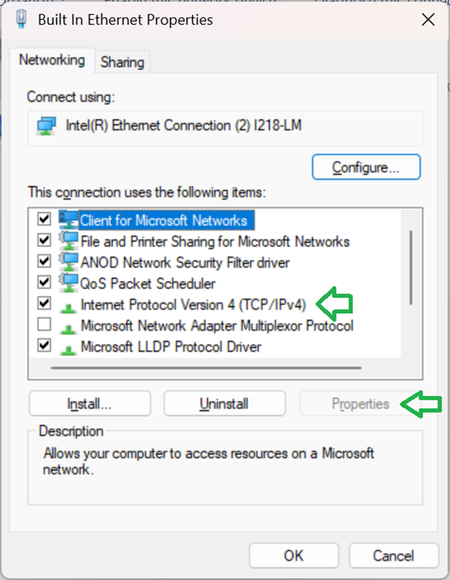
When a Satellites firmware is not at same level as RBR and will not sync to router unit normally, this guide can be used to access the satellites self service web page to manually update the satellites firmware to match what is loaded on the router unit. (Orbi AX, AXE and BE system models supported) First try ethernet connecting the RBS to the back of the RBR. Check the RBRs web page for Connected Devices. If the RBS is listed there, try to log into the RBS web page at the given IP address seen from the RBRs web page. If the RBS web page can be accessed, Select the Firmware Update menu item and manually update the RBS using the RBS web page here. Be sure to unpack the appropriate version RBS firmware .zip file and use the .chk file to send to the RBS using the web browser. IF the above fails, then review and proceed to the following below: Pre-conditions Ethernet connected PC or laptop PC networking configuration set to the following: Manual static IP address: 192.168.10.49 and sub net mask: 255.255.255.0 Leave Gateway and DNS blank. Ethernet cable connected from PC or laptop to back of RBS LAN port. Satellite firmware file downloaded to PC and firmware file (.CHK) extracted from the downloaded .zip file. (Should be same firmware version as what is loaded on the host Orbi RBR router unit.) Power up the RBS from out of the box. Wait 2 minutes. (From RBS already powered ON and synced skip to next step.) Press and hold the factory reset button in back for 15 seconds. Power LED in back should go from solid GREEN to blinking AMBER. After 15 seconds press has passed, release the reset button in back. Wait for the blinking power LED to change from AMBER to solid GREEN. Un-plug the power plug from behind RBS for 10 seconds then plug back in. Wait 3-5 minutes. DO NOT sync the RBS to the host router (RBR). Open a web browser. (MS-Edge for Windows PCs or Safari for Apple PCs) Navigate to 192.168.10.250 in the web browser. A log in pop up window will be displayed: Enter in >admin for Username field box. Enter in >password for Password field box. (All lower case.) Orbi satellite is not connected message will be displayed: Select OK. Satellite self-service web page should be displayed: Confirm any firmware versions here. Maybe older firmware version maybe seen here. If satellite firmware needs updating, proceed to manually update the satellite firmware: Select the Firmware Upgrade menu selection on left side. Select the Browse button and navigate to the location on the PC where the firmware files are located and have been extracted too that reveals the .CHK file. Select this satellite (RBS) .CHK file. Select the Upload button to have the browser send the .CHK firmware file to the RBS. Let the satellite process the firmware file. The satellite should come back to ready and be able to log in to the satellite self-service web page again using same process as out lined in step 8 above. Confirm the firmware version changed and was updated. Follow normal satellite syncing process at this point to get the satellite to connect to the host Orbi router (RBR). Use either the Orbi app or use the Orbi router (RBR) web page Add Satellite feature or the sync buttons behind the Orbi router (RBR) and satellite (RBS) in back to get the satellite to connect to the Orbi router (RBR). NOTE: This was verified on Orbi RBS750, RBS960 and a RBE770 series satellite models. This applies to all Orbi 350, 850, 860, 950, and 970 series Orbi RBS models. Future RBS models should work the same as they get released. If something fails, please post in the forums or contact NETGEAR support.914Views0likes0CommentsNETGEAR Mobile Applications and Android/Apple/Windows Devices FAQ
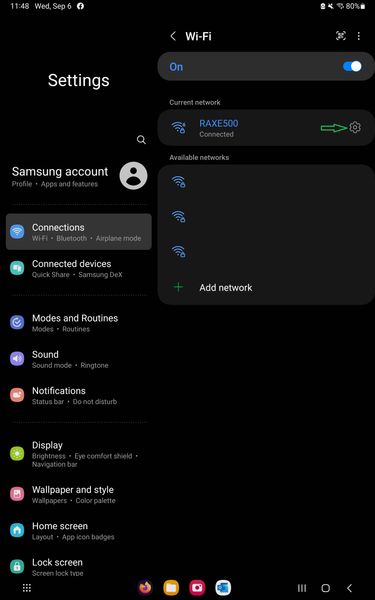
Summary: Since Android/Apples and Windows introduction of MAC address randomizers in there OSs, this seems to have been causing problems for users of Netgear's mobile applications, i.e. Nighthawk and Orbi applications on iPhones and iPads being able to connect correctly to Netgear router products. What is: Apple WiFi Private IP Address: "Apple platforms use a randomized media access control address (MAC address) when performing Wi-Fi scans when not associated with a Wi-Fi network. These scans can be performed to find and connect to a known Wi-Fi network or to assist Location Services for apps that use geofences, such as location-based reminders or fixing a location in Apple Maps." https://support.apple.com/guide/security/wi-fi-privacy-secb9cb3140c/web Try only disabling this feature first as a first step in troubleshooting. If the above feature change doesn't work or help change anything, try the following: Apple Limit IP Address Tracking: "Limit IP address tracking is a privacy-enhancing feature currently only seen on iPhones or iPadOS devices with cellular connectivity. This feature can be activated on your device if you are running iOS 15.2 RC 2 or higher. Once enabled, your IP address will be hidden from identifiable trackers in Apple’s database. This feature will only work in Safari & Mail, for now, using another browser or Mail app will leave you exposed to trackers. https://nerdschalk.com/hide-ip-address-on-iphone-how-to-use-limit-ip-address-tracking-feature-for-this/ https://discussions.apple.com/thread/253657312?answerId=256849570022#256849570022 Apple iCloud Private Relay: "When Private Relay is enabled, your requests are sent through two separate, secure internet relays. Your IP address is visible to your network provider and to the first relay, which is operated by Apple. Your DNS records are encrypted, so neither party can see the address of the website you’re trying to visit. The second relay, which is operated by a third-party content provider, generates a temporary IP address, decrypts the name of the website you requested and connects you to the site." https://support.apple.com/en-gb/HT212614 These two above features may not need to be changed. 2024 Apple has implemented additional options to the Private WiFi Address feature: 3 options are now seen here: Disable - Disables the MAC address randomization on the phone. Uses actual MAC address set on the phone. Fixed - Sets a fixed MAC address that differs from actual MAC address of the phone. Rotating - Randomized the MAC address. Good for traveling or connecting to open WiFi networks when away from home. Diagnosis: When users are at home that these features may not be needed as there would be no reason to have additional security features on the iOS devices enabled while being at home and that these features are more suited for out of home or remote use while away from home and the local home network. Solution: For troubleshooting these problems with Netgear mobile applications, Apples WiFi Private IP address and Limit IP tracking on Apple iPhones and iPads can be disabled while at home to see if this helps resolve Netgear's mobile app in connecting to the Netgear router. Try turning OFF WiFi Private IP address and Limit IP tracking features are found on the same screen page: https://support.apple.com/en-us/HT211227 iCloud Relay can be turned off as a troubleshooting step as well though may not be needed in most cases: https://support.apple.com/en-us/HT212614 ANDROID: Also seen on Android OSs as well: https://www.howtogeek.com/722653/how-to-disable-random-wi-fi-mac-address-on-android/ NOTE: For Android devices, there is only Disable and Phone/Tablet MAC options. MS WINDOWS: Seen on Windows PC or Laptops with WiFi adapters: NOTE: These are troubleshooting steps only and recommended trying if all other troubleshooting steps fail. Remember to enable these Android/Apple and Windows features when using Android/Apple/WIndows devices normally or remotely outside of the home network. If users still see problems with the mobile app after trying the solution, please submit a bug using the submit bug feature in the app: Orbi App: https://community.netgear.com/t5/Orbi-App/How-to-report-a-bug-on-the-Orbi-App/td-p/2140980/jump-to/first-unread-message Nighthawk App: https://community.netgear.com/t5/Nighthawk-App/How-to-report-a-bug-on-the-Nighthawk-App/td-p/2134684/jump-to/first-unread-message Or contact Netgear support: https://my.netgear.com/support/contact.aspx1.3KViews2likes0CommentsCell phone flipping celllular/disconnecting when on WiFi? Read this for possible solution!
Technical Analysis and Repeatable Evidence of DHCP/Routing Bug in Netgear Orbi 971 (Router Mode) Summary of Issue In environments using the Orbi systems in router mode, certain iOS/iPadOS devices (tested: iPhone 16 Pro Max and iPad Pro 2024) sporadically exhibit a failure state in which the device: Remains physically connected to the Orbi Wi‑Fi network (SSID displays as connected), Maintains a strong Wi‑Fi signal with excellent throughput (700–1200 Mbps), Yet silently fails over to the cellular interface (e.g., 5G), with no data traversing the Wi‑Fi path. Disable IPv6 on the router Go to your router admin web page, Advanced tab, LAN Setup, and change your DHCP range to something like 192.168.1.2 starting, 192.168.1.150 ending. This is to make room to create some manual address(es) outside the DHCP range, to avoid collisions; one for each device experiencing dropouts. The assumes your router IP address is 192.168.1.1. Go into settings for your iPhone WIFI connection, and for each device set a MANUAL IP address to something like 192.168.1.152 (or later; anything above your DHCP pool range set in #2), subnet 255.255.255.0, router 192.168.1.1. On the same page on your iPhone WiFi connection, set a MANUAL DNS address - add two routers there. Choose Google (8.8.8.8, 4.4.4.4), Cloudfare (1.1.1.3, 1.0.0.3), or another external DNS server of your choice. DO NOT point it to the router at 192.168.1.1. By steps 3 and 4 we are eliminating DNS/DHCP conversation between the phone and router. Do these steps on any other device seeing connection drops/flips to cellular. But start with your phone as a test case. Wait to see the WiFi connection icon at the top right of your phone, then test the connection via Speediest or browser to ensure all is set up and working ok! Reference posted here: Device flipping to celllular/disconnecting when on WiFi? Read this for possible solution! | NETGEAR Communities Device flipping to celllular/disconnecting when on WiFi? Read this for possible solution! | NETGEAR Communities199Views1like0CommentsOrbi MESH Troubleshooting, Suggestions and Tips
This is initial information regarding Orbi help, troubleshooting and tips to help users who encounter Orbi problems. Users should review this and test the suggestions and tips out and post your results and questions if more help is needed in the forums. Most problems seen are mis-configurations, environment and or ISP service related. Please review the following attached PDF information file and if your needing additional help. Please copy and paste the template of questions and suggestions, which pertain to your particular problem, to include in your posts so we may get a better idea of your systems setup and provide better feedback to help you resolve and fix the problems users are experiencing. It's for the users and posters benefit to be detailed as much as possible when posting and to answer and give feedback to the questions and suggestions presented by other users. Some of these questions and suggestions will need to be answered so we can help you and give you better feedback and work to help resolve the problem.1.7KViews0likes0CommentsArmor Help and Information FAQ
For users needing help and information regarding Armor: NETGEAR Armor Protect Your Family and Your Home Network from Cybersecurity Threats https://www.netgear.com/home/services/armor/ https://armor.netgear.com/ What are the features of NETGEAR Armor? https://kb.netgear.com/000059435/What-features-does-NETGEAR-Armor-offer How do I start a subscription for NETGEAR Armor? https://kb.netgear.com/000059444/What-is-the-available-subscription-plan-with-NETGEAR-Armor Prerequisites and What Products support Armor? https://kb.netgear.com/000059437/What-are-the-prerequisites-to-use-NETGEAR-Armor https://kb.netgear.com/000061281/Which-products-support-NETGEAR-Armor How to Use and Activate Armor: https://kb.netgear.com/000059442/How-do-I-activate-NETGEAR-Armor-using-the-Nighthawk-app https://kb.netgear.com/000060582/How-do-I-activate-NETGEAR-Armor-on-my-Orbi-router https://kb.netgear.com/000060247/How-do-I-activate-my-NETGEAR-Armor-subscription-using-an-activation-code Armor Subscription Update Information: My payment method needs to change. How does one update their payment method for auto-renewal of my armor subscription? Enter or update details by browsing to this link: https://accounts.netgear.com/account Then you can edit your card payment details. Help with your subscription service? https://kb.netgear.com/000063635/How-do-I-get-help-with-my-NETGEAR-subscription-service How do I unblock URLs in NETGEAR Armor? https://kb.netgear.com/000061715/How-do-I-unblock-URLs-in-NETGEAR-Armor Armor Support Information and Help: https://kb.netgear.com/000061809/I-get-an-error-when-I-try-to-activate-NETGEAR-Armor-what-do-I-do https://kb.netgear.com/000062125/Why-didn-t-I-receive-an-activation-code-after-purchasing-NETGEAR-Armor-from-the-NETGEAR-Store https://kb.netgear.com/000059445/How-do-I-subscribe-to-NETGEAR-Armor-after-my-free-trial-expires https://kb.netgear.com/000059447/Can-I-add-more-than-one-router-to-my-NETGEAR-Armor-subscription https://kb.netgear.com/000059446/How-do-I-cancel-my-NETGEAR-Armor-subscription For additional help and information regarding Armor, please contact NetGear support: https://my.netgear.com/support/contact.aspx To get a hold of support for subscriptions services like Armor/Circle, click on "MyNetgear" at the top. Register an account (or log in) and then register the device. From there, you can start the support process. Click on: My Support---->Contact Support---->Get help with my subscription service268Views0likes0CommentsSupport and End of Service FAQ
We understand that a primary reason you might be visiting the NETGEAR Community is that you are looking for answers to your support questions for NETGEAR Wi-Fi Routers, Firmware, and setup procedures for your NETGEAR Products. We are here to help and want to get you an answer as quickly as possible! Information about what NETGEAR products have reached End of Service life: https://www.netgear.com/about/eos/ 3rd Party FW Support after End of Life If the unit is still working and you want to continue using it, consider reviewing the following 3rd-party FW sites for FW support on their supported models they support: https://openwrt.org/supported_devices https://dd-wrt.com/support/router-database/ http://www.voxel-firmware.com/ NOTE: These sites handle 3rd-party support, help, and information, not NETGEAR. Otherwise, consider getting a newer generation router. Need more help? Visit the NETGEAR Support page and search for your model number or details on your question. Visit here to search the NETGEAR Community pages.713Views0likes0Comments