NETGEAR is aware of a growing number of phone and online scams. To learn how to stay safe click here.
Forum Discussion

teddis
Nov 12, 2021Aspirant
Apparently automatic volume capacity not working as advertised
I'm trying to upgrade from a 8TB to a 16TB system. A year or more ago I bought a 4TB drive as a test and somehow got the system to replicate to it. I wasn't ready at the tim to make the full upgrade,...

teddis
Nov 12, 2021Aspirant
I don't have access to a PC, just my Macs. I've ordered an adapter to test with Disk Util. I replaced the first ironwolf with a second one received but some results. Nothing. The volume cage is dark and doesn't look like anything is replicating. With two such failures, doesn't seem like a shipping fluke, but some odd incompatibility readynas os. I would this this would mount!

StephenB
Nov 13, 2021Guru - Experienced User
teddis wrote:
With two such failures, doesn't seem like a shipping fluke, but some odd incompatibility readynas os. I would this this would mount!
Lots of people use Seagate Ironwolf drives, so it's not an incompatibility.
It's not that uncommon for drives to be damaged in shipment (and if the package is mishandled, it's quite possible that it would affect all the drives in the package).
Another option is simply to exchange the disks, and see if the second set behaves differently.
teddis wrote:
I don't have access to a PC, just my Macs. I've ordered an adapter to test with Disk Util.
While waiting you could also try testing them in the NAS.
- Power down
- remove all the old drives (labeling by slot)
- insert one of the new disks (perhaps in bay 2, since bay 1 isn't detecting it)
- Power up.
If the NAS detects the drive, it will automatically do a factory install. You then complete the setup (doing as little as possible). Then run the disk test (volume settings wheel on the system->volumes tab). If that completes with no errors, then the test passed. When done, destroy the volume (using the volume settings wheel option), power down, and remove the drive.
This only does a read/non-destructive test, but it still has value.
- SandsharkNov 13, 2021Sensei
StephenB wrote:If the NAS detects the drive, it will automatically do a factory install. You then complete the setup (doing as little as possible). Then run the disk test (volume settings wheel on the system->volumes tab). If that completes with no errors, then the test passed. When done, destroy the volume (using the volume settings wheel option), power down, and remove the drive.
Before destroying the volume on the first disk tested, power down and move the drive to slot 1. If the unit powers up normally and sees the volume, then the slot is OK. I don't see anything in your process that shoud damage the slot, but it's best to eliminate all possibilities.
- teddisNov 21, 2021Aspirant
I received my USB 3.0 to SATA hard drive adapter for my Mac and tested all three IronWolf drives (seem fine). Each had to be initialized using the Disk Utility. I'm not sure the best format that should be used. I thought ExFat would be the most modern FS. My system finally upgraded to latest firmware 6.10.6 as well.
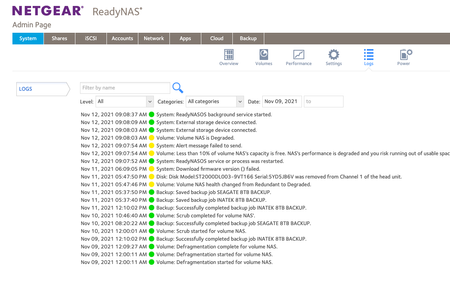
For days ReadyNAS would blink "degraded" and never seemed to begin migration. I discovered (finally) is some kind of physical limitation of the drive bay system. I finally "pushed" the drive back further into the cabinet, and the drive "connected" and start migration. Unfortunately, it was using previous 2TB drive. Anyway, here's a screen shot. I wish I had correctly used the new 4TB IronWolf drive instead. To avoid potential damage, I'm waiting. for this useless exercise to complete (using old original drive). The big problem is WHY won't the new drive snap in and connect with the backplane? This feels very wrong. Perhaps I'm missing some physical piece or just didn't push far enough back on the bay but seems like I should not have had to do more. I'll update again soon. If there is any recommendation as to how to properly ensure data seal with the internal backplane and the drive bay, I'd appciate knowing the right solution... Thanks.- StephenBNov 22, 2021Guru - Experienced User
teddis wrote:
For days ReadyNAS would blink "degraded" and never seemed to begin migration. I discovered (finally) is some kind of physical limitation of the drive bay system. I finally "pushed" the drive back further into the cabinet, and the drive "connected" and start migration.This isn't something I've seen with my own drive bays/trays. Was this happening with the new drive or just the old one?
teddis wrote:
I received my USB 3.0 to SATA hard drive adapter for my Mac and tested all three IronWolf drives (seem fine). Each had to be initialized using the Disk Utility. I'm not sure the best format that should be used. I thought ExFat would be the most modern FS.
FWIW, as far as the NAS is concerned it doesn't matter - it needs to reformat them anyway. That is something you'll need to do manually after you hotswap each drive - selecting it from the center graphic on the volume tab, and then selecting "format" on the right. After that completes, the resync will automatically start.
Note the resync for the remaining three 4TB drives will be done in two steps, so be careful not to hot-swap the disks too soon.

Related Content
NETGEAR Academy

Boost your skills with the Netgear Academy - Get trained, certified and stay ahead with the latest Netgear technology!
Join Us!
