NETGEAR is aware of a growing number of phone and online scams. To learn how to stay safe click here.
Forum Discussion

Skeetboy1
Aug 03, 2018Apprentice
Having a dense moment here.....
I have a RN2120 (v6.9.3) with 4 x 1TB drives (RAID5) in and it it reaching capacity.
I have taken delivery of 4 x 4TB drives that have been previously used in a ReadyNAS.
The data on the 4TB driv...
 Aug 04, 2018
Thank you StephenB.
I happen to know where the 4TB drives came from and they are good drives, they were replaced with 10TB drives in a 716X.
I am following your instructions in the first full paragraph, and so far spot on. A second data volume appeared, I destroyed it, then am formatting it and re-syncing, estimating 8Hrs.
I was struggling to find the right information in the manual under "Previously Formatted Disks". It tells you that you must re-format them, but does not tell you how to do this if you are expanding your system, just how to do it on a new system, or how to migrate the data.
The closest to what I'm doing is: "If you try to use previously formatted disks in a system that already contains usable disks, the system does not reformat or use the previously formatted disks. Any data on the previously formatted disks remains intact."
So you have very kindly provided the missing link!

StephenB
Aug 03, 2018Guru - Experienced User
Skeetboy1 wrote:
From the manual it appears that I ccanot just remove one of the 1TB drives and replace it with a 4TB.
Where are you seeing that?
If you do a hot-swap without unformatting, you might see an inactive volume on the NAS volume screen. Destroy that volume if it exists. Ether way, you then select the new disk from the center graphic on the volume tab, and then format it with the control on the right. The NAS should then automatically add it to the array.
It might be wise to actually test these disks, since they are used. Along the way, you easily unformat them - which will eliminate any need to format them in the NAS. You'd do this in a Windows PC (connecting them via either SATA or a USB adapter/dock). Both Seatools (Seagate) and Lifeguard (WDC) have a destructive write-zeros test.
Whatever path you take, you should process one disk at a time, and wait for the resync to complete before doing the next. There will be no expansion with the first replacement. You should see the volume expand to to 6 TB (5.45 TiB) after you finish with the second disk. If you don't see that, then reboot the NAS at that point, and it should expand. The two disks after that will expand the space by 3 TB each, so you will end up with 12 TiB (10.9 TiB).
- Skeetboy1Aug 04, 2018Apprentice
Thank you StephenB.
I happen to know where the 4TB drives came from and they are good drives, they were replaced with 10TB drives in a 716X.
I am following your instructions in the first full paragraph, and so far spot on. A second data volume appeared, I destroyed it, then am formatting it and re-syncing, estimating 8Hrs.
I was struggling to find the right information in the manual under "Previously Formatted Disks". It tells you that you must re-format them, but does not tell you how to do this if you are expanding your system, just how to do it on a new system, or how to migrate the data.
The closest to what I'm doing is: "If you try to use previously formatted disks in a system that already contains usable disks, the system does not reformat or use the previously formatted disks. Any data on the previously formatted disks remains intact."
So you have very kindly provided the missing link!
- StephenBAug 04, 2018Guru - Experienced User
Skeetboy1 wrote:
The closest to what I'm doing is: "If you try to use previously formatted disks in a system that already contains usable disks, the system does not reformat or use the previously formatted disks. Any data on the previously formatted disks remains intact."
I agree that they documented it poorly and created needless confusion here. The section below only applies to the case when all the disks are pre-formatted, but it (and some similar text in the hardware manuals) implies that you need to do a factory reset in order to add a disk to an existing RAID array. That's unfortunate.
http://www.downloads.netgear.com/files/GDC/READYNAS-100/READYNAS_OS_6_SM_EN.pdf wrote:
If you want to use disks that were previously formatted for an operating system other than ReadyNAS OS 6 (for example, Windows, Linux, or previous-generation ReadyNAS), you must reformat the disks.You can reformat the disks by installing them, powering on the system, and performing a factory reset before continuing the configuration
- Skeetboy1Aug 05, 2018Apprentice
OK, where we are at.
1st disk changed all appears to have changed over OK - See image Capture1
- Skeetboy1Aug 05, 2018Apprentice
Second disc change appears to have changed over OK - But new space not being seen by the OS, so ave rebooted as per your instruction. Although the system does get shutdown automatically at 21:00 and restarted at 08:00 anyway.
See image Capture2.
- Skeetboy1Aug 05, 2018Apprentice
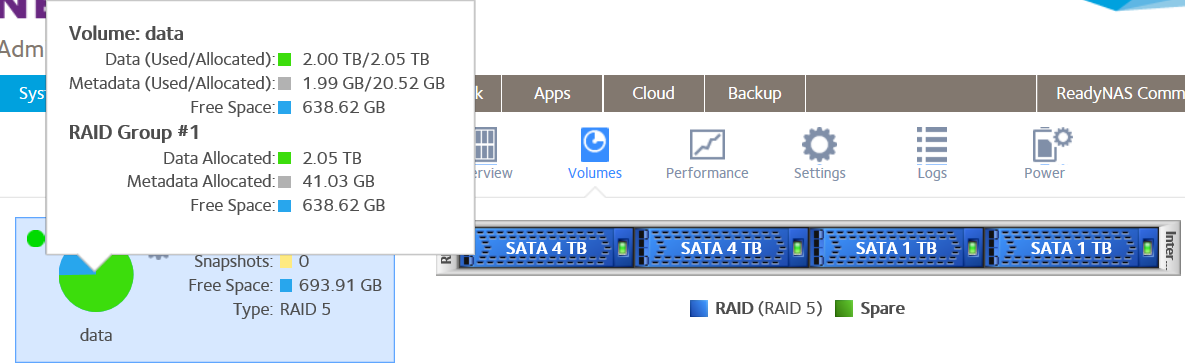
System now looks like Capture3.
What do you advise?
Related Content
NETGEAR Academy

Boost your skills with the Netgear Academy - Get trained, certified and stay ahead with the latest Netgear technology!
Join Us!