NETGEAR is aware of a growing number of phone and online scams. To learn how to stay safe click here.
Forum Discussion

chasg
Apr 11, 2016Aspirant
novice ReadyNAS user: "volume expansion failed", how to address this problem?
Hi all, I'm very much a novice when it comes to this machine (I just have put in drives and used it) and I'm having a problem, really hope someone can help. I've just added a WD 6TB drive to my l...

StephenB
Apr 11, 2016Guru - Experienced User
chasg wrote:
So if I am understanding correctly, I've got two choices here:
1) I pull one small drive (the 3TB seems logical), get a second 6TB drive and put the two 6TB drives in? Leaving me with 2 x 4TB and 2 x 6TB
That should work, and you'd end up near the max capacity for XRAID (14 TB volume size). But if you want do this, I'd make a backup first, and do a factory reset with all drives in place. Then you'd rebuild the configuration and restore the data from the backup.
chasg wrote:
2) I get a 4TB drive and fill the last slot with that (leaving me with 1 x 3TB and 3 x 4TB).
That should also work, and give you an 11 TB volume size. Though I'd wait for the 8 TB drive to arrive, and make a backup before actually doing it. There is a chance here too that you will need a reset (depending on exactly where you ended up with the failed volume expansion).
Also, don't remove the 6 TB drive until you get the replacement. We don't know at this point if the expansion totally failed - it is possible that the drive is in the array.
In your case there were two RAID layers on your exising disks (a 3x3TB layer RAID-5 layer and a 4x2TB RAID-1 layer). These are transparently merged into a single volume. The expansion required creating a 3 TB and a 1 TB partition on the 6 TB drive. The 3 TB partition needed to be added the RAID-5 layer. The 1 TB partition needed to be added to the RAID-1 layer (also requiring the RAID-1 layer to be converted to RAID-5). One of those steps might have succeeded. If one did succeed, than removing the drive would destroy the redundancy.
chasg wrote:
As an aside, given that the 6TB drive should have worked (even though I'd waste 2TB), how come I had a "volume expansion fail"? (which has turned out to be a good thing, now that I know that I would have been wasting 2TB!).
Hopefully someone from Netgear will offer to analyze the logs. That is the most direct path to figuring out what happened.
Can you provide a little more information in the meantime? (a) what volume size is the NAS actually reporting? (b) What is the volume status? "redundant", "degraded", or something else?

chasg
Apr 11, 2016Aspirant
Great answer, I really appreciate the in-depth info.
I think I'll go with getting a 4TB drive and sending the 6TB drive back. I'll back everything up on the 8TB drive before pulling the 6TB (thanks for that tip). Phew, this is a lot of data-moving! :-)
You asked:
"Can you provide a little more information in the meantime? (a) what volume size is the NAS actually reporting?"
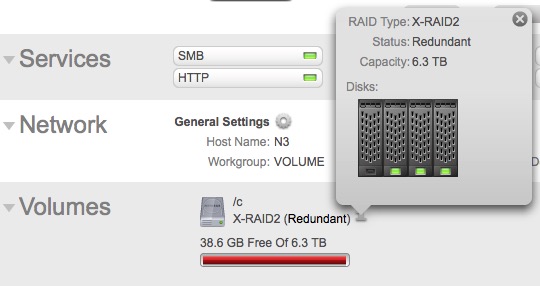
A: Right now the NAS is reporting a volume of 6.3TB, which I believe is what it was reporting before I put in the 6TB drive.
"(b) What is the volume status? "redundant", "degraded", or something else?"
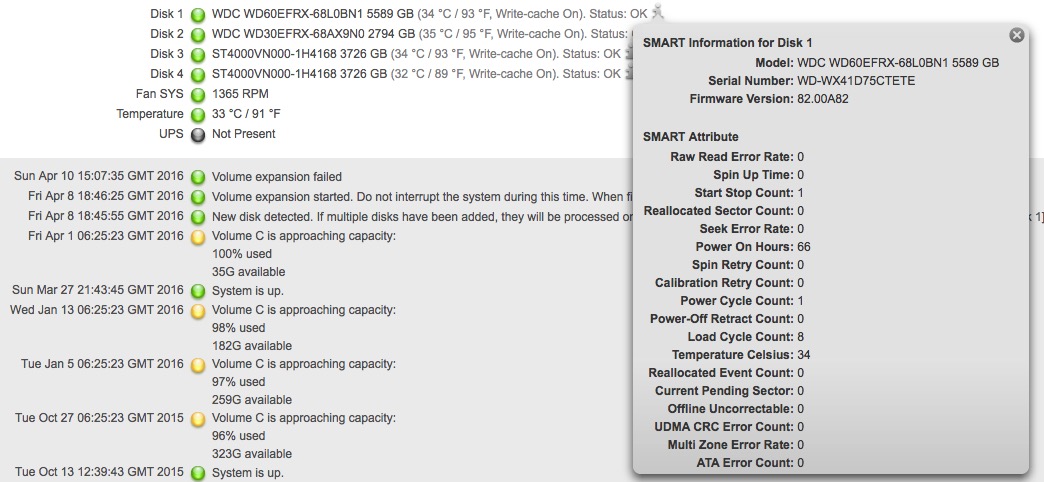
A: The volume status is "redundant". While there is a lit indicator on the NAS itself that shows it knows the 6TB drive is in there, the graphic in the status web page does not indicate it acknowledges the 6TB drive:
Under the "Info" tab on the web status page, I have this:
- StephenBApr 11, 2016Guru - Experienced User
Your volume is completely full. Though that shouldn't have effected the expansion, it is possibly related. Generally you shouldn't run over 90% full.
So the volume remains redundant, the volume capacity is consistent with the original configuration, and the 6 TB disk drive looks healthy.
Getting more precise info on what went wrong will require Netgear analysis of the logs.
In any event, I'd definitely back up the data before I'd touch the drives again.
- chasgApr 11, 2016Aspirant
Ah, I didn't know that completely full was a bad idea. I can take a terabyte or so off (got room on a few USB drives), would that be a good idea?
Thanks for the reassurance. I'll back up the NAS to the 8TB drive as soon as it arrives, order a replacment WD Red 4TB drive, and then pull the 6TB drive and return it.
When I pull the 6TB drive, should I do it with the NAS shut off? And do you think it's involved in the RAID now, or will pulling it have no effect? I'm just trying to build a decision tree now so I don't need to come back here and ask tons more questions if things don't go smoothy :-)
Makes me feel a lot better, I really appreciate all the help!
Chas
- StephenBApr 11, 2016Guru - Experienced User
I suggest removing/replacing the drive with the NAS on. If that fails, then do a factory reset, and restore the data from the backup.
Perhaps remove some files after you make the backup.
Related Content
NETGEAR Academy

Boost your skills with the Netgear Academy - Get trained, certified and stay ahead with the latest Netgear technology!
Join Us!
