NETGEAR is aware of a growing number of phone and online scams. To learn how to stay safe click here.
Forum Discussion

flip68
Jan 25, 2017Aspirant
Help Needed...ReadyNAS Pro 6 booting very slowly
I need some assistance to confirm what is happening.
I have a ReadyNAS Pro Pioneer edition that was running 6.6.0 for a long time with no issues. I recently upgraded to 6.6.1 and it seemed to have been working fine for about a week.
The other day, I noticed that I couldn't access any shares and also noticed that pressing the power button wouldn't light up the LCD screen. I also couldn't SSH into it so it appeared it was hung for some reason. I decided to just powered it off by holding the power button. I then restarted it.
At this time, It has been taking over 12 hours to boot and is only at 21%, it's doing something because it eventually got to 21% from starting at 1% and I see two "#" marks and a flashing ">" sign currently...
I don't want to risk of doing anything to cause corruption like restarting it. Is the flashing ">" sign a file check test of some sort? or what is it currently doing? I'm going to leave it on another night to see what progress it shows tomorrow morning and hope it gets closer to the 100%.
I also can't ping it or SSH or web into into the NAS at this time. Any advice or suggestions on what is happening would be appreciated!
Thank you.
10 Replies
Replies have been turned off for this discussion
 flip68Aspirant
Hi JennC, thank you for the reply!
Quick update. 18 hours later it has not passed the 21% mark on the LCD and the still shows a "##>" where the ">" continues to flash.
I launched Raidar 6.2 and it doesnt see the ReadyNAS nor can I ping it or SSH into it. So I'm not sure how to get any logs from it.........
How can I launch the BOOT MENU during this state? or do I have to Power Off the ReadyNAS to get to the BOOT MENU?
You mentioned "Skip the Volume Check", is that what is happening this whole time with the booting and flashing ">"?
Thank you!
-Felipe
- flip68Aspirant
Well i finally decided to just power down the NAS and reboot it to the BOOT MENU, I selected SKIP VOLUME CHECK and it booted successfully with no apparent problems.
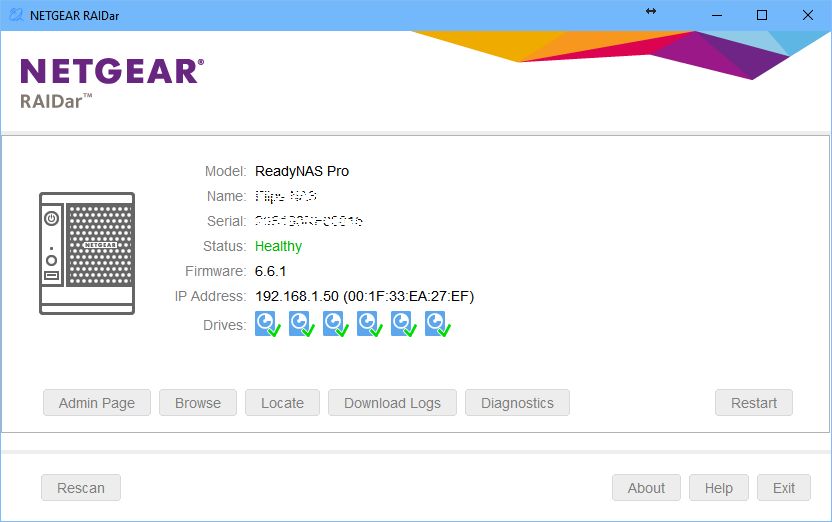
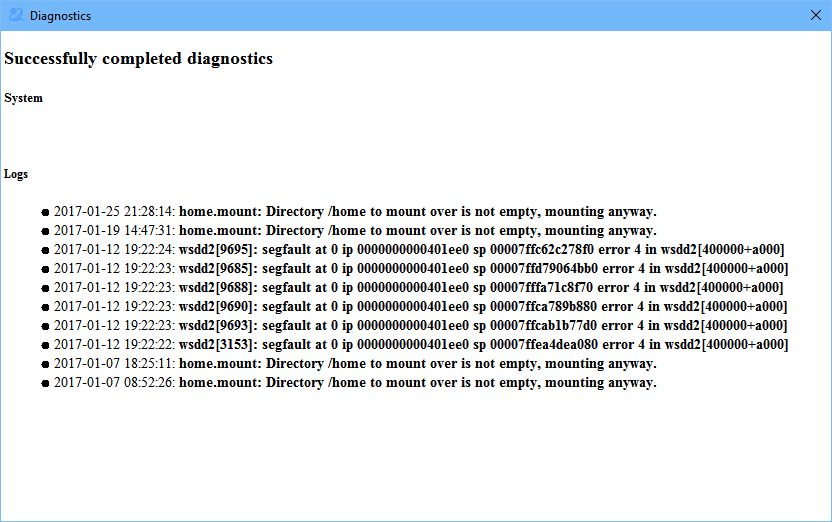
My files in all my shares appear to be fine and I launched RAIDAR and it shows the following. I clicked diagnostics and got the following below although I'm not sure how to interpret it.
I also downloaded the log files and am not sure how to send them to you for a possible quick review of what might have happened?
Thanks!
- StephenBGuru - Experienced User
/home should be empty, so something is certainly wrong there.
Do you have ssh enabled?
- flip68AspirantHi StephenB, yes I do have ssh enabled. I did upload logs via email.
Would you like me to provide the listing of /home?
Thank you!- StephenBGuru - Experienced User
flip68 wrote:
Hi StephenB, yes I do have ssh enabled. I did upload logs via email.
Would you like me to provide the listing of /home?
Thank you!Right now /home is a mount point, so looking there is same as looking in the home folder of the data volume.
What matters is what is underneath the mount point (e.g. what is in the placeholder /home folder).
I suggest you look to see how full the OS partition is generally. If it is overly full, then seeing what's underneath the mount point is more critical.
To see what's underneath you'd enter
mount --bind / /mnt
Then look in /mnt/home, deleting folders and files that you see there (perhaps copying them to the data volume first). If you see empty folders (for instance admin) you can leave them if you like.
When done,
umount /mnt
- flip68Aspirant
Thanks for the insight. I believe I understand what you said, but when I mount / to /mnt and list the files I see the following nothing inside /home except an 'admin' directory with nothing in it.
Also when you ask to look at how full the OS partition is, are you just wanting a df-h to see if the '/' partition is full? I did it below and it appears its only 65% full.
root@Flips-NAS:/# clear
root@Flips-NAS:/# mount --bind / /mnt
root@Flips-NAS:/#root@Flips-NAS:/#
root@Flips-NAS:/# ls -la /mnt
total 40
drwxr-xr-x 1 root root 250 Jan 19 14:47 .
drwxr-xr-x 1 root root 250 Jan 19 14:47 ..
drwxr-xr-x 1 root root 0 Sep 1 2015 apps
drwxr-xr-x 1 root root 1364 Jan 19 14:47 bin
drwxr-xr-x 1 root root 0 May 21 2012 boot
drwxrwxrwt 1 root root 0 Sep 1 2015 data
drwxr-xr-x 1 root root 418 Jan 19 14:47 dev
drwxr-xr-x 1 root root 2954 Jan 19 14:51 etc
drwxr-xr-x 1 root root 54 Jan 19 14:47 frontview
-rw-r--r-- 1 root root 0 Sep 3 2015 ftp_ban.tbl
drwxr-xr-x 1 root root 10 Jun 7 2012 home
lrwxrwxrwx 1 root root 5 Apr 7 2016 homes -> /home
drwxr-xr-x 1 root root 606 Jan 19 14:47 lib
drwxr-xr-x 1 root root 40 Jan 19 14:47 lib64
drwxr-xr-x 1 root root 0 Jun 4 2012 media
drwxr-xr-x 1 root root 0 Jan 25 2016 mnt
drwxr-xr-x 1 root root 116 Dec 15 15:07 opt
drwxr-xr-x 1 root root 0 May 21 2012 proc
-rw------- 1 root root 1024 Sep 1 2015 .rnd
drwx------ 1 root root 114 Jan 19 14:47 root
drwxr-xr-x 1 root root 0 Dec 23 05:53 run
drwxr-xr-x 1 root root 2542 Jan 19 14:47 sbin
drwxr-xr-x 1 root root 0 Feb 28 2012 selinux
drwxr-xr-x 1 root root 0 Jun 4 2012 srv
drwxr-xr-x 1 root root 0 Feb 7 2013 sys
drwxrwxrwt 1 root root 208 Jan 26 18:09 tmp
-rw-r--r-- 1 root root 0 Jan 19 14:46 .update_success
drwxr-xr-x 1 root root 70 Dec 15 15:07 usr
drwxr-xr-x 1 root root 158 Jan 19 14:47 var
root@Flips-NAS:/#
root@Flips-NAS:/#
root@Flips-NAS:/# ls -la /mnt/home
total 16
drwxr-xr-x 1 root root 10 Jun 7 2012 .
drwxr-xr-x 1 root root 250 Jan 19 14:47 ..
drwxr-xr-x 1 admin root 0 Jun 7 2012 admin
root@Flips-NAS:/#
root@Flips-NAS:/#
root@Flips-NAS:/# ls -la /mnt/home/admin
total 0
drwxr-xr-x 1 admin root 0 Jun 7 2012 .
drwxr-xr-x 1 root root 10 Jun 7 2012 ..
root@Flips-NAS:/#
root@Flips-NAS:/#
root@Flips-NAS:/# df -h
Filesystem Size Used Avail Use% Mounted on
udev 10M 4.0K 10M 1% /dev
/dev/md0 4.0G 2.4G 1.3G 65% /
tmpfs 2.0G 4.0K 2.0G 1% /dev/shm
tmpfs 2.0G 4.0M 2.0G 1% /run
tmpfs 986M 8.4M 978M 1% /run/lock
tmpfs 2.0G 0 2.0G 0% /sys/fs/cgroup
/dev/md127 9.1T 5.6T 3.6T 61% /data
/dev/md127 9.1T 5.6T 3.6T 61% /apps
/dev/md127 9.1T 5.6T 3.6T 61% /home
/dev/md127 9.1T 5.6T 3.6T 61% /var/ftp/Apps
/dev/md127 9.1T 5.6T 3.6T 61% /var/ftp/Backups
/dev/md127 9.1T 5.6T 3.6T 61% /var/ftp/Music
/dev/md127 9.1T 5.6T 3.6T 61% /var/ftp/Pictures
/dev/md127 9.1T 5.6T 3.6T 61% /var/ftp/Plex
/dev/md127 9.1T 5.6T 3.6T 61% /var/ftp/Temp
/dev/md127 9.1T 5.6T 3.6T 61% /var/ftp/Uploads
/dev/md127 9.1T 5.6T 3.6T 61% /run/nfs4/data/Ojo
root@Flips-NAS:/#
root@Flips-NAS:/# umount /mnt

Related Content
NETGEAR Academy

Boost your skills with the Netgear Academy - Get trained, certified and stay ahead with the latest Netgear technology!
Join Us!
