NETGEAR is aware of a growing number of phone and online scams. To learn how to stay safe click here.
Forum Discussion

paynterf123
Nov 22, 2019Aspirant
Can access existing shares but not new ones on ReadyNas NV+
I have a ReadyNAS NV+ that I have been using for years with Win 7 & Win10 boxes for online backups. I recently created a new share to be the root archive for a new PC, but I can't seem to access it.
I can see all the shares on one of my Win 10 boxes but not on the other. On the box that cannot see the shares, I can see the ReadyNAS NV+ as a network device, but that's it.
On either box, I can specify any existing ReadyNAS share as the archive base folder, but attempting to specify the new share results in the dreaded 'Enter network credentials' dialog.
On the win10 box that can 'see' the shares, I can double-click on any existing share and view the contents of the share. However, doing the same thing with the new share results in the same 'Enter network credentials' dialog. I have a windows credential set up with a username and password, but AFAICT, this has no effect on anything.
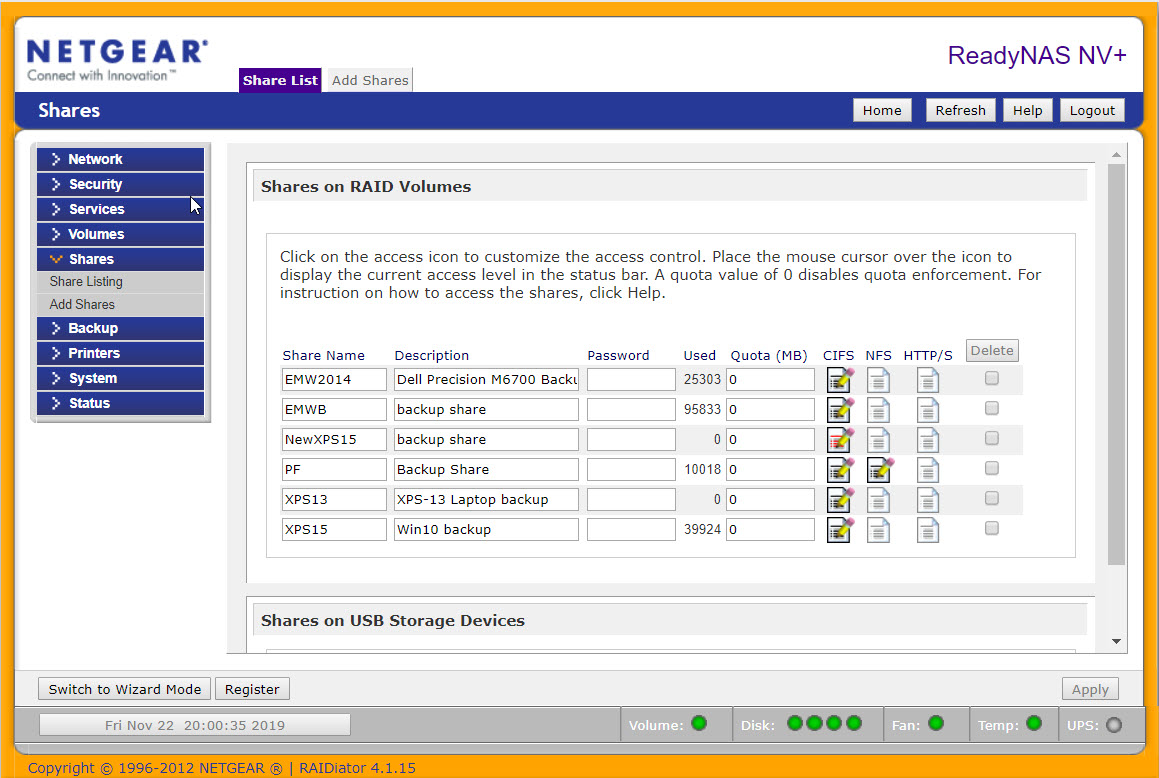
Using the RAIDiator4 web interface, I can see all the shares, and AFAICT, they are all configured identically. All have default read/write access rights, and none of them have a password. I also tried adding the network names of the two Win10 boxes to the 'hosts allowed access' dialog in the CIFS tab for the new share, but this had no effect either.
I'm at a loss for how to proceed - any thoughts as to how I can gain access to my new ReadyNAS NV+ share?
In the attached screenshot 'NewXPS15' is the new share
TIA,
Frank
Great to hear that it's all working, so thx for following up. I'm glad I was able to help.
17 Replies
Replies have been turned off for this discussion
 StephenBGuru - Experienced User
Does the owner and group listed on the "advanced" tab for the share match the others?
What happens if you open CMD on the PC and enter
net use * /delete /y
net use t: \\nas-ip-address\NewXPS15 /user:admin nas-admin-password
using the actual IP address and password of course. Be careful on the spaces and slash directions.
The first command terminates any open SMB sessions. The second attempts to map the new share as drive letter T using the NAS admin credentials.
- paynterf123Aspirant
Thanks for the reply!
Yes, the "owner" and "group" entries for the new share are the same. The "owner" in this case is the name of the share (NewXPS15) and the group is 'nogroup'. All the other accessible shares are configured similarly. See attached screenshot. I have included below the results from the 'net use' commands you suggested (I edited the post to replace my actual password with '[password]'). The noted SMB connection was the one that connects my AJC Active Backup app to an existing share. This connection was accomplished using the AJC Backup 'Configuration Wizard' as I have done many times in the past.
I did some research on 'error 5', but couldn't find anything helpful...
TIA,
Frank
C:\WINDOWS\system32>net use * /delete /y You have these remote connections: \\192.168.1.203\xps15 Continuing will cancel the connections. The command completed successfully. C:\WINDOWS\system32>net use t: \\192.168.1.203\NewXPS15 /user:admin [password] System error 5 has occurred. Access is denied.- StephenBGuru - Experienced User
Try changing the owner to be "nobody", and then reset the permissions using the checkbox a bit further down that page.
Also, try the net use commands again, but this time use \\192.168.1.203\C for the second command. That should map the full data volume. If that works, try navigating into the new share, and see if that is successful.
Related Content
NETGEAR Academy

Boost your skills with the Netgear Academy - Get trained, certified and stay ahead with the latest Netgear technology!
Join Us!