NETGEAR is aware of a growing number of phone and online scams. To learn how to stay safe click here.
Forum Discussion

Shah079012
Feb 27, 2017Aspirant
lost access to READYNAS ULTRA 6
Hi everyone I have a very tricky proble and I have tried a million ways to fix it. here goes
ReadyNAS Ultra6, up till recently has been active and working on my network just fine but recently w...
- Feb 27, 2017
The default admin password for RAIDiator 4 is 'netgear1' (no quotes)

mdgm-ntgr
Feb 27, 2017NETGEAR Employee Retired
I am just a man.
Glad I could help.
Shah079012
Feb 27, 2017Aspirant
can i please ask one more noob question?
in the steps in https://kb.netgear.com/29770/I-can-no-longer-access-my-ReadyNAS-OS-6-storage-system-after-moving-Local-Area-Network-LAN?cid=wmt_netgear_organic
it shows a different interface to what i am looking at in Firmware 4.2.19
specifically under..
6. Change the IP address on the ReadyNAS to match the existing LAN subnet.
Go to Network > Links. Click on the gear icon beside the connected NIC and then click Settings
Go to the IPv4 tab.
Change the Configue drop down menu to Static.
I cant find where to change the I.P. to static.. and am presented with the below
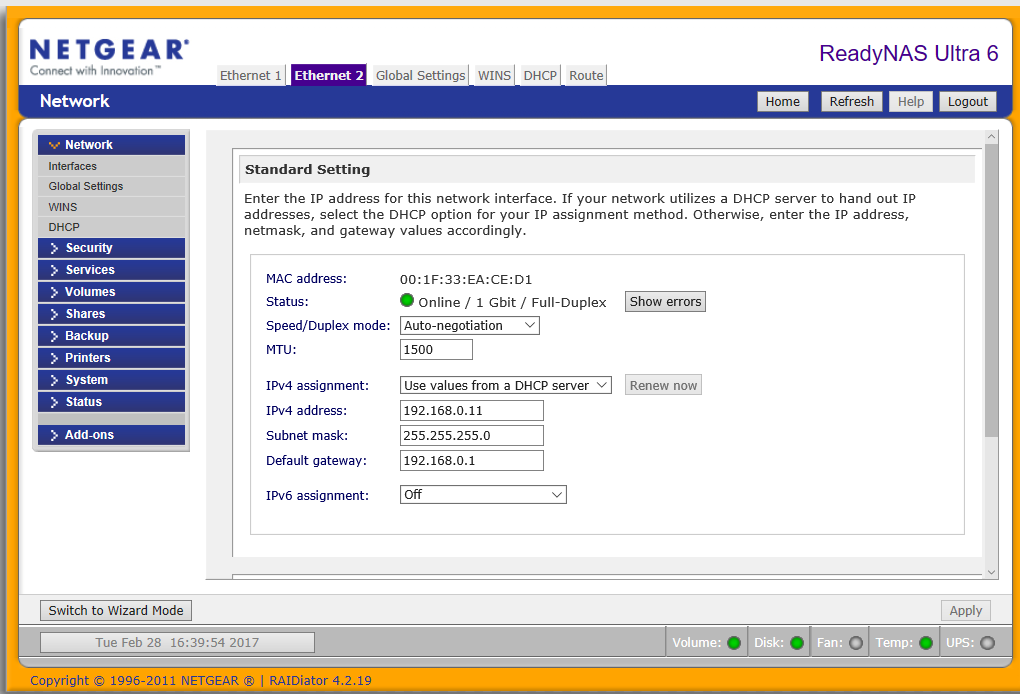
if under the IPV4 assignment i attempt to alter to "use valuss below" and manually input the I.P. per the instructions it auto reset when i "apply", obviously I am missing the sitting to turn dynamic off but am unsure as to where it is?
- Shah079012Feb 27, 2017Aspirant
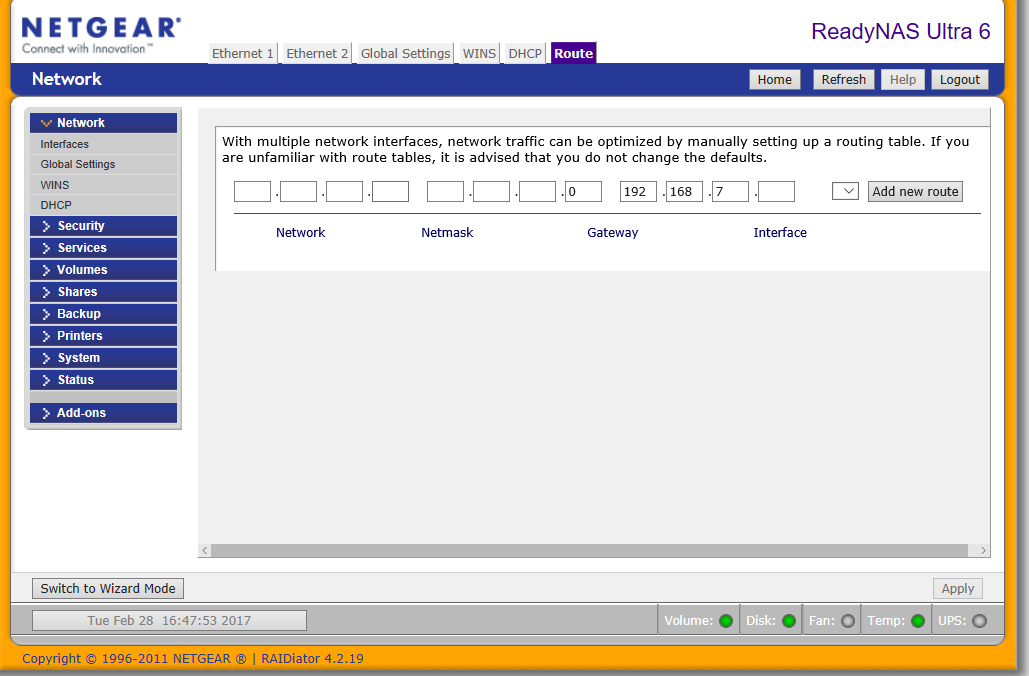
is it perhaps something to do with this?
- Shah079012Feb 28, 2017Aspirant
PS I have tried updating tot he newest firmware but the "check for update" uner "remote" fails and it appears there is no newer firmware version available anyway according to
http://kb.netgear.com/20684/ReadyNAS-Downloads
- Shah079012Feb 28, 2017Aspirant
if it helps also the
IP of the drive (per RaidAr) is 192.168.0.11
IP of the drive (per windows via direct cabling) is 192.168.168.168
I am still to work out what to manually assign the I.P. to as per the instructions as I am a little hazy on how the I.P. thing works according to the instructions below,.........
. Make a note of the existing IP address range that is used on the LAN. This can be done from a Windows PC which is currently working on the LAN.
Open a command prompt, Click Start > type CMD.
In CMD type ipconfig and hit enter..png)
In this example the existing network subnet is 192.168.1.0/24, a host IP address in the range of 192.168.1.2 through to 192.168.1.254 will allow a host access to the network.
The network subnet in your network can be different, the values used here are just for example and will not work in every network.
Related Content
NETGEAR Academy

Boost your skills with the Netgear Academy - Get trained, certified and stay ahead with the latest Netgear technology!
Join Us!
