NETGEAR is aware of a growing number of phone and online scams. To learn how to stay safe click here.
Forum Discussion

Shah079012
Feb 27, 2017Aspirant
lost access to READYNAS ULTRA 6
Hi everyone I have a very tricky proble and I have tried a million ways to fix it. here goes
ReadyNAS Ultra6, up till recently has been active and working on my network just fine but recently w...
- Feb 27, 2017
The default admin password for RAIDiator 4 is 'netgear1' (no quotes)

Shah079012
Feb 28, 2017Aspirant
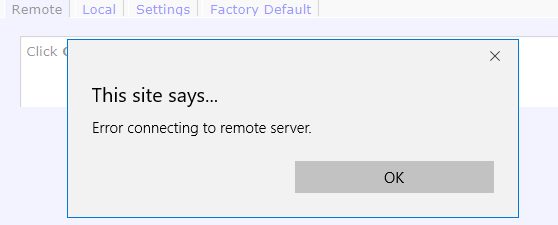
PS I have tried updating tot he newest firmware but the "check for update" uner "remote" fails and it appears there is no newer firmware version available anyway according to
http://kb.netgear.com/20684/ReadyNAS-Downloads
Shah079012
Feb 28, 2017Aspirant
if it helps also the
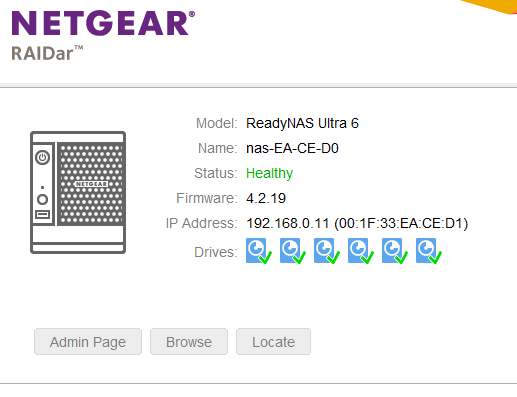
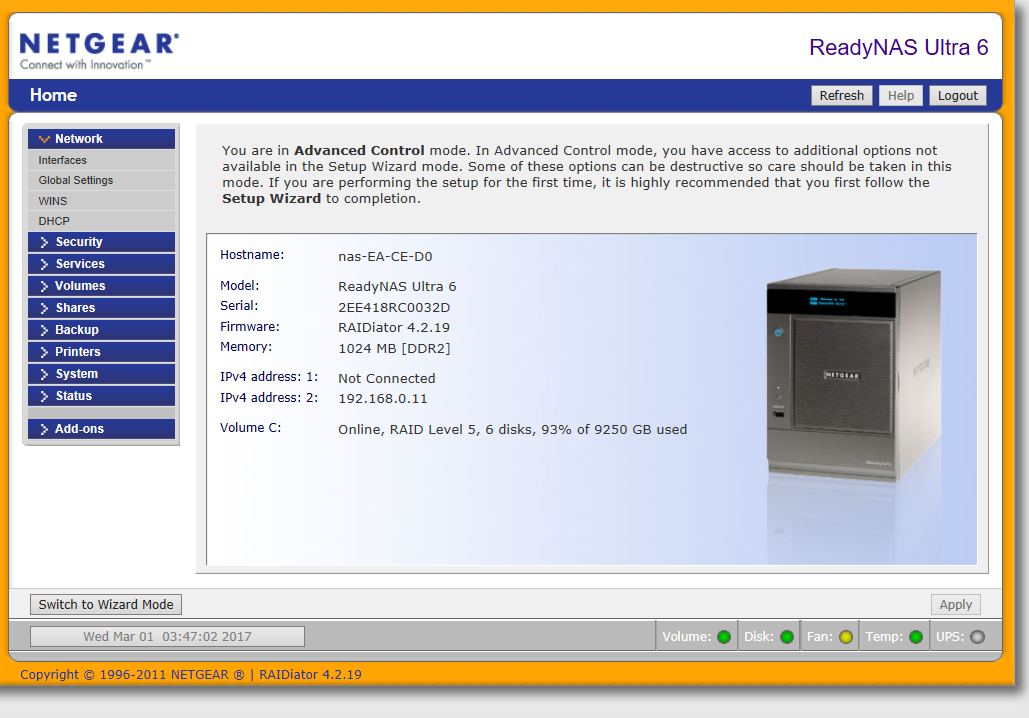
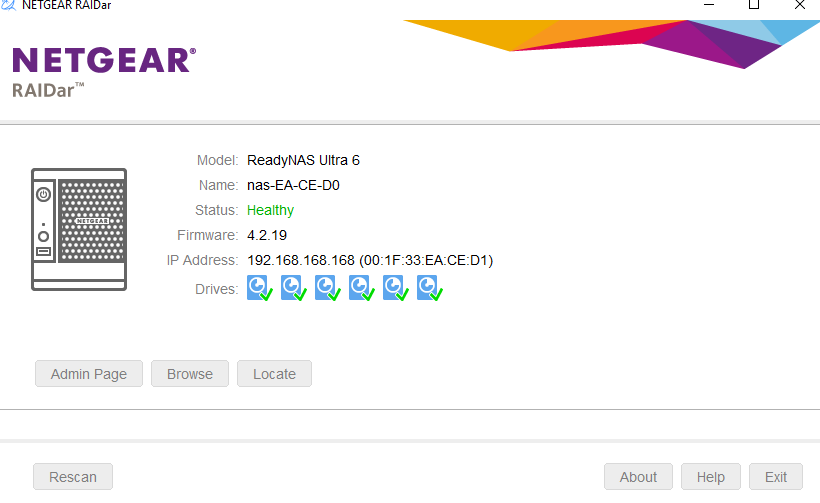
IP of the drive (per RaidAr) is 192.168.0.11
IP of the drive (per windows via direct cabling) is 192.168.168.168
I am still to work out what to manually assign the I.P. to as per the instructions as I am a little hazy on how the I.P. thing works according to the instructions below,.........
. Make a note of the existing IP address range that is used on the LAN. This can be done from a Windows PC which is currently working on the LAN.
Open a command prompt, Click Start > type CMD.
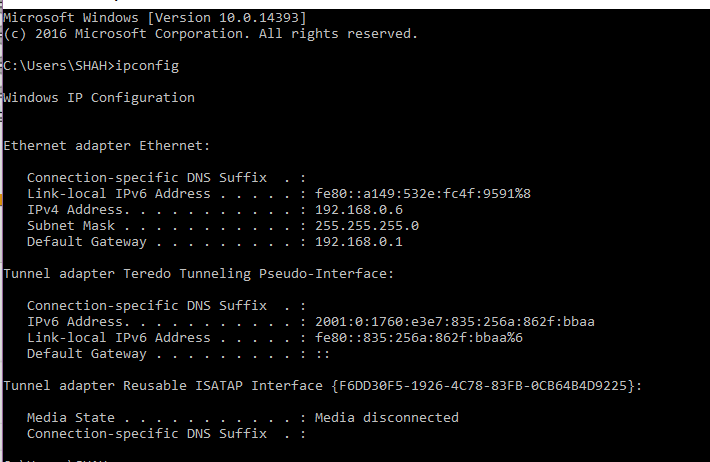
In CMD type ipconfig and hit enter.
.png)
In this example the existing network subnet is 192.168.1.0/24, a host IP address in the range of 192.168.1.2 through to 192.168.1.254 will allow a host access to the network.
The network subnet in your network can be different, the values used here are just for example and will not work in every network.
 StephenBFeb 28, 2017Guru - Experienced User
The best approach here is to reserve an address for the NAS in your router. That combines all the benefits of the a static address with the benefits of router management.
So I'd look there first.
Don't mess with the route page.
Your screen shot shows 192.168.0.x for the ReadyNAS, but your PC is clearly using is 198.168.1.x. So something is wrong with your overall setup. Can you tell us more about what your network looks like (routers, access points, switches). It looks like you might have two routers deployed (at least two DHCP servers).
- Shah079012Feb 28, 2017Aspirant
Hi Stephen, thanks for your reply, set is as follows (Screenshots below)
Netgear router which is connected to the net (and functioning correctly)
ReadyNAS Ultra 6 conencted to router
Desktop PC - also connected to router
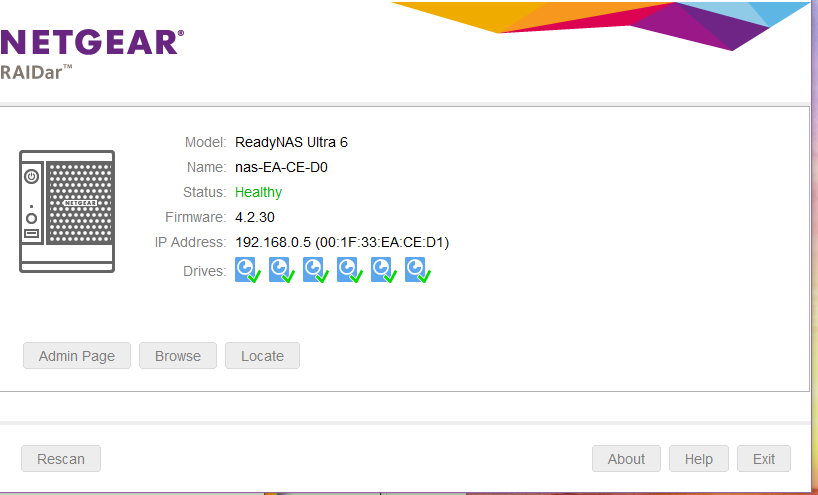
Raidar resutls of drive when connected in the above configuration (after os reset) raidar can see the drive but the drive itself but it is no longer accessable (where it has been for years) as a drive, and wont map
- Shah079012Feb 28, 2017Aspirant
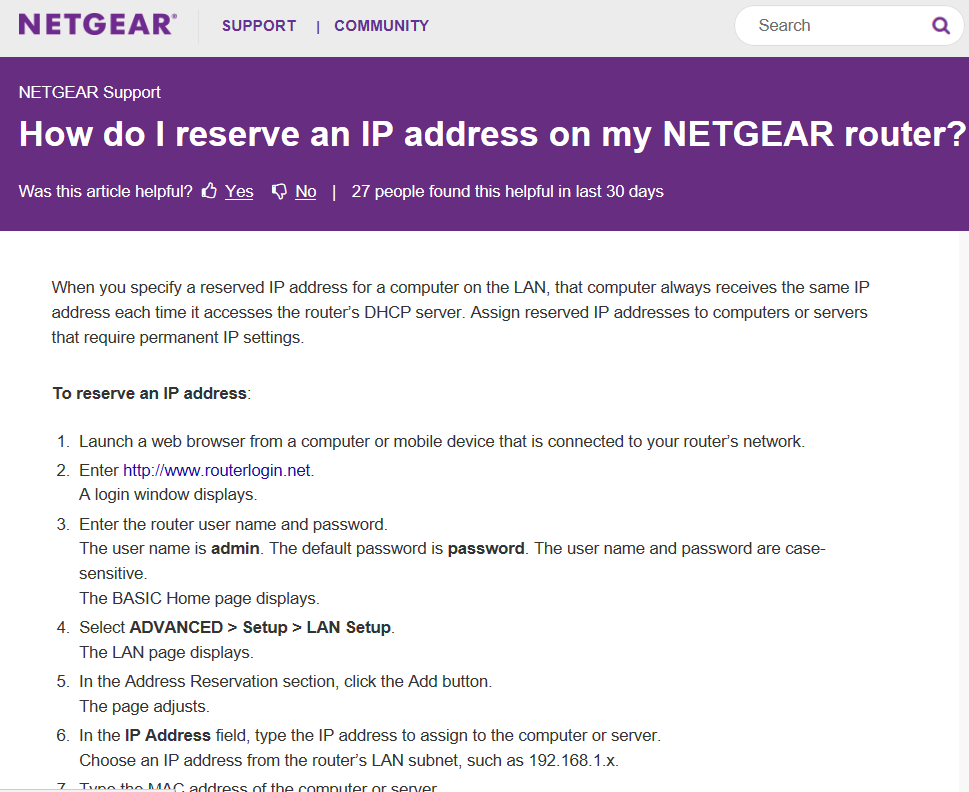
per the below article I have looked up adding an address to the router and have no idea how to do it as the instruction again dont match what i am seeing
https://kb.netgear.com/25722/How-do-I-reserve-an-IP-address-on-my-NETGEAR-router
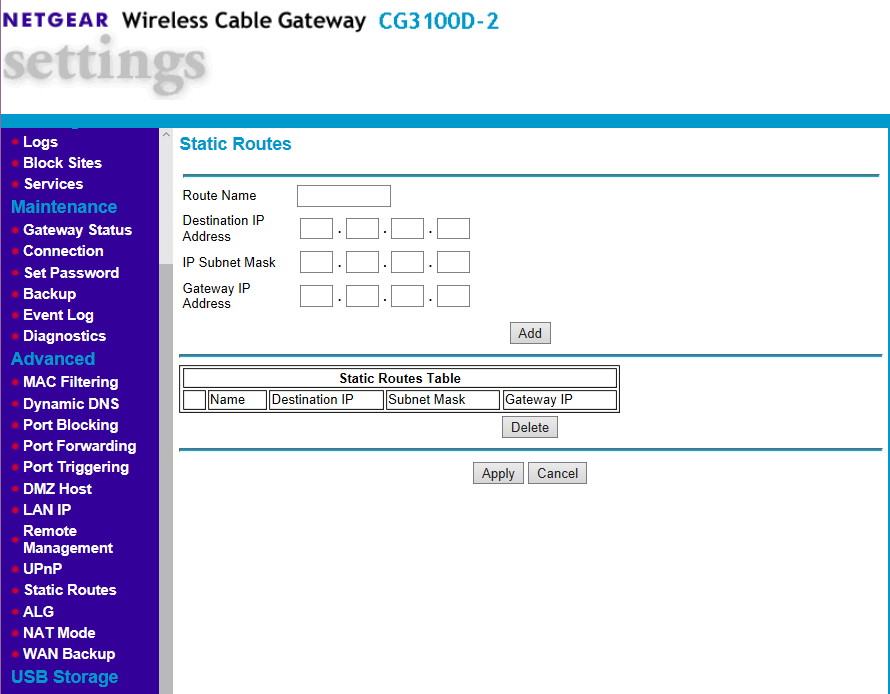
this should not be so hard should it? I just dont know enough about I.P and how it works and am worried if I change settings on routers or in windows that the whole damn thing will break! Is article asking me to assign a static route like below? instruction dont match what i see....again
- Shah079012Feb 28, 2017Aspirant
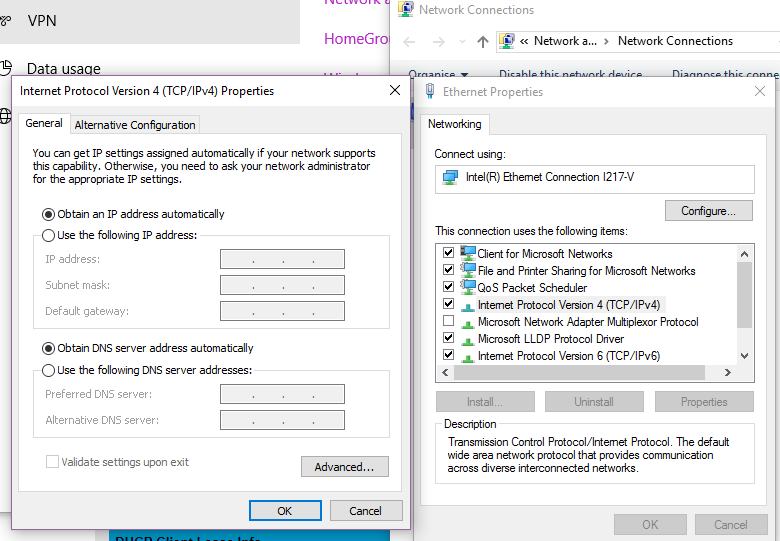
and in case it helps in any further way, file sharing in windows is on (no settings have suddly changed with any windows update done in the background. Network properties below.
- StephenBFeb 28, 2017Guru - Experienced User
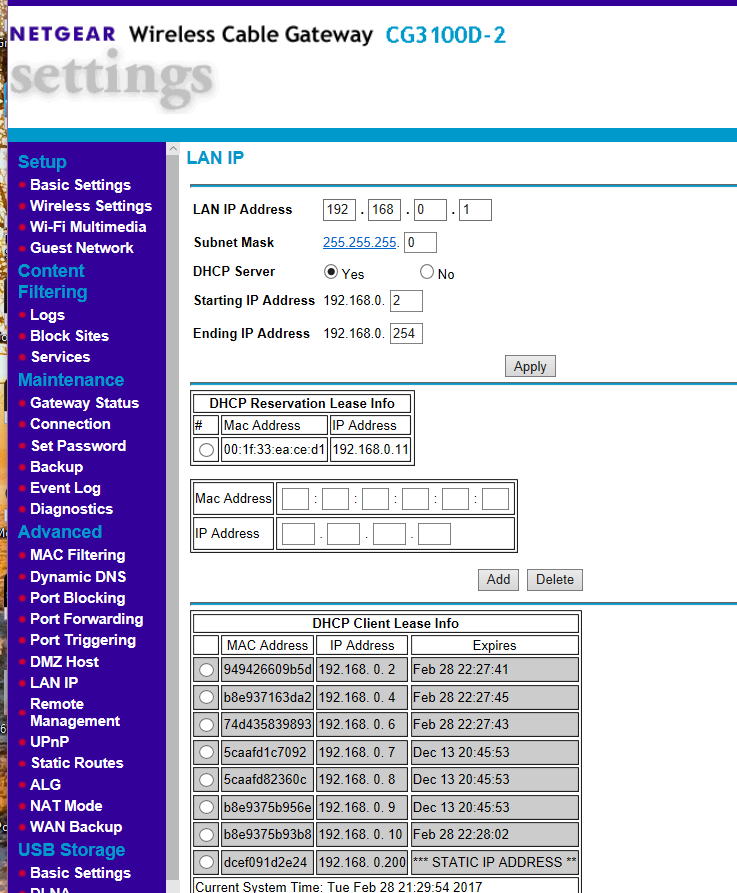
The second set of screen shots are helpful, and show everything is on a 192.168.0.x network.
Don't touch the static route tables. You keep looking there - ignore them.
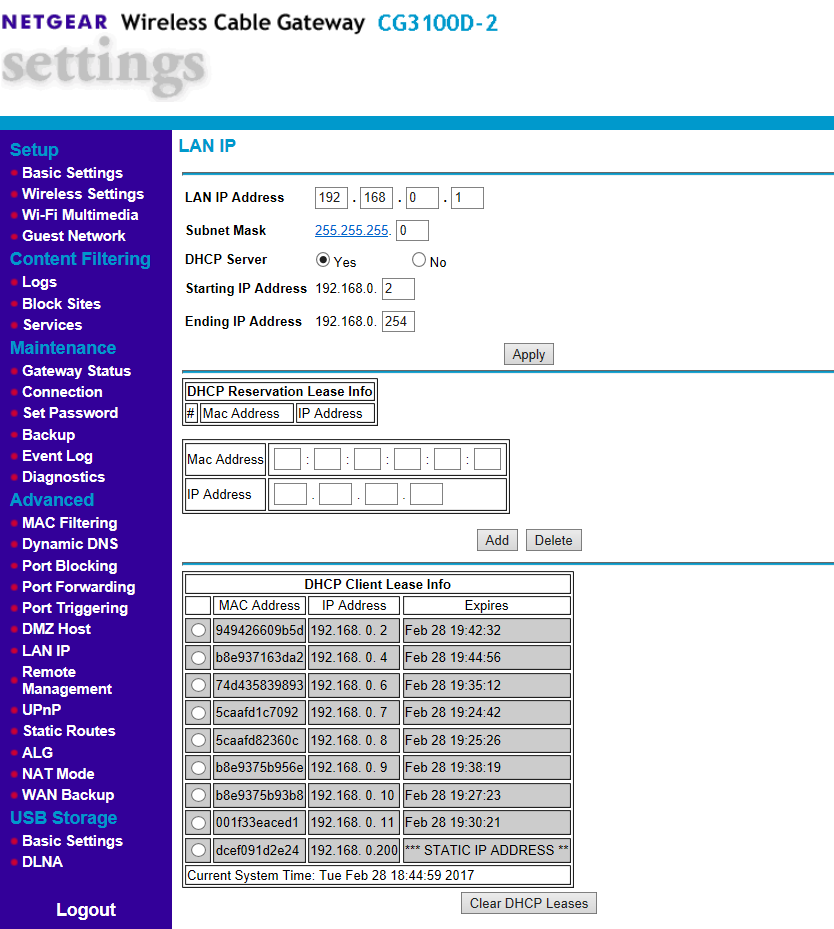
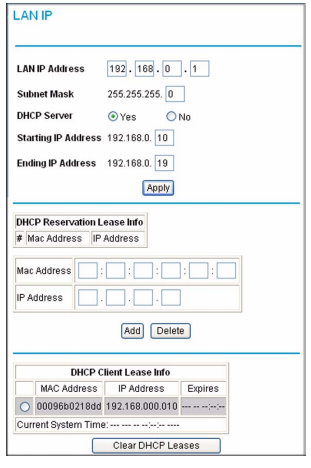
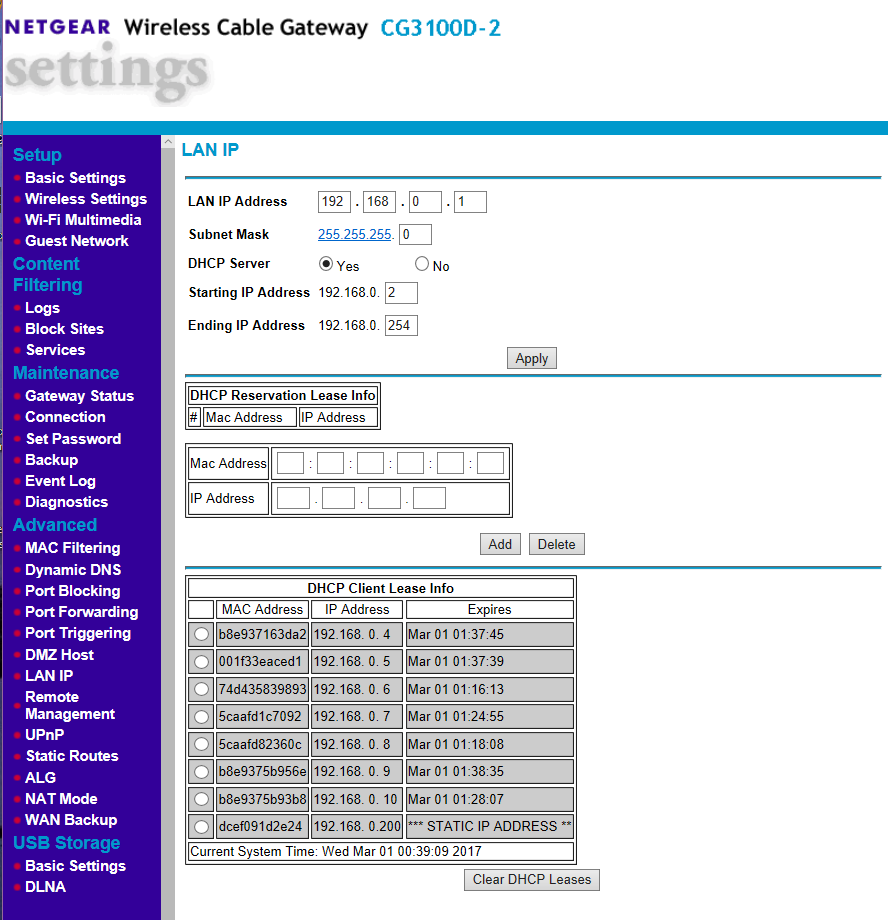
Instead log into the router web page and click on the "LAN IP" in the Advanced section (right under DMZ Host). You posted a screen shot of this earlier, the main section (leaving the left menus off) looks like this:
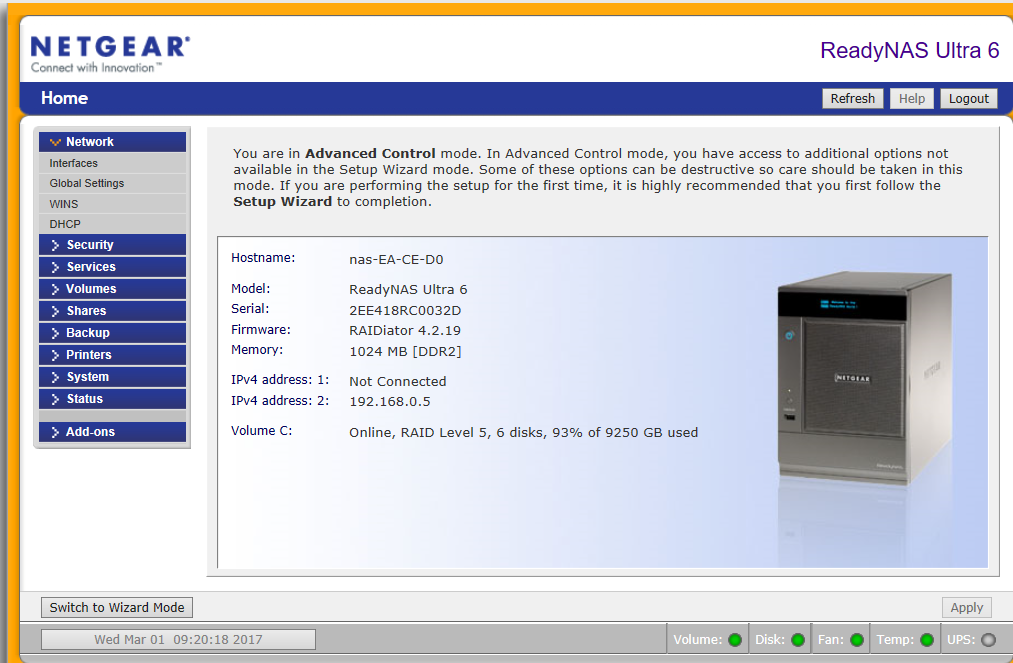
You enter the ReadyNAS MAC address into the MAC address fields. From your screenshot of the ReadyNAS, that is 00:1F:33:EA:CE:D1. You'll need to enter each character pair into its own box (a bit awkward, but that's the way it's set up).
Next you enter the current IP address of the NAS into the IP address field right under the mac address. That is 192.168.0.11
There is an "add" button right underneath - after you've entered the fields, and checked them you click on it. That should be all you need to do.
The Router will then assign the NAS 192.168.0.11 every time, so the address won't change.
One question: your screen shot shows a static IP address of 192.168.0.200 at the bottom. Do you know what this device is?
FWIW, your ReadyNAS firmware is pretty old (the current software is 4.2.30). After you get the address reserved, you might want to update it.
- Shah079012Feb 28, 2017Aspirant
hello and thanks again for your reply, managed to add the details you listed and they went in successfully however i am now looking at the below (ps no idea what that statis I.P is in that list)
I had to re-boot all devices as the NAS dissappeared from view of RAIDar when it finally came back to view it returned the below I.P.
*I will happily remove the ..200 static I.P in teh list but i cant for the life of me work out how to do it
*adding the maual I.P. into the router did not get the NAS to show up
*only outcome so far is the NAS has returned to its "system default" I.P. address (I beliee thats what 192.168.168.168 is)
- Shah079012Feb 28, 2017Aspirant
I will try updating to 4.2.30 to see if that helps at all (what the hell, nothing else is working) I do appreciate your help, apologies for the frustration
- Shah079012Feb 28, 2017Aspirant
ok... so after doing the os re-install (4th time now), its the only thing that actually works to get raidar to see 192.168.0.11, i now cant access the admin page (via raidar link or manually typing in the web address) though the locate button makes the lights flash o the front yippie (wait a minute that does not help me at all)
so now i have zero idea how to actually get access to the login screen as i have changed ip addresses and stuff and it appears that has screwed stuff up more, at leat the internet still works.. for now
- SandsharkFeb 28, 2017Sensei
You may have a firewall blocking it. You may have allowed access to the old IP address but have not yet done so with the new one.
- Shah079012Feb 28, 2017Aspirant
should have mentioned before, windows firewall is off
- Shah079012Mar 01, 2017Aspirant
READYNAS ULTRA 6, firmware 4.2.19, windows 10 OS
Ok so here is the entire story in pictures and every step as I do it
To begin
Setup- Netgear Router (internet working and enabled) ReadyNAS Ultra 6 connected to router, PC connected to router
Problem: 1. NAS drive is no longer accessable (has worked for years, status is healthy when Raidar does work)
2. Raidar not recognising drive (usually fixed by OS re-install and if that does not work reset network adapter in windows (this does not fix the drive visibility)) per 8. OS re-install: https://kb.netgear.com/29770/I-can-no-longer-access-my-ReadyNAS-OS-6-storage-system-after-moving-Local-Area-Network-LAN
3. as suggested by a previous post attempted firmware update to RAIDiator-x86-4.2.30 http://kb.netgear.com/31196/RAIDiator-x86-Version-4-2-30 when using “local” method as “remote” attempt fails.
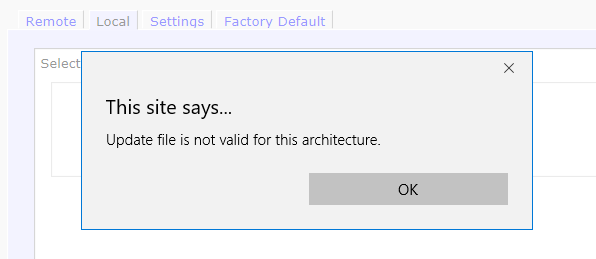
When attempting to install the update receive error message “not valid for this architecture”
4. per previous preious post in https://community.netgear.com/t5/Using-your-ReadyNAS/READYNAS-ULTRA-6/m-p/1238470#M125893
successfully added I.P. address to list
You enter the ReadyNAS MAC address into the MAC address fields. From your screenshot of the ReadyNAS, that is 00:1F:33:EA:CE:D1. You'll need to enter each character pair into its own box (a bit awkward, but that's the way it's set up). Next you enter the current IP address of the NAS into the IP address field right under the mac address. That is 192.168.0.11 There is an "add" button right underneath - after you've entered the fields, and checked them you click on it. That should be all you need to do. The Router will then assign the NAS 192.168.0.11 every time, so the address won't change. One question: your screen shot shows a static IP address of 192.168.0.200 at the bottom. Do you know what this device is? FWIW, your ReadyNAS firmware is pretty old (the current software is 4.2.30). After you get the address reserved, you might want to update it.
The addition of this address did not remedy the drive visibility either, in fact it disabled visibility on Raidar so had to do OS re-install and start from the beginning.
*I.P. on NAS did change from 192.168.0.11 to 192.168.0.5 after the I.P. was manually added
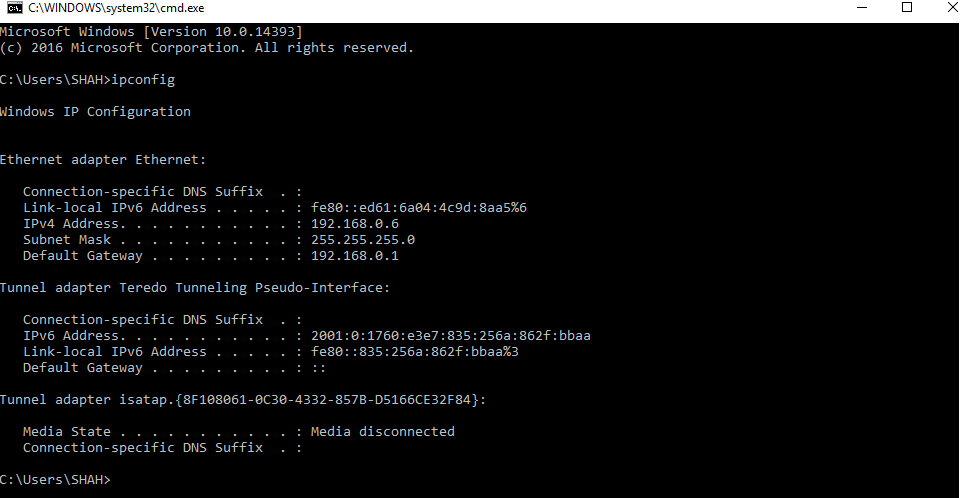
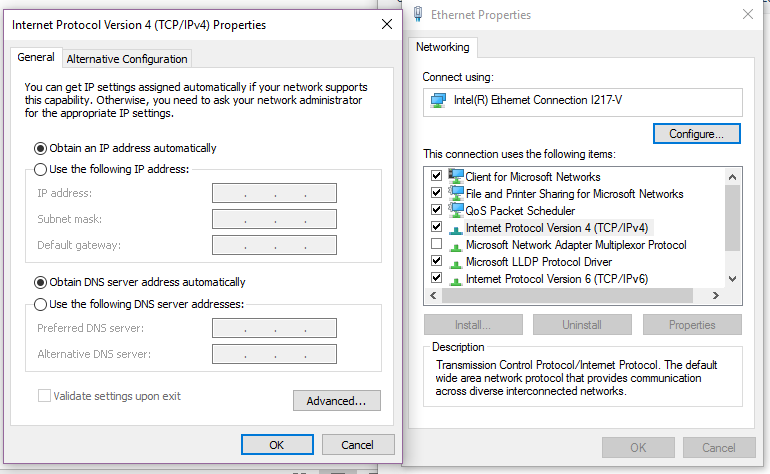
Ethernet and PC properties below
- mdgm-ntgrMar 01, 2017NETGEAR Employee Retired
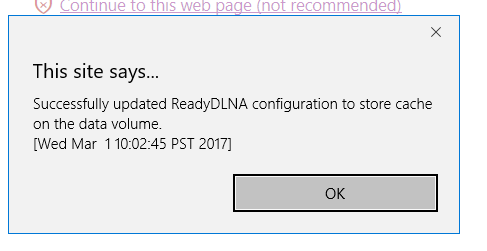
Should be fixed. Your ReadyDLNA log and cache filled the 4GB root volume.
- Shah079012Mar 01, 2017Aspirant
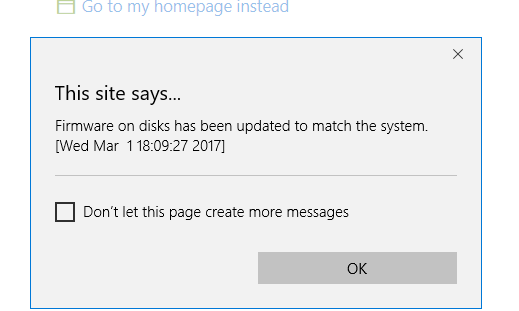
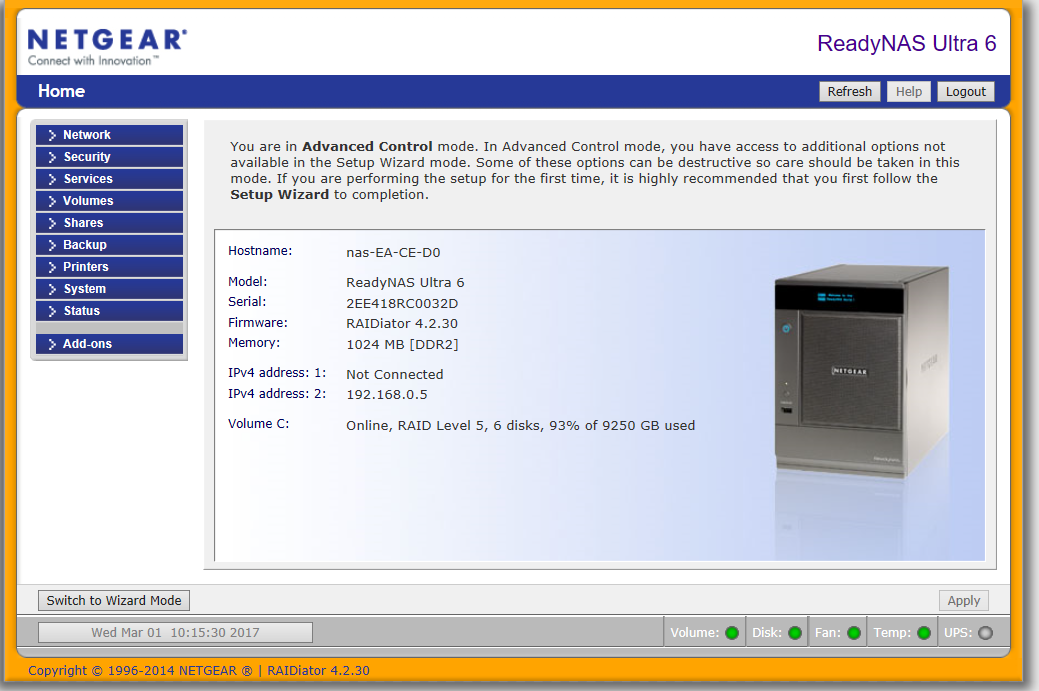
i can see it is re-booting now i will leave it to complete, many thanks for your assistance, however this has not remedied the issue, is there something i am missing. below is what i recieved
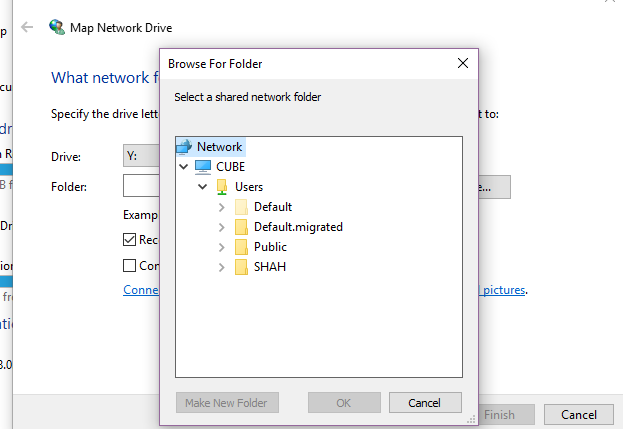
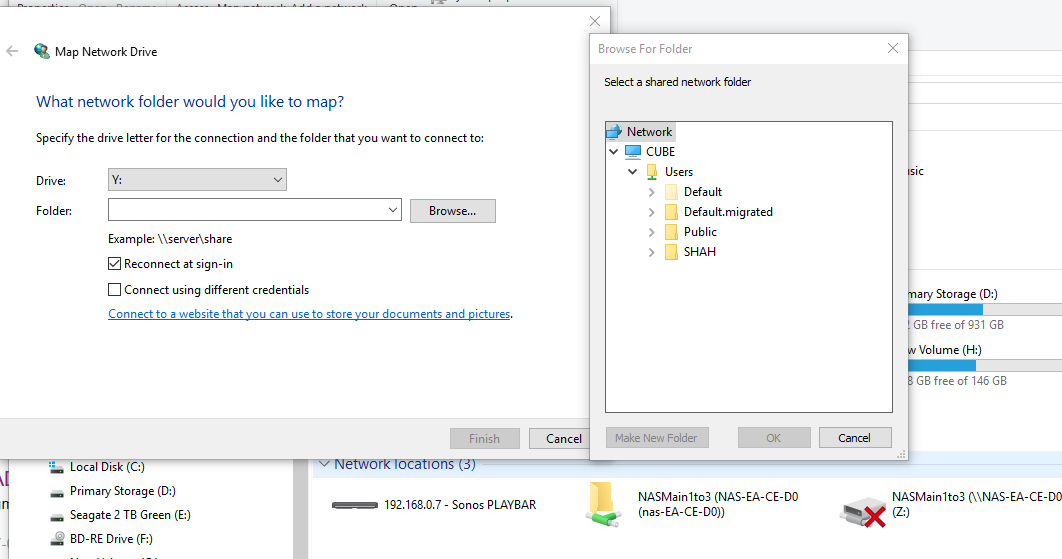
however when attempting to map the drive or using my exisitng link in windows the NAS still does not appear (raidar does show it though as per above) from the images below you can see the old drive assignment in red and the nas not mapping
- Shah079012Mar 01, 2017Aspirant
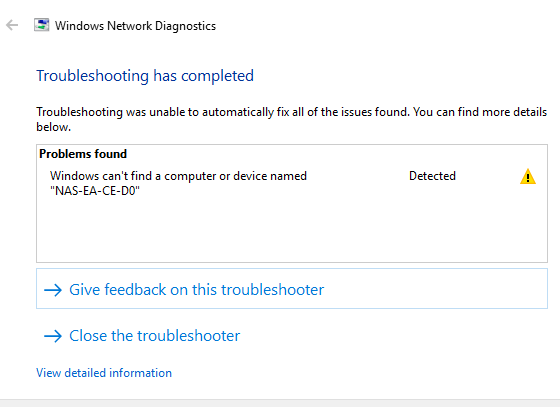
Still have the same issue I had to start “windows can communicate with the name resolution server but can’t find the host name”
- mdgm-ntgrMar 01, 2017NETGEAR Employee Retired
Replaced the SMB config file with the default one and now the share is accessible over SMB.
- Shah079012Mar 01, 2017Aspirant
such a legend, the remote login and update of firmware and fixing the 4 gig volume that was full & the SMB thing (whatever that is) worked, sounds like some back end stuff that i could never hae done by the sounds. if it is somehting i could do though (and perhaps to inform others if they hae issues) is there a resource i can follow ?
- mdgm-ntgrMar 01, 2017NETGEAR Employee Retired
Log rotation has been improved since 4.2.19 so hopefully the root volume on your system won't fill again.
If it does then one needs to find what's filled it and deal with that then check config files to see if they have been corrupted (due to the full root volume) and if so deal with that.
- Shah079012Mar 09, 2017Aspirant
so sorry to bother you again but i hae the same issue occurring again, I have power cycled everything (router, nas and pc) but to no avail, it is exactly the same issues down to the letter in this thread.
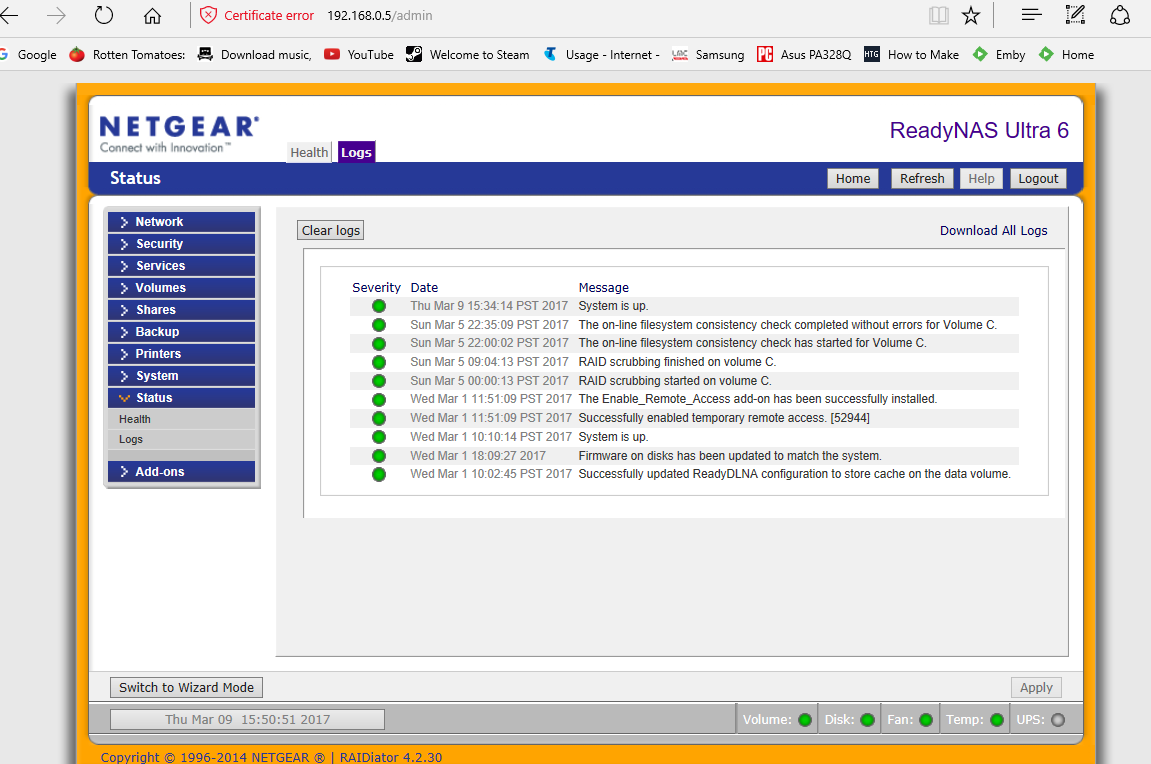
I deleted the logs in case there was an issue there (I remember last time you said there was an issue with the logs filled) and saved a screen of them in case required, you can see in the logs where you reset everything
I am now unable to access the router webpage at
readynas webpage is fine at
- Shah079012Mar 10, 2017Aspirant
does anyone please know how to do the below? preiously this was done and it sorted my porblem...
"Replaced the SMB config file with the default one and now the share is accessible over SMB".


Related Content
NETGEAR Academy

Boost your skills with the Netgear Academy - Get trained, certified and stay ahead with the latest Netgear technology!
Join Us!
