NETGEAR is aware of a growing number of phone and online scams. To learn how to stay safe click here.
Forum Discussion

Kimius
Jul 02, 2011Aspirant
Which drives to get for new ReadyNas?
So I need a new NAS. This is going to be expensive...
TL:DR at bottom of post
A bit of background info first. I have an NVX Business edition that I've had for a little over 2 years. I got it with 2 1tb drives because that was the only bundle available at the time, and immediately replaced them with 4 1,5tb Seagate drives off the HCL. This unit has been behaving a little strange from day 1, with the unit periodically deciding to hang during startup, before even showing any lights beyond the blue power button. Hard shutdown would then be required to fix that, and the next power-on works fine. This happens maybe once every month or so, and has done so since I got the unit.
I called Netgear support once to get some help with it but was basically ignored, with the only advice being to pull all the drives, put the original drives back in, doing a factory reset and seeing if that would help, which would take me weeks to test. Being unable to use the unit or access my data for weeks on end is not acceptable, so that idea went out the window. I'm guessing the unit is outside warranty now, so that means new unit to fix the problem, but it's rare enough that I've decided to just live with it.
However, recently I learned that the unit is having more problems. For a few weeks now, when I copy files to the unit it will sometimes hang for several minutes, with nothing being accessible. Not even the web admin pages respond. Usually I need to reboot the unit to fix it, or wait upwards of 5 minutes. I originally thought the problem was with my pc, but I just noticed that the drive activity light goes berserk whenever the unit hangs. SMART status says the drives are fine, firmware upgrade did nothing either, so I'm guessing it's the motherboard that's having problems.
At this point I cannot trust the unit anymore. I've been burned by data loss often enough that I won't trust anything that works less than flawlessly. I am working on backing up all my data off the NVX to an NV+ that I've had for many years without problems. So now I need a new NAS to replace the unstable NVX.
Despite my bad experience with Netgear support, I still like them enough that I will stick with them for at least one more purchase. Stability issues aside, the NVX was great. I've decided to get another NV+ though, simply because it's cheaper and, in my experience at least, more reliable. performance doesn't matter too much since these units will eventually become offsite backup for a custom built NAS with a ton of drives. I might be persuaded to get an ultra 4 just to check it out, but I don't really see the point.
So here is my problem. I need to upgrade to 2tb drives for both the new unit and the old NV+, and I am stuggling with choosing which drives to go for. The HCL shows 6 drives to choose from. The cheapest three are not viable, with the following reasoning:
Seagate Barracuda LP - ST32000542AS: not available anymore.
WD Caviar Green - WD20EARS: can't guarantee that I will get the right revision.
Seagate Barracuda LP - ST2000DL003: massive problems with firmware, avoiding like the plague.
That leaves me with 3 choices, the Hitachi Deskstar, the Seagate Barracuda XT or the Hitachi Ultrastar. I'm leaning towards the Ultrastar, because it's the only actual enterprise raid disk of the three and should be much more reliable, but it's really expensive. The other ones are rated for "desktop RAID", but that's just RAID 0 or 1, if I've understood correctly.
So what should I go for? I can afford to get any of them, but because I need to upgrade my old NV+ and the new NAS i'm getting at the same time, that makes 8 drives. With the prices on the Ultrastar being so high, it's hard to justify. Do I really need enterprise RAID disks, or will the desktop RAID disks be enough?
TL:DR
Which of these 3 drives should I go for with an NV+?
Hitachi Ultrastar A7K2000 2 TB
Hitachi Deskstar 7K2000 2 TB
Seagate Barracuda XT 2 TB
TL:DR at bottom of post
A bit of background info first. I have an NVX Business edition that I've had for a little over 2 years. I got it with 2 1tb drives because that was the only bundle available at the time, and immediately replaced them with 4 1,5tb Seagate drives off the HCL. This unit has been behaving a little strange from day 1, with the unit periodically deciding to hang during startup, before even showing any lights beyond the blue power button. Hard shutdown would then be required to fix that, and the next power-on works fine. This happens maybe once every month or so, and has done so since I got the unit.
I called Netgear support once to get some help with it but was basically ignored, with the only advice being to pull all the drives, put the original drives back in, doing a factory reset and seeing if that would help, which would take me weeks to test. Being unable to use the unit or access my data for weeks on end is not acceptable, so that idea went out the window. I'm guessing the unit is outside warranty now, so that means new unit to fix the problem, but it's rare enough that I've decided to just live with it.
However, recently I learned that the unit is having more problems. For a few weeks now, when I copy files to the unit it will sometimes hang for several minutes, with nothing being accessible. Not even the web admin pages respond. Usually I need to reboot the unit to fix it, or wait upwards of 5 minutes. I originally thought the problem was with my pc, but I just noticed that the drive activity light goes berserk whenever the unit hangs. SMART status says the drives are fine, firmware upgrade did nothing either, so I'm guessing it's the motherboard that's having problems.
At this point I cannot trust the unit anymore. I've been burned by data loss often enough that I won't trust anything that works less than flawlessly. I am working on backing up all my data off the NVX to an NV+ that I've had for many years without problems. So now I need a new NAS to replace the unstable NVX.
Despite my bad experience with Netgear support, I still like them enough that I will stick with them for at least one more purchase. Stability issues aside, the NVX was great. I've decided to get another NV+ though, simply because it's cheaper and, in my experience at least, more reliable. performance doesn't matter too much since these units will eventually become offsite backup for a custom built NAS with a ton of drives. I might be persuaded to get an ultra 4 just to check it out, but I don't really see the point.
So here is my problem. I need to upgrade to 2tb drives for both the new unit and the old NV+, and I am stuggling with choosing which drives to go for. The HCL shows 6 drives to choose from. The cheapest three are not viable, with the following reasoning:
Seagate Barracuda LP - ST32000542AS: not available anymore.
WD Caviar Green - WD20EARS: can't guarantee that I will get the right revision.
Seagate Barracuda LP - ST2000DL003: massive problems with firmware, avoiding like the plague.
That leaves me with 3 choices, the Hitachi Deskstar, the Seagate Barracuda XT or the Hitachi Ultrastar. I'm leaning towards the Ultrastar, because it's the only actual enterprise raid disk of the three and should be much more reliable, but it's really expensive. The other ones are rated for "desktop RAID", but that's just RAID 0 or 1, if I've understood correctly.
So what should I go for? I can afford to get any of them, but because I need to upgrade my old NV+ and the new NAS i'm getting at the same time, that makes 8 drives. With the prices on the Ultrastar being so high, it's hard to justify. Do I really need enterprise RAID disks, or will the desktop RAID disks be enough?
TL:DR
Which of these 3 drives should I go for with an NV+?
Hitachi Ultrastar A7K2000 2 TB
Hitachi Deskstar 7K2000 2 TB
Seagate Barracuda XT 2 TB
36 Replies
Replies have been turned off for this discussion
 GrievousAspirantIt's supposed to be filled in with the examples, and then you can change them.
You can use an image host like tinypic.com and it doesn't require making an account. KimiusAspirantI know that it's just examples, and I have changed them. In every way I can think of. It still doesn't work.
- GrievousAspirantWell then you'll need to show us what's going on, as I mentioned tinypic.com doesn't require making an account to post screenshots.
- PapaBear1ApprenticeI just upgraded to IE9 on this laptop, and tried changing the setup. When I first changed it and tried the test connection, I got an error. I thought it might be from the certificate error (ReadyNAS units do not have certificates), but when I made the change it deleted my path. Once I restored my path, it took the change. I did pull two images of Frontview - before and after the change. But then realized that you had pointed out it was not Frontview, but the browsers. What I did was change Remote:Rsync server to Remote:NFS server.
I do not know why changing the backup job in IE9 does not work, but if it works in Firefox, then I would use Firefox. But, then, I use Firefox almost all the time anyway. Once thing I really like about FF5 over IE9, is that in FF5, I can make an exception to the fact that the NAS has not certificate, but in IE9 you cannot do that. There is obviously something not right in your IE9 connection and I don't know what it is.The irony is that Frontview is noted for working better with IE than with FF. - KimiusAspirantFinally got an account to host a picture sorted. Apparently my old account was deleted or something.

This is what I see when I use IE9 with 4.1.7. When I see this, no matter what I enter into the path, it refuses to work.
For example:
//192.168.0.10/test = error message "Error connecting to /////192.168.0.10/test"
//192.168.0.10/test = error message "Error connecting to /////192.168.0.10/test/"
192.168.0.10/test = error message "Error connecting to ///192.168.0.10/test"
192.168.0.10/test/ = error message "Error connecting to ///192.168.0.10/test/"
\\192.168.0.10\test = error message "Error connecting to ///\\192.168.0.10\test"
\\192.168.0.10\test\ = error message "Error connecting to ///\\192.168.0.10\test\"
When I make a backup job in Firefox, I put 192.168.0.10 in the Host field, and test in the Path field, with no / or \ symbols anywhere, and it works fine. Opening up the same backup job in IE9 shows nothing but "test" in the path, and clicking the test connection button reveals "Error connecting to ///LAN"
I hope that explains the problem.
You might also notice that the "Time Machine" and "ReadyNAS Vault" buttons under the "Add a New Backup Job" button are missing in IE9. - PapaBear1ApprenticeI thought you were trying to back up NAS1 to NAS2.
A while back I was playing with setting up a back up job from my Win 7 desktop to my NV+ to help another member. Here is what I did that worked: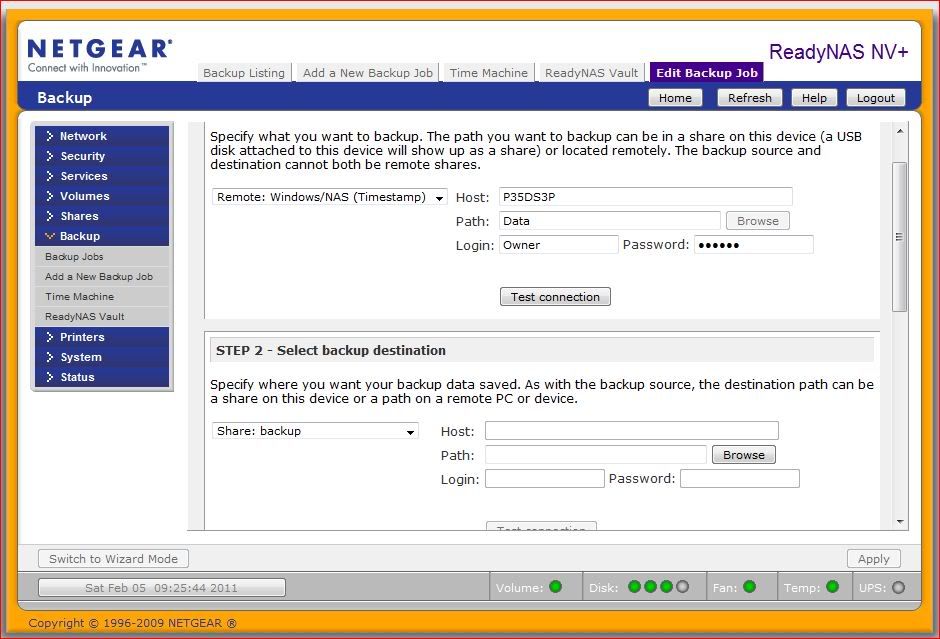
Now, my normal login is two words (first and last name) separated by a space. This works fine in Windows, but not in Linux apparently, so I used my admin login "owner" and it's password. When you use the name of folder/share and the name of the device, you do not use slashes. The fact that when you got the error message, it added the slashes, is a clue.
Note also that when backing up from or to a PC, the system is going to assume C:\. So for example when I entered P35DS3P as the host, that is the name of my computer and when I entered Data as the path, that is a first level folder off of C: (It is also an old folder that was deleted a few days after the screen shot was made).
If you are doing a one time backup of the NV+ to a drive attached to the PC which is not the boot/system drive, I would recommend you simply use Windows copy/paste of the files. It won't be much slower and far easier to set up. The backup jobs are set up to pull data from a PC and backup to or from another NAS, but backing up from an NAS to a PC is not normally done.
Here is the setup for one of my backup jobs pulling data from my NAS2 (NVX) to my NAS3 (NV+). There are 3 jobs that run daily starting at noon. My primary NAS1 (NVX) runs four backup jobs to NAS2 starting at midnight.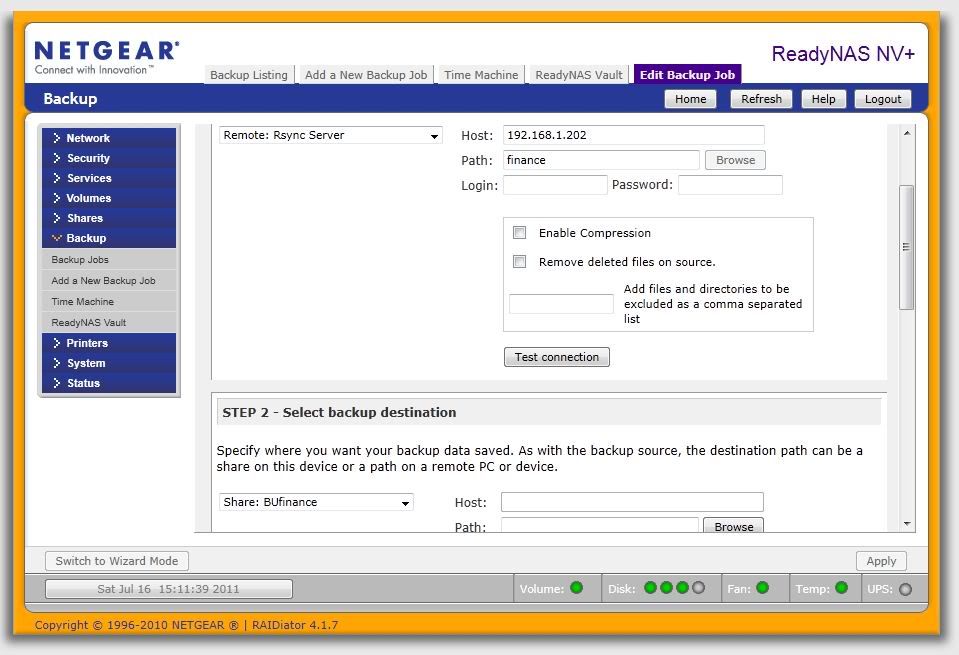
If you really want to push data from the NV+ to your PC, I can play around a bit, but I could never Frontview backup to recognize any drive other than C:\. - KimiusAspirantPerhaps I should have mentioned this before, but the examples I gave are for trying to access a different NV+ over CIFS. I have yet to try copying to/from a windows pc using frontview.
Also, the slashes that get added when using IE9 and 4.1.7? I tried to add in details without any slashes before the IP, and frontview added 3. Hence the line:
192.168.0.10/test = error message "Error connecting to ///192.168.0.10/test"
It should be noted that frontview has no problems actually performing the backup, as long as I create the backup job in Firefox. - PapaBear1ApprenticeLet's start over. What device are you trying to copy from and what device are you copying to?
Unless a Windows machine is one of the two, CIFS will not work. I appears like you have about three different scenarios going on, and we need to work on only one. We have already diverted from the original question by a wide margin. - KimiusAspirantFine. Here is the whole list of information, condensed down into a single post.
Source = ReadyNAS NV+ (old unit, 4x 1TB drives, firmware 4.1.6)
Destination = ReadyNAS NV+ (new unit, 4x 2TB drives, firmware 4.1.7)
Protocol = CIFS
Source IP = 192.168.0.10
Destination IP = 192.168.0.11
Source share = test
destination share = test
When making backup job from frontview on old NV+ (firmware 4.1.6)
Using Firefox: Task is created easily, task runs when asked to run, files are copied properly.
Using IE: Task is created easily, task runs when asked to run, files are copied properly.
When making backup job from frontview on new NV+ (firmware 4.1.7)
Using Firefox: Task is created easily, task runs when asked to run, files are copied properly.
Using IE: Task cannot be created. Any and all attempts to enter in IP and share name result in failure, with the message "Error connecting to ///192.168.0.10/test" or equivalent. Starting the job despite warnings result in backup job failing.
Please ignore the fact that I am using CIFS, because it works just fine. I actually much prefer this to using NFS, because it supports at least a trivial level of authentication, which NFS does not. The problem is not related to using CIFS in any way though. Using NFS gives the exact same results.
Is this sufficient, or do you require more information? - PapaBear1ApprenticeOK. Lets try this setup, using Frontview in FF please.
On the new NV+ (192.168.0.11) set up a new backup job.
For the source - select Remote:NFS Server
For the host - 192.168.0.10
For the path - test
Leave the rest of the job blank (assuming you do not have any passwords set up on the original NAS).
Open a new window by clicking on the source NAS (192.168.0.10) in RAIDar and then click on setup. Once Frontview has opened, click on the shares button in the left hand menu. Then click on share listing. In the listing for test, click on NFS and then in the next window, for default access click on either read/write or
read only. Then in the lower section for share access restrictions, in the appropriate blank (either for read only or root privilege-enabled hosts) enter the target NAS IP (192.168.0.11). Then click on the rsync tab at the top of the window and repeat for rsync. Then, click on apply. Please bear with me and try this, but I am not finished.
At this point, click back on the tab for the destination NV+ (192.168.0.11) and in the upper section listing the settings in the upper part of this post, click on test connection. It should successfully connect.
Then in the lower section, in the first blank, in the pull down menu, choose Share:test. Then click on apply.
Click on the backup job button in the left hand pull down menu. You should now be back at the listing of backup jobs. Your new backup job should be listed. On the right hand side, click on the "GO" button and it should run.
When it finishes, modify the backup job so that in the first box it now has Remote:Rsync Server. Verify that the Host is still 192.168.0.10, and path is test.
Then click on apply, then click on backup jobs to get back to the listing and then on Go for this backup job. This is the verification of the NFS backup.
For the initial backup, NFS is far faster than rsync, but for incremental backups, rsync is far far faster. Rsync performs a synchronization of the files between two NAS units set up to use rsync (not all do). For the three rsync jobs I have set up to synchronize three shares between my NAS2 (NVX) and my NAS3 (NV+) they ran between 7 and 21 seconds. This is primarily due to the fact that yesterday there were few and minor changes in the files. The longest I have had on recently take is 14 minutes. If you copy the files over manually and then set up the rsync, it can take many hours. The process determines which sectors have changed, and until you run NFS or rsync for the first time, it does not have a file to work against.
I know this works.
Related Content
NETGEAR Academy

Boost your skills with the Netgear Academy - Get trained, certified and stay ahead with the latest Netgear technology!
Join Us!
