NETGEAR is aware of a growing number of phone and online scams. To learn how to stay safe click here.
Forum Discussion

Scubbie
Jun 02, 2012Apprentice
Missing items in Ultra 6 Plus GUI Menu
Hi folks,
I'm currently setting up a new NAS (RNDP600U) and notice that the option to upload add-ons is missing.
I have the ReadyNAS Ultra Duo as well and would like to add a few of the add-ons to the new Ultra 6 Plus.
Is there anything which I may have missed/messed up or a simple hack to enable the missing option?
I have the current RAIDiator firmware 4.2.20 installed on both. The new NAS currently has 3 x 3TB drives installed using RAID Level X-RAID2. The intention is to expand the Ultra 6 Plus soon to house 6 drives, so I would like to address this issue before too much data is moved across.
I'm currently setting up a new NAS (RNDP600U) and notice that the option to upload add-ons is missing.
I have the ReadyNAS Ultra Duo as well and would like to add a few of the add-ons to the new Ultra 6 Plus.
Is there anything which I may have missed/messed up or a simple hack to enable the missing option?
I have the current RAIDiator firmware 4.2.20 installed on both. The new NAS currently has 3 x 3TB drives installed using RAID Level X-RAID2. The intention is to expand the Ultra 6 Plus soon to house 6 drives, so I would like to address this issue before too much data is moved across.
12 Replies
Replies have been turned off for this discussion
 StephenBGuru - Experienced UserFrontview's bottom left menu item should be "Add-ons", when you click on it you should see "add new" in the expanded list.
Are you seeing something different?- mdgm-ntgrNETGEAR Employee RetiredWhat firmware was on the unit when you last did a factory default?
Can you try clearing your web browser cache (e.g. Temporary Internet Files in IE or Safari > Empty Cache in Safari) closing your web browser then reopening Frontview?
If you still can't see it, try an OS Re-install: http://www.readynas.com/kb/faq/boot/how_do_i_use_the_boot_menu
Then if you still can't see it clean your web browser cache again, close your web browser and reopen Frontview.  ScubbieApprenticeThank you both for your replies.
I had tried accessing the NAS from a 2nd computer and that too failed to display the 'Add-Ons' tab, so this issue isn't related to cache.
However, in the word of Victor Meldrew - "I don't believe it!"
I logged back on to the NAS after reading your responses and low & behold the option is now there. :?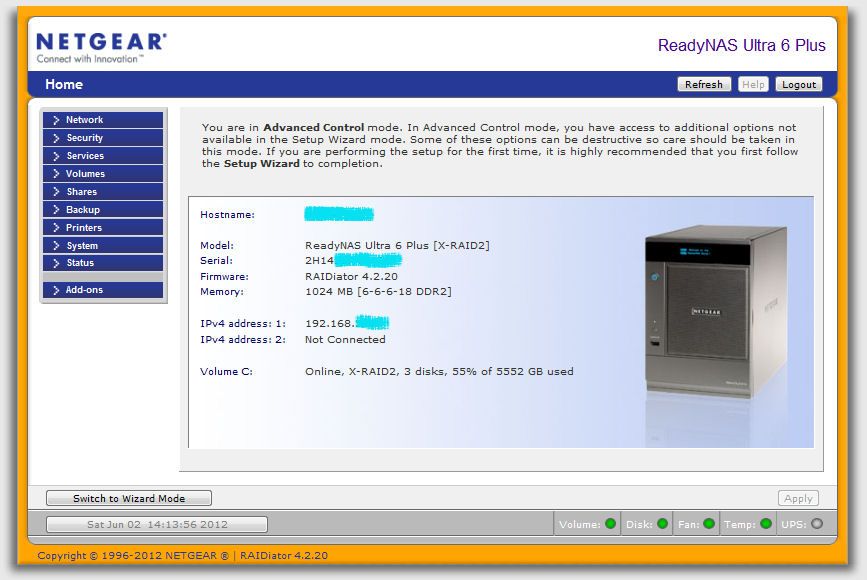
I would swear (if it weren't banned on the forum) that it wasn't like that for the past couple of days.
The unit hasn't been powered off since I looked before posting. I had power cycled it a couple of times after I had got it p and running. Since yesterday I was copying some files across to the unit and it had paused.
So now I am really puzzled having done nothing to the NAS to resolve this.
With regards to the firmware which was installed when I set it up, if was 4.2.15. Once registered the first thing I did was to update it to the latest version as I know that 4.2.15 is unsuitable for the 3TB drives. This took most of Thursday to complete as it took 5 hours alone to reconfigure the drives once the new firmware had been installed.- mdgm-ntgrNETGEAR Employee RetiredSounds like Frontview from 4.2.15 was cached which was why you couldn't see the new Add-Ons Menu which was added in 4.2.16.
- ScubbieApprenticeIt must have been cached on the NAS then as I had the same issue on two computers, using the 2nd for the first time late yesterday evening. I even opened up two separate browser windows so that I could see the two NAS units side by side to check what I was seeing.
I know that the previous firmware (4.2.19) was released last year, so I am surprised that it had 4.2.15 installed when it arrived.
At least it is working properly now and i can get on with a few things. :) - mdgm-ntgrNETGEAR Employee RetiredWell that is odd then. There's no reason why a computer accessing the NAS for the first time should see this issue if already on 4.2.16. Caching of the browser happens on the client machine not on the NAS. If you had restored a config backup from pre-4.2.16 if it included the apache config you'd see the issue but it would only be fixed by an OS Re-install.
There are a few possible reasons for why the unit shipped with 4.2.15:
1. NAS unit could have been produced a long time ago now and been sitting on a shelf somewhere (e.g. at the reseller)
2. You cannot downgrade from 4.2.16 to earlier firmware so it's possible that NetGear still produced units with 4.2.15 pre-installed for a long while after 4.2.16 was released for those users who preferred to use older firmware. NetGear recommends running the latest firmware.
I'd recommend you choose to use dual-redundancy. See http://support.netgear.com/app/answers/detail/a_id/19044/~/converting-and-xraid2-system-to-dual-redundancy - ScubbieApprenticePoint taken about the older firmware. I bought the Duo back in September so I know that 4.2.19 has been around since before then. There is a label on the underside of the NAS that indicates the model & serial numbers, etc. It doesn't indicate when it was made though. I have the original packaging but removed all the shipping labels, including those from Netgear to where I bought it from.
mdgm wrote: I'd recommend you choose to use dual-redundancy. See http://support.netgear.com/app/answers/detail/a_id/19044/~/converting-and-xraid2-system-to-dual-redundancy
I had thought about this but I currently have enough material to fill the 12GB capacity that this would provide me with and no room for any increase. The sinredundancyency should be fine for my requirements. The fact that I have bought half the drives now, with the remaining in a few weeks, possibly from another source (price dependant), should prevent dual failure foccurringring. Murphy's law suggests that this will happen now :roll: .
Once the data migration has been completed I will be free to wipe the Duo and use that for backing up the more critical content. and possibly a few other tasks too. - mdgm-ntgrNETGEAR Employee RetiredSomething to be aware of is that the volume can only be expanded by 8TB over the life of the volume. So e.g. a volume of 2TB at factory default can be expanded to 10TB.
By adding 3x3TB drives and sticking with single-redundancy you're pushing up around that limit. I think you'd hit the limit.
If the volume capacity was less than what it is now when you last factory reset then you'd definitely be best to do a factory default (wipes all data, settings, everything). I'd suggest doing it with at least four 3TB disks in place. - ScubbieApprenticePhooey!
Thank you for that heads up. Adding 3 more 3TB drive will increase the capacity by a further 9TB so it will go above the 8TB limit. I missed that in the manual.
Since I am copying the data across, as opposed to moving it, the data remains in it's original location so I will be able to repeat the task quite easily.
The experience of setting it all up has been useful though and I'll be able to note the settings before I wipe it to restart. - ScubbieApprenticeFor reference I have now populated the NAS with the additional 3 drives (i.e. now fully populated with six 3TB drives).
It accepted the first two without any issues, alouth it did take around 24 hours to add each drive.
The 3rd and final drive wouldn't take. I guess this could be related to the 8GB issue. Instead I had to perform a factory reset and am happily copying all the contents back on.
With 13884GB of storage, I guess it'll keep me going for a couple of months 8)
Thank you.

Related Content
NETGEAR Academy

Boost your skills with the Netgear Academy - Get trained, certified and stay ahead with the latest Netgear technology!
Join Us!
